

Set up a recurring bill
A recurring bill is a schedule that enters the same bill for you — office rent, a software subscription, a monthly retainer — so you never forget one. On each run Spine creates the bill and either records it or saves it as a draft for you to check.
-
Open recurring bills — Go to Vendor Bills and press Recurring bills.
-
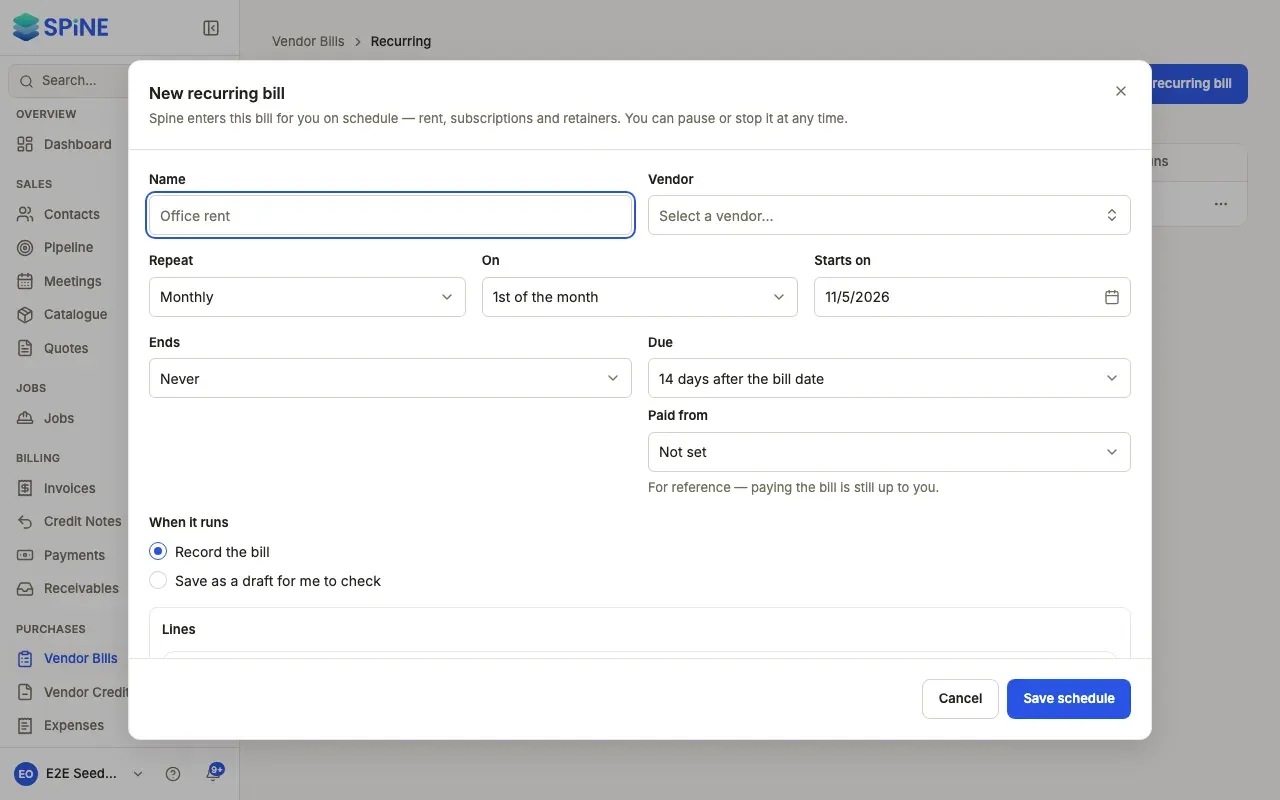
Start a schedule — Press + New recurring bill. Or, on an existing bill’s page, open More and choose Make recurring to start with its vendor and lines.
-
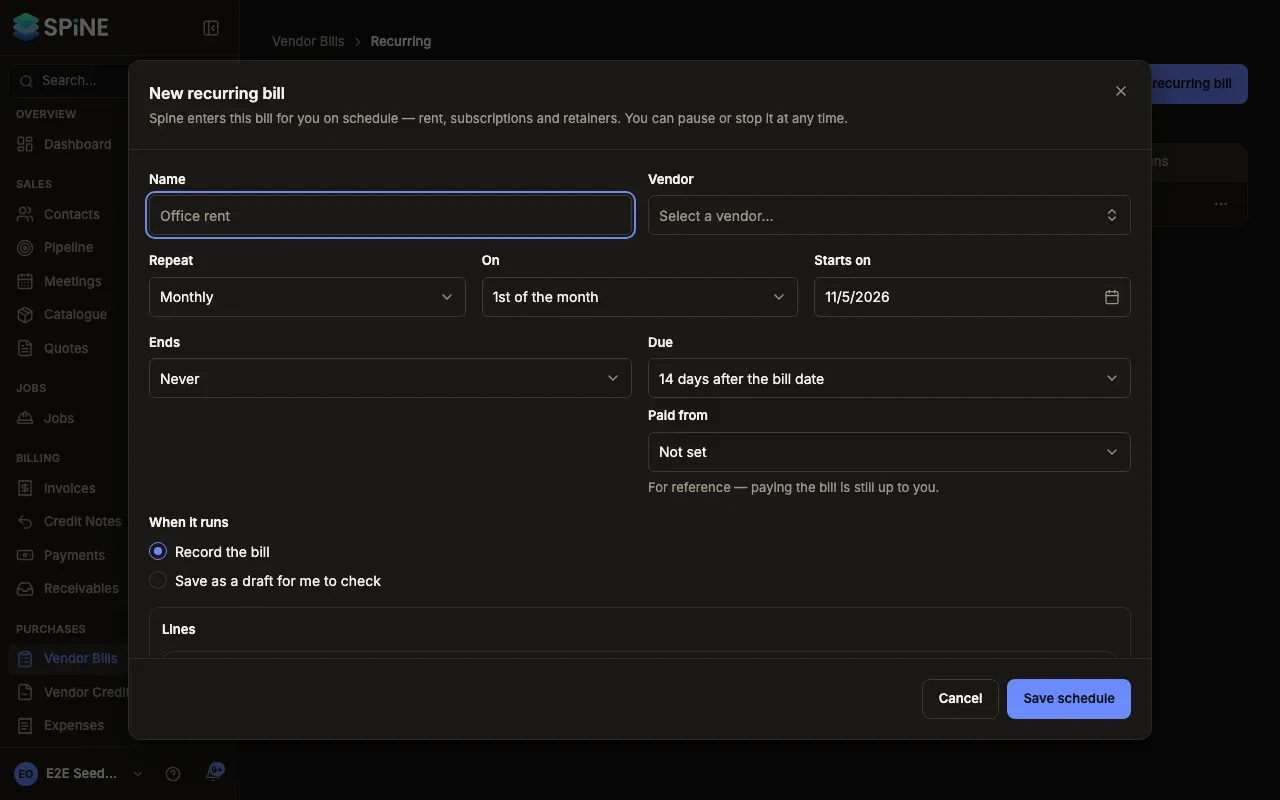
Say what to enter — Give it a Name (for example “Office rent”), choose the Vendor and add the Lines.
-
Say when — Choose how it will Repeat (weekly, monthly, quarterly or yearly) and the day On which it runs. Set Starts on, and when it Ends: Never, On a date or After a number of bills. Due sets when it’s due, from On the bill date to 60 days after the bill date.
-
Choose what happens — Under When it runs, choose Record the bill or Save as a draft for me to check. Paid from is for reference only — paying the bill is still up to you.
-
Save — Press Save schedule. The toast says when the first bill is.
What happens on the day
Section titled “What happens on the day”Runs happen at 6:00 AM organisation time. Each run creates one bill with that day’s date, the schedule’s lines and its due date, and says “Created by Recurring bill <name>”. With Record the bill, it’s posted straight away. With Save as a draft for me to check, Owners are told “Recurring bill ready to review: <name>”.
If Spine was off on a run date, each missed bill is created once, in order, when it starts again. When the end condition is met, the schedule shows Finished.
Pause, change or stop a schedule
Section titled “Pause, change or stop a schedule”The list shows each schedule’s name, vendor, how often it repeats, the next bill, the amount, when it runs and its status: Active, Paused or Finished. Open a row’s menu to:
- Pause — no bills are created until you press Resume, which sets the next bill to the next date still to come.
- Edit — changes apply to bills it creates from now on. Bills it already created stay as they are.
- Delete — Spine asks “Delete this schedule?” first. Bills it already created are kept.
Last updated with Spine 1.0.0-beta.2