

Export all your data
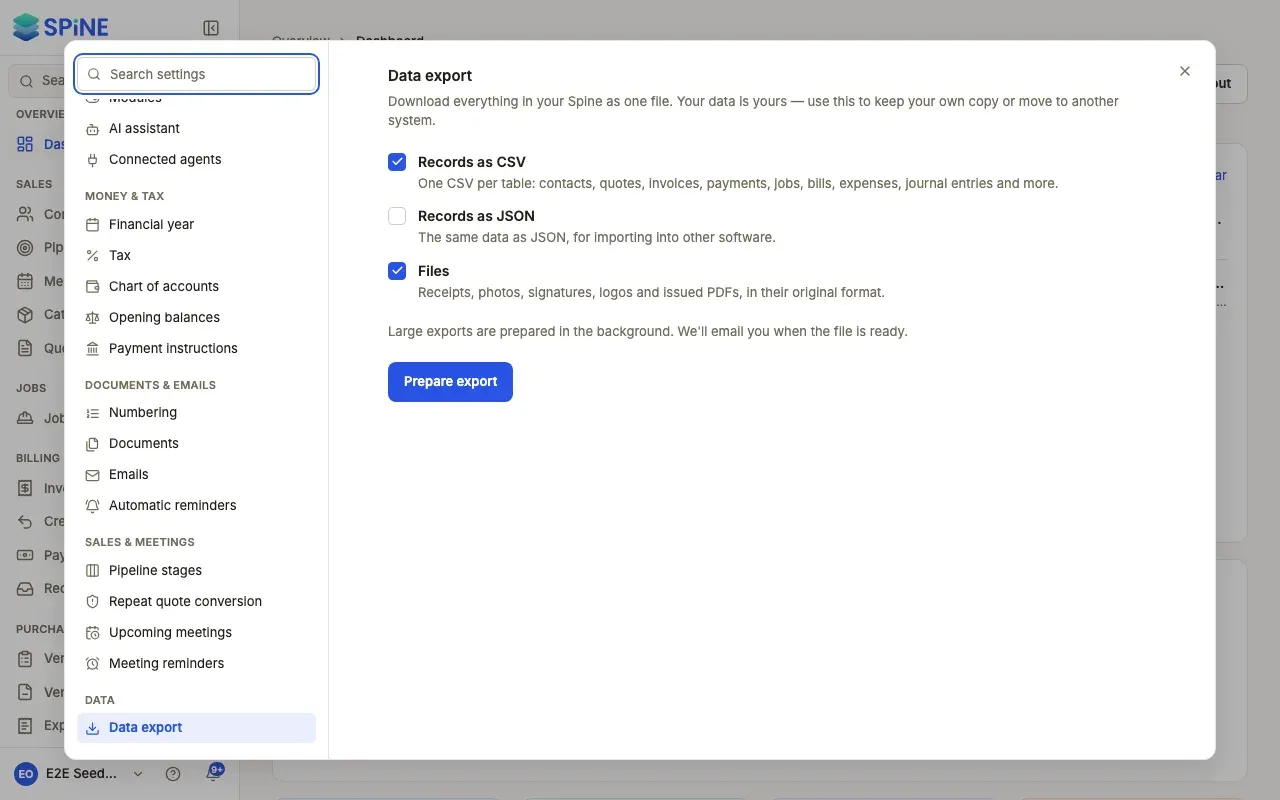
“Download everything in your Spine as one file. Your data is yours — use this to keep your own copy or move to another system.” The export is a ZIP with your records and, if you choose, your files.
-
Open Settings › Data export — Open your user menu, choose Settings, and pick Data export under Data.
-
Choose what to include —
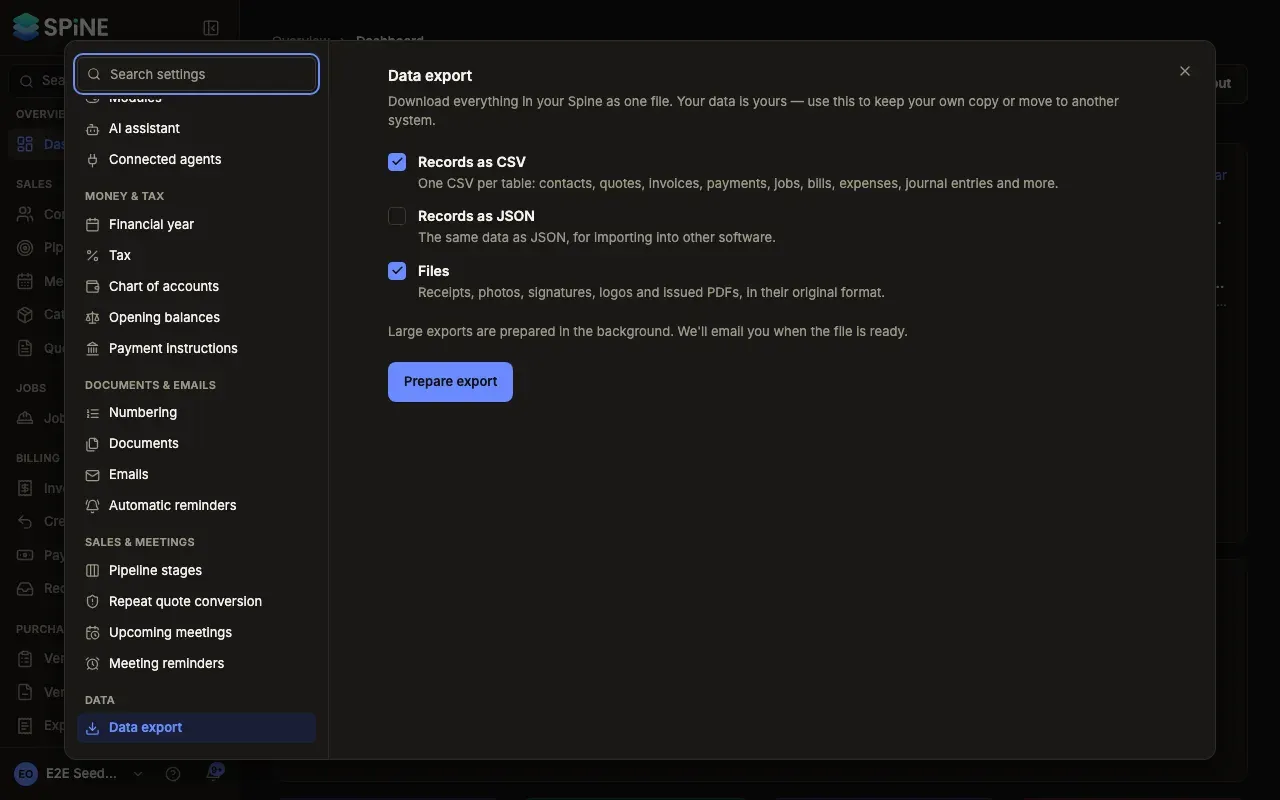
- Records as CSV (on by default) — “One CSV per table: contacts, quotes, invoices, payments, jobs, bills, expenses, journal entries and more.”
- Records as JSON — “The same data as JSON, for importing into other software.”
- Files — “Receipts, photos, signatures, logos and issued PDFs, in their original format.”
Choose CSV, JSON or both.
-
Press Prepare export — The button shows Preparing…. “Large exports are prepared in the background. We’ll email you when the file is ready.”
-
Download it — Come back to the pane when it’s ready. Last export shows the date, who asked for it and its size, with Download again and when the link expires.
What’s in the ZIP
Section titled “What’s in the ZIP”- One CSV (or JSON) file per table, each with a header row.
- A
files/folder when you chose Files. - A
README.txtthat describes each file.
Passwords, sign-in sessions and other secrets are never exported.
Kept private
Section titled “Kept private”- Owners only. Anyone without an Owner sign-in who opens the download link gets “not found”.
- Links last 7 days. After that the link stops working and the file is deleted.
- It’s in the audit log. Preparing and downloading an export are both recorded with the person who did it.
- The email links to Settings, never to the file itself, so a forwarded email can’t hand out your data.
Last updated with Spine 1.0.0-beta.2