

Revise a sent quote
A sent quote is never edited, so there’s always a record of exactly what the customer was offered. To change the price, the scope or the date, you revise it. Spine makes a new draft version with the same lines, and the customer can only answer the newest version.
-
Open the quote — Go to Quotes and open the sent, accepted, declined or expired quote.
-
Press Revise — It’s the main button on a declined or expired quote, beside it on a sent quote, and under More on an accepted one. You can also choose Revise from the row’s … menu on the Quotes list.
-
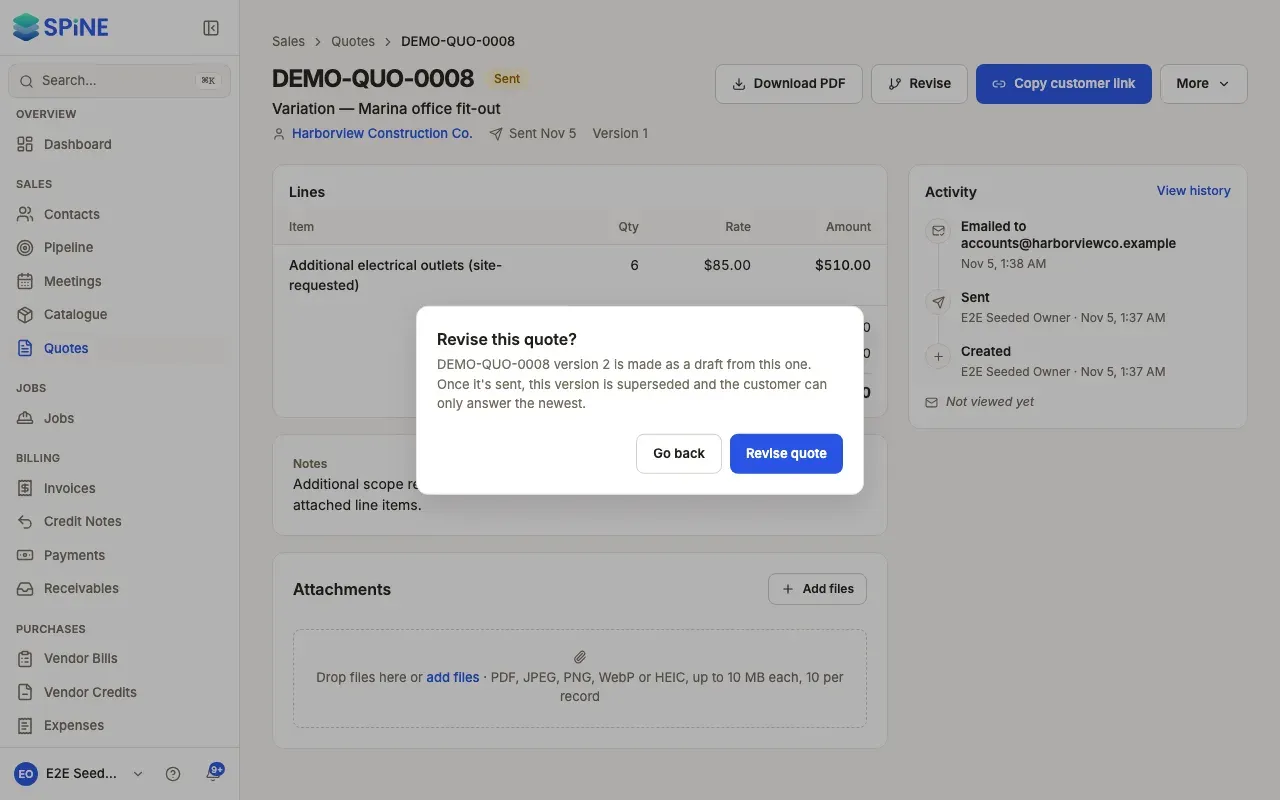
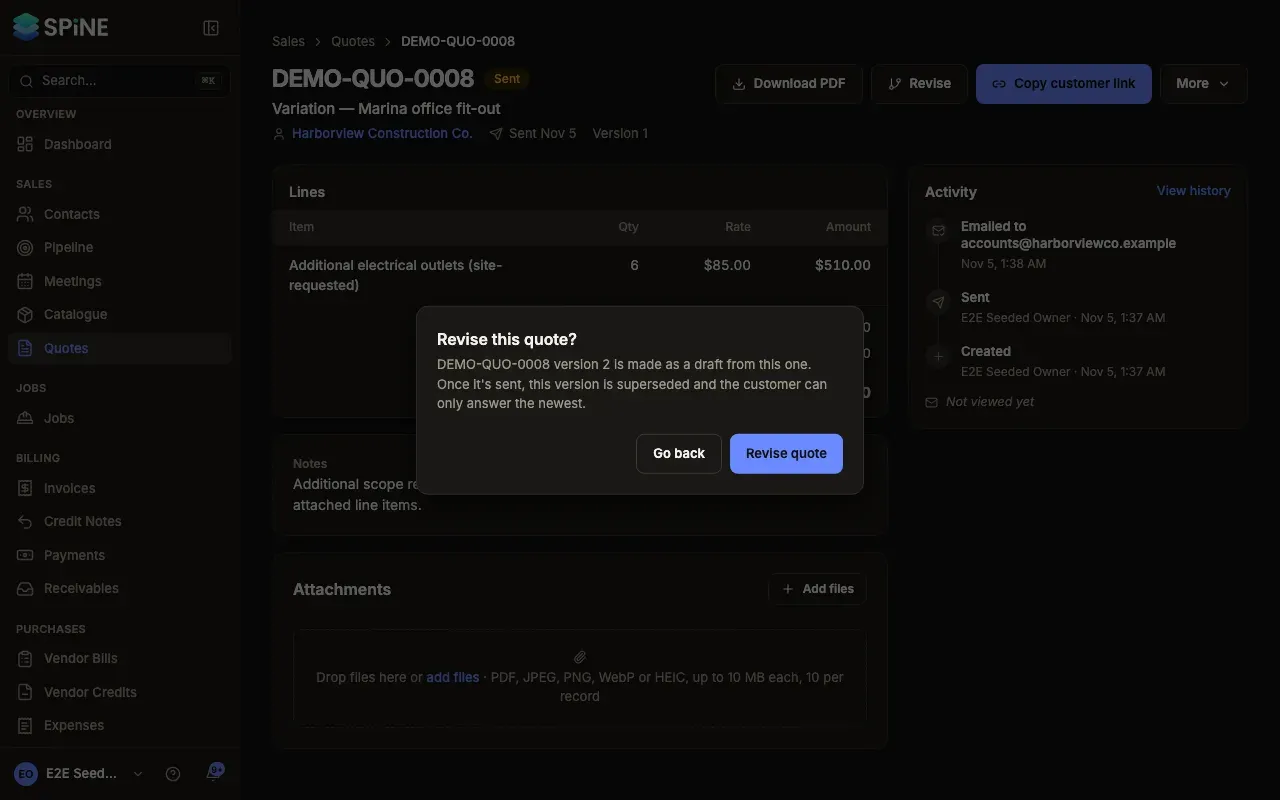
Confirm — Spine asks Revise this quote? and explains that the new version is made as a draft. Press Revise quote.
-
Make your changes — The new version opens in the builder, with the same contact, title, lines, notes and terms. A toast says the quote was revised. Change what you need, including Valid until, and save it.
-
Send the new version — Open it and press Send quote, as for any draft.
What happens to the earlier version
Section titled “What happens to the earlier version”- It’s kept as it was, and its page says Superseded by with a link to the new version.
- Its customer links stop working as soon as you revise. A customer who opens one sees This quote link has expired, with your contact details, until you send them the new version.
- The Related panel on each version lists every version (v1, v2 and so on) with its status chip, and “this one” beside the version you’re looking at.
- The new version’s Activity starts with Revised from a link to the earlier one.
Revising an expired quote
Section titled “Revising an expired quote”An expired quote’s main button is Revise. Give the new version a fresh Valid until date and send it, and the customer gets a quote they can accept at today’s prices.
If revising fails, you see “Could not revise this quote.” Try again, or check whether someone has already revised it.
Last updated with Spine 1.0.0-beta.2