

Raise a variation order
When the customer asks for extra work, or the scope changes, raise a variation order. It’s a quote linked to the job, so the change is priced, accepted and billed on its own, and the job’s history shows where the extra money came from.
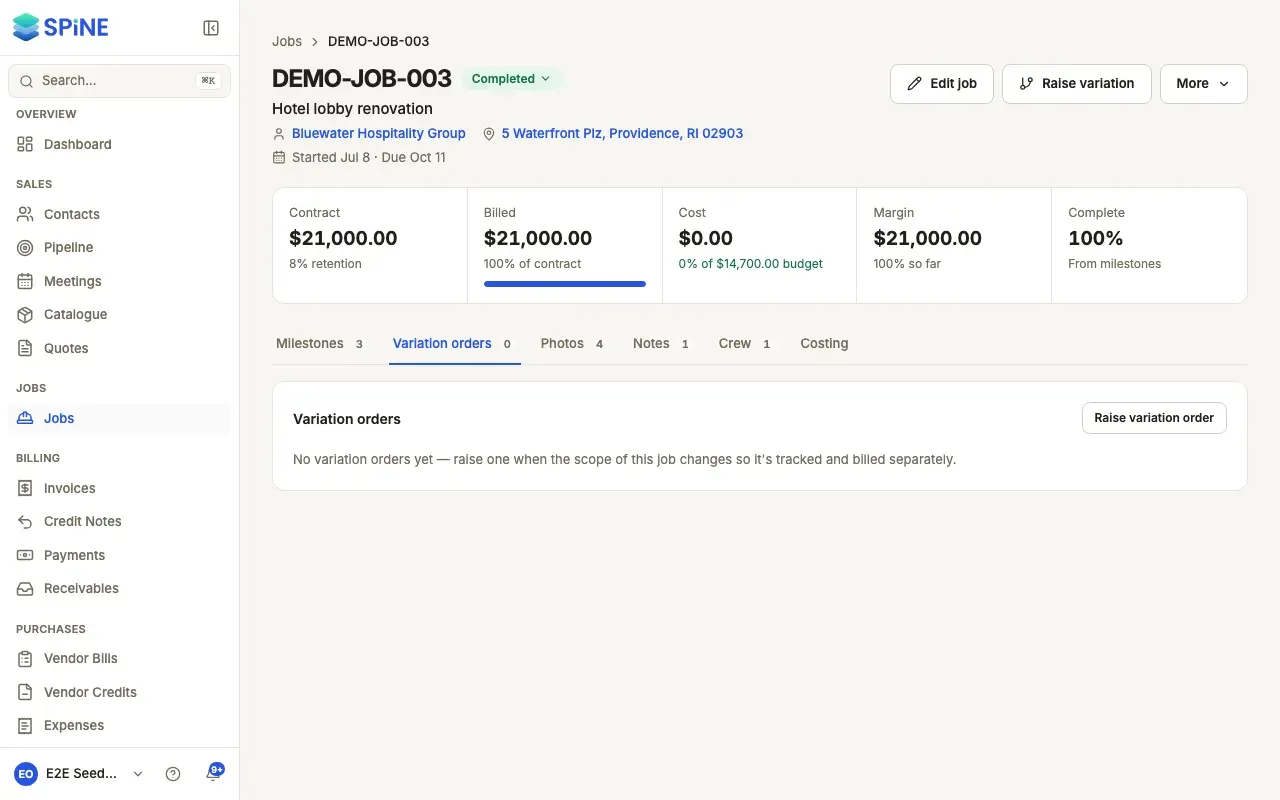
- Open the job — Go to Jobs, open the job and choose the Variation orders tab.
- Start the variation — Press Raise variation order on the tab, or Raise variation at the top of the job.
- Add the lines — In “Raise a variation order”, use Add item, Add heading and Add text line. Each item has a name, Qty, Unit price, Discount % and Tax, and you can tick Price includes tax. Use Prefill from catalogue… to copy an item from your catalogue.
- Create it — Press Create variation order. A draft variation quote, linked to the job, is listed on the tab.
- Send it — Click the variation’s quote number to open it, then send it to the customer as you would any quote.
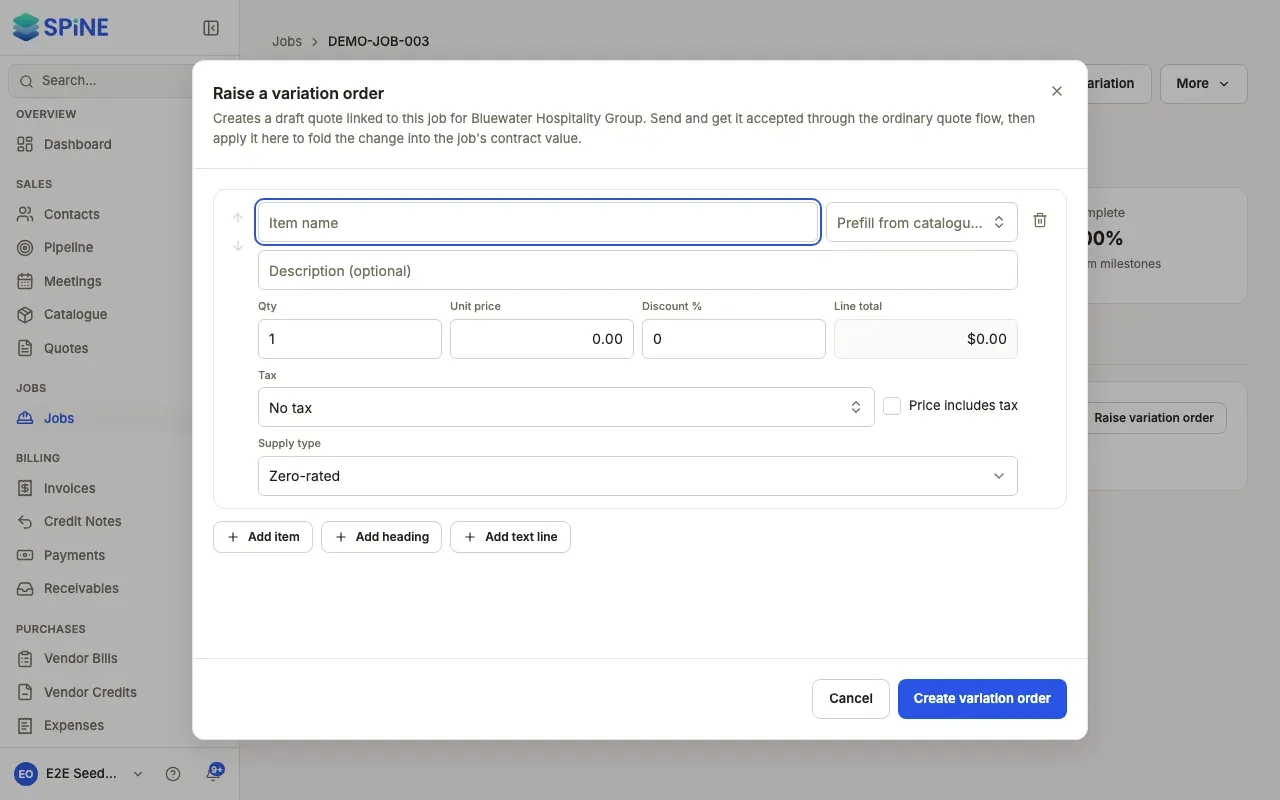
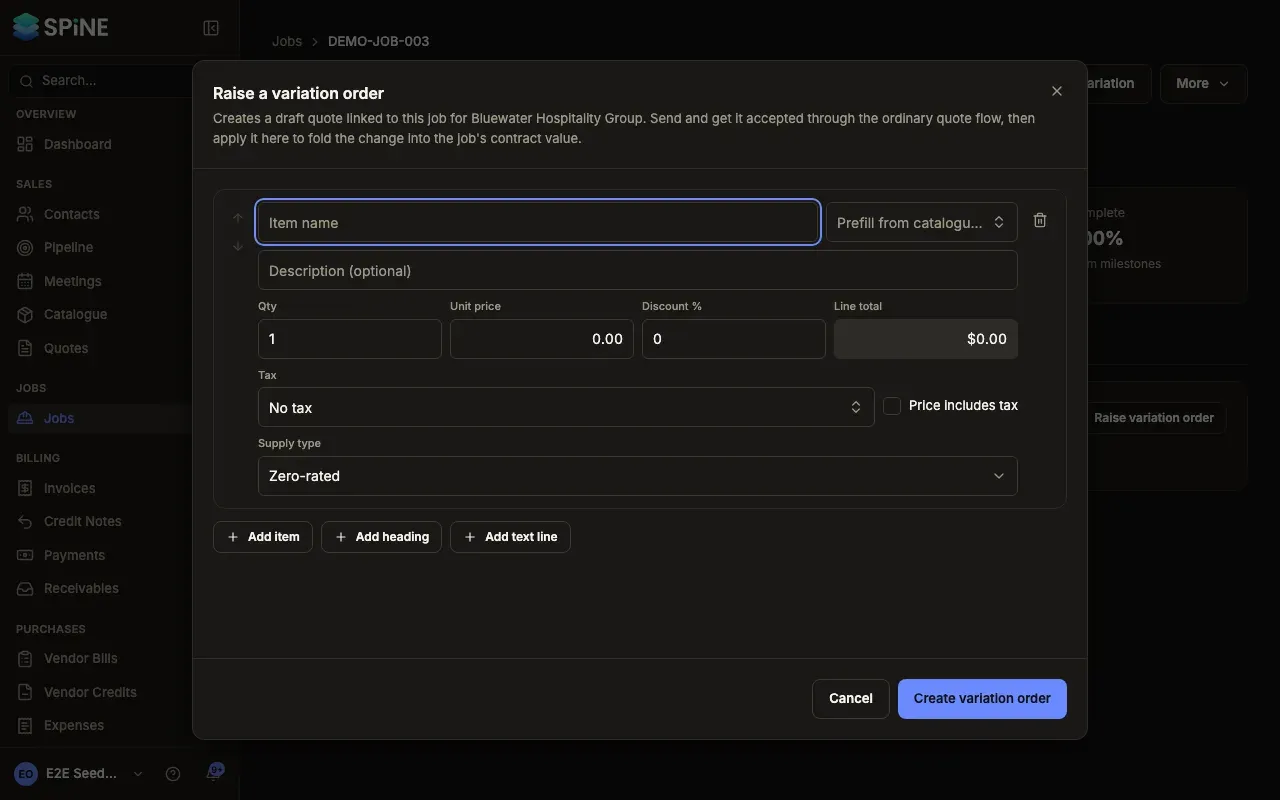
Every item line needs a name. If one doesn’t have one, you see “Every line needs a name.” and nothing is created.
Following it on the job
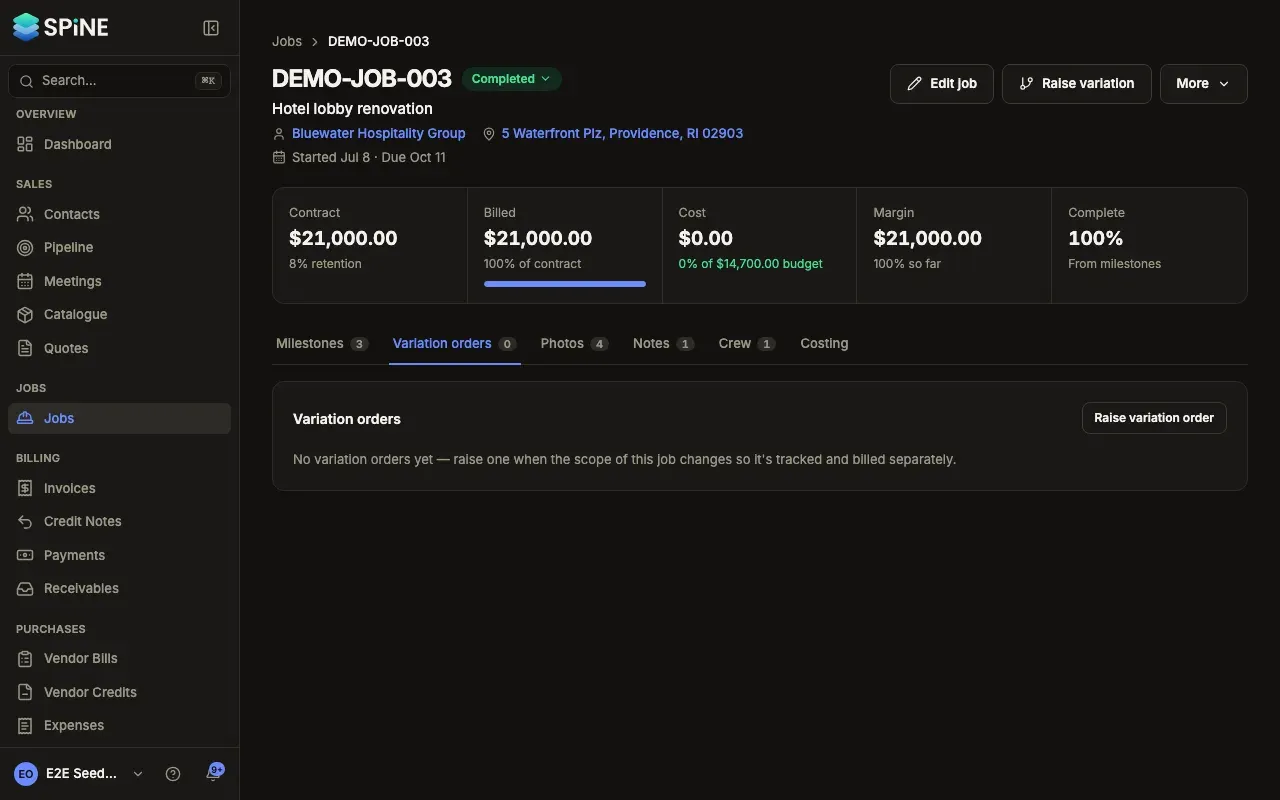
Section titled “Following it on the job”Each variation on the Variation orders tab shows its quote number, its quote status (Draft, Sent, Accepted or Rejected), when it was raised and its total. The tab’s count shows how many variations the job has.
What happens next
Section titled “What happens next”- The customer accepts or declines the variation quote in the usual ways: from the quote link you send, or in person with your crew in the field app.
- When it’s accepted, the office gets a notification.
- An accepted variation doesn’t change the job by itself. Apply it to add its total to the contract value: see Apply an accepted variation order.
For sending, following up and revising the quote, see the Quotes guide.
Last updated with Spine 1.0.0-beta.2