

Show payment instructions on invoices
Payment instructions tell customers how to pay you: your bank account, a payment reference, or anything else they need. You enter them once, and Spine prints them on every invoice you issue from then on and in every invoice email. In India you can also add a UPI QR code that customers scan to pay.
-
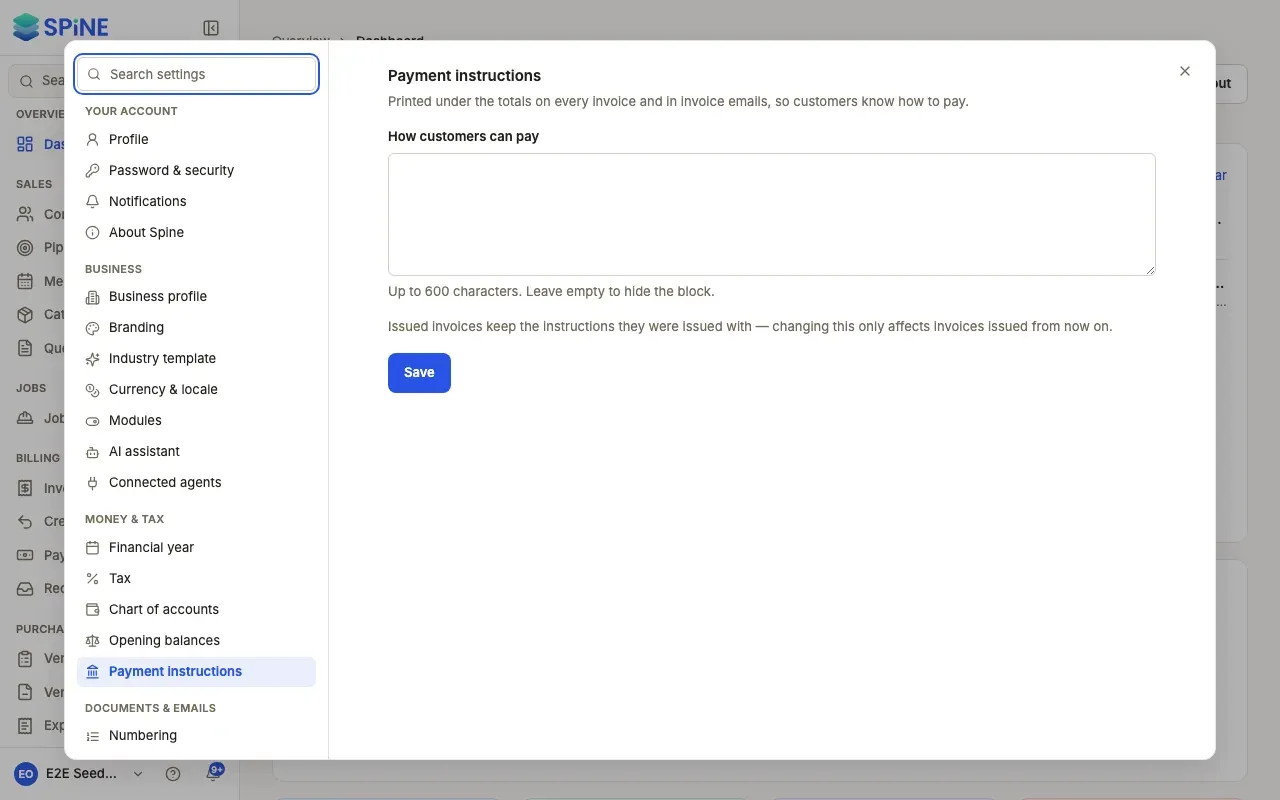
Open the setting — Open Settings and go to Money & tax › Payment instructions.
-
Write the instructions — In How customers can pay, enter your bank details and anything else customers need. Keep it to 600 characters. Leave it empty to hide the block.
-
Add UPI (India only) — Enter your UPI ID, for example riverstone@okhdfc. Payee name starts as your business name. Show a UPI QR code on invoices is on once a UPI ID is saved.
-
Save — Press Save.
Where they appear
Section titled “Where they appear”- On the invoice PDF, in a “How to pay” block under the totals.
- In invoice emails and reminders, in a “How to pay” box above the closing note.
- On customer statements, at the bottom.
With no instructions set, no empty block appears.
The UPI QR code
Section titled “The UPI QR code”Each issued invoice gets a QR code for its balance due, with “Scan to pay” and the amount, and your UPI ID beside it. Any UPI app that scans it opens with your payee name, the amount and the invoice number as the note. An invoice with nothing due when it’s issued (for example, fully covered by a deposit) gets no QR code.
If Spine won’t save
Section titled “If Spine won’t save”- More than 600 characters: “Keep this under 600 characters.”
- A UPI ID with spaces or without “@”: “Enter a UPI ID like name@bank.”
Last updated with Spine 1.0.0-beta.2