

Track or void a vendor credit
The Vendor credits list and each credit’s page show how much credit is left to use, so no credit sits forgotten. If a credit was recorded by mistake and nothing has been applied or refunded, you can void it.
See what’s left to use
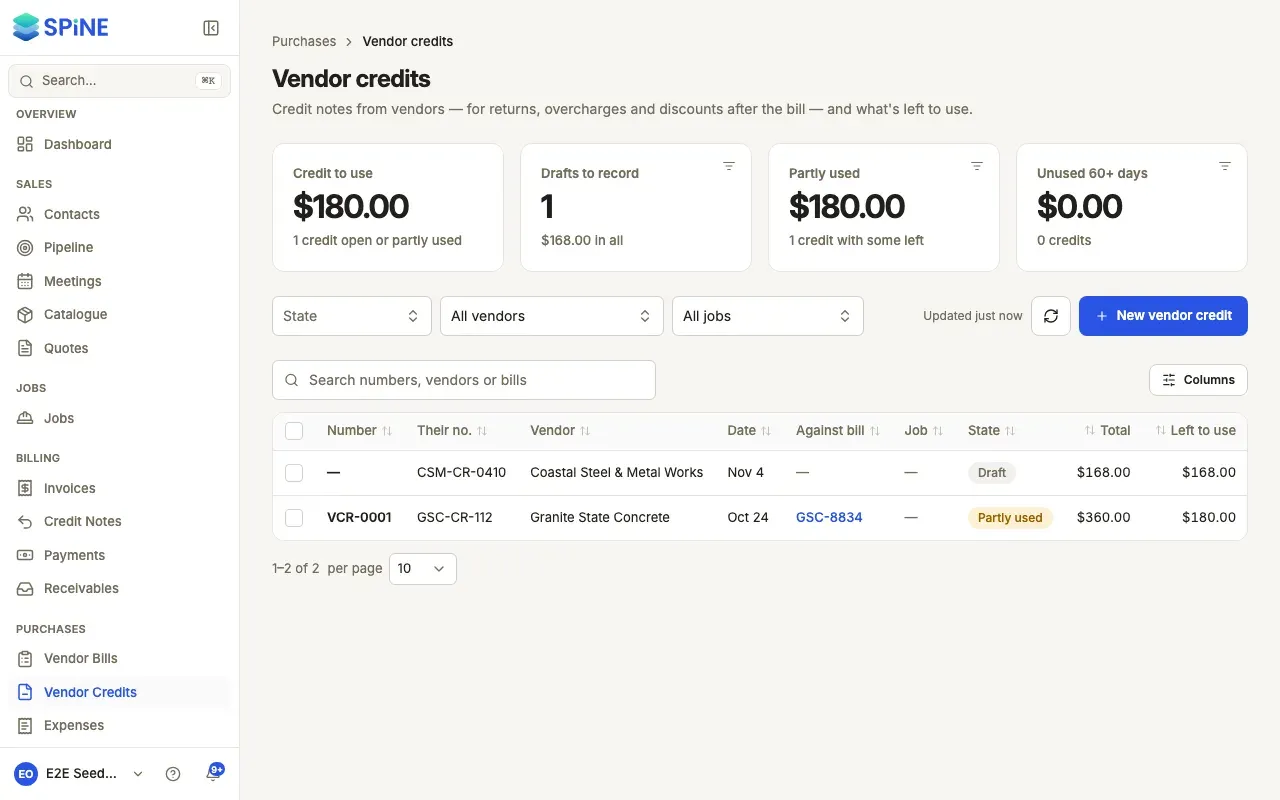
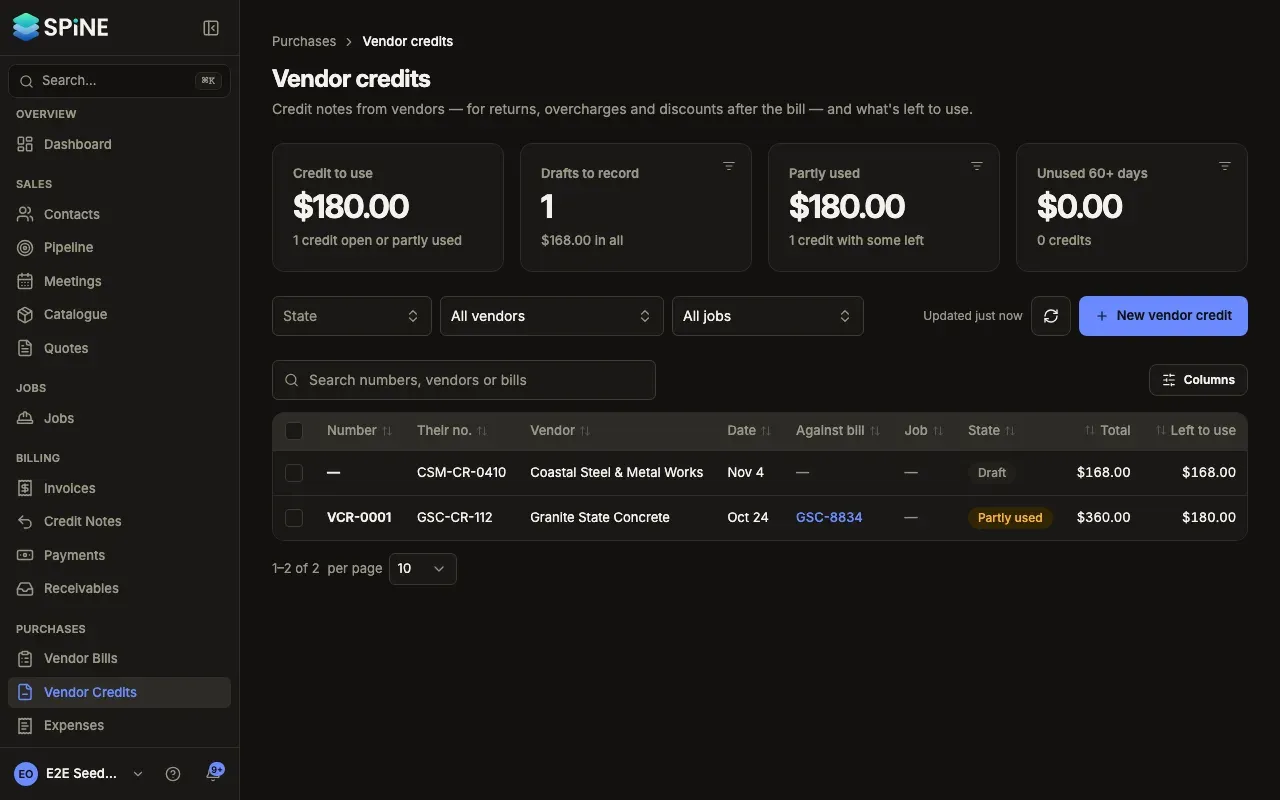
Section titled “See what’s left to use”Go to Vendor Credits. The cards read:
- Credit to use — what’s left on open and partly used credits, and how many.
- Drafts to record — drafts not yet posted, with their total.
- Partly used — credits with some left.
- Unused 60+ days — open credit dated 60 or more days ago. Ask for a refund?
Press Drafts to record, Partly used or Unused 60+ days to show only those; press again to clear. Filter by state, vendor or job, or search numbers, vendors or bills. Each row shows the number, the vendor’s number, the vendor, the date, the bill it’s against, the job, the state, the total and Left to use. The newest credit comes first.
Read a credit’s page
Section titled “Read a credit’s page”A credit’s state is one of Draft, Open, Partly used, Used or Void. Under the title you see the vendor, their credit note number, the date, the bill it’s against, and the job. The strip reads Total, Applied to bills, Refunded and Left to use. Below the lines, Applied to bills and Refunds list where the credit went, and Activity lists each step with who and when.
Void a credit
Section titled “Void a credit”-
Open the credit — Open the recorded credit.
-
Choose Void credit — Open More and choose Void credit.
-
Give a reason — “Void VCR-0004?” says what you owe the vendor goes back up. Enter the Reason.
-
Confirm — Press Void credit.
A reversing entry takes the credit off your books, and the page reads “Void — <reason>”. If it was tagged to a job, that job’s cost goes back up.
If the credit has been applied to bills or refunded, you see “Remove its 2 applications and refunds first.” and nothing changes. Remove each one from Applied to bills or Refunds, then void it.
Last updated with Spine 1.0.0-beta.2