

Change your business profile
Your business profile is what customers see at the top of every quote, invoice, credit note and receipt, on the public quote page and in your emails. Keep it current here — Spine takes it from this pane each time it makes a new document.
-
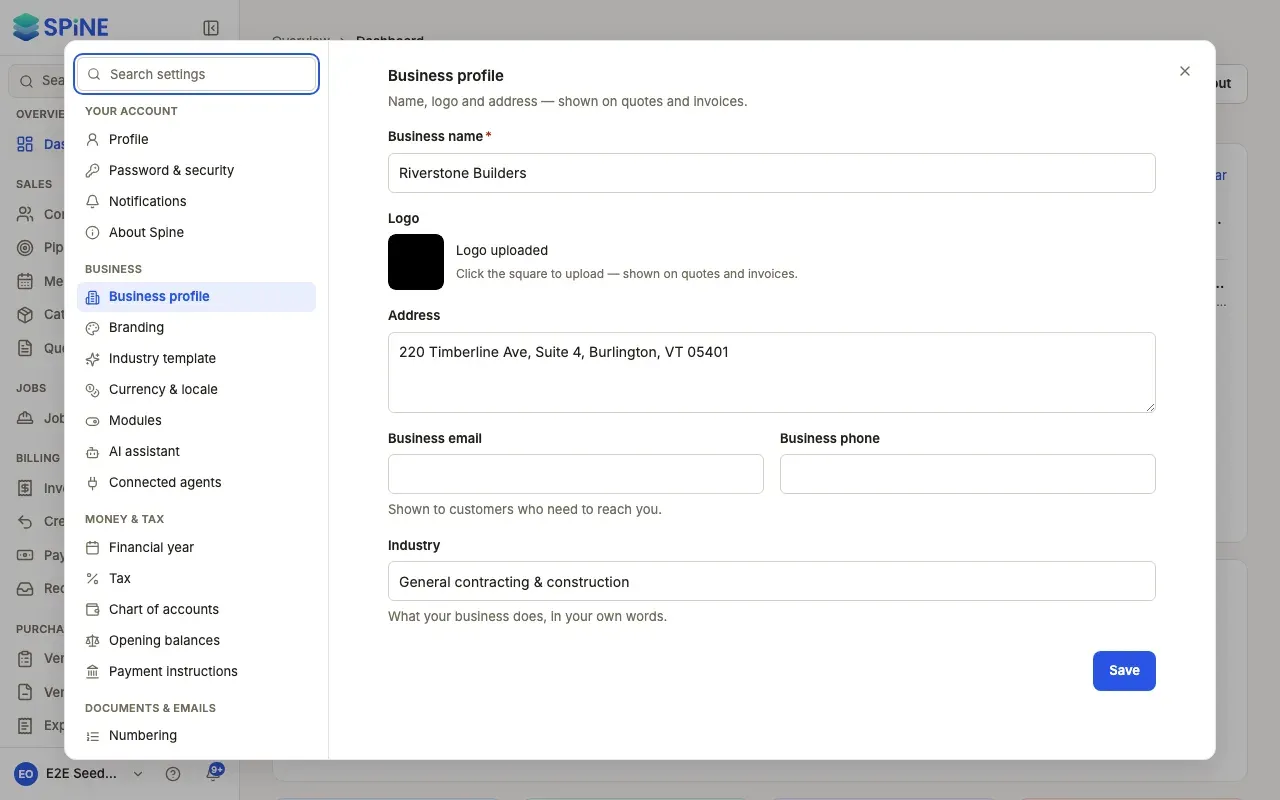
Open Settings › Business profile — Open your user menu, choose Settings, and pick Business profile under Business. It shows your current details.
-
Change your details — Edit Business name (required), Address, Business email (“Shown to customers who need to reach you.”), Business phone and Industry (what your business does, in your own words).
-
Change your logo — Click the logo square and pick an image up to 10 MB. When it’s uploaded the square shows “Logo uploaded”. A square logo looks sharpest.
-
Press Save — A “Saved” message appears.
What changes, and what doesn’t
Section titled “What changes, and what doesn’t”- New documents — PDFs made from now on, and the public quote page, show the new name, address and logo.
- Issued documents keep theirs. An issued quote, invoice or receipt snapshots your details when it’s issued, so its PDF keeps the logo and address it was issued with.
- Your organisation’s name in Spine changes with the business name.
If something goes wrong
Section titled “If something goes wrong”- Business name is empty — saving is refused and the field shows an error. Enter a name and save again.
- “Could not upload logo.” — the logo didn’t upload, often because file storage isn’t reachable. Try again; the other details still save without it.
Last updated with Spine 1.0.0-beta.2