

Choose your theme and document colour
Branding sets two things: the accent colour everyone sees in Spine, and the colour and footer printed on the documents and emails your customers get. Your logo isn’t here — it’s in Business profile.
-
Open Settings › Branding — Open your user menu, choose Settings, and pick Branding under Business.
-
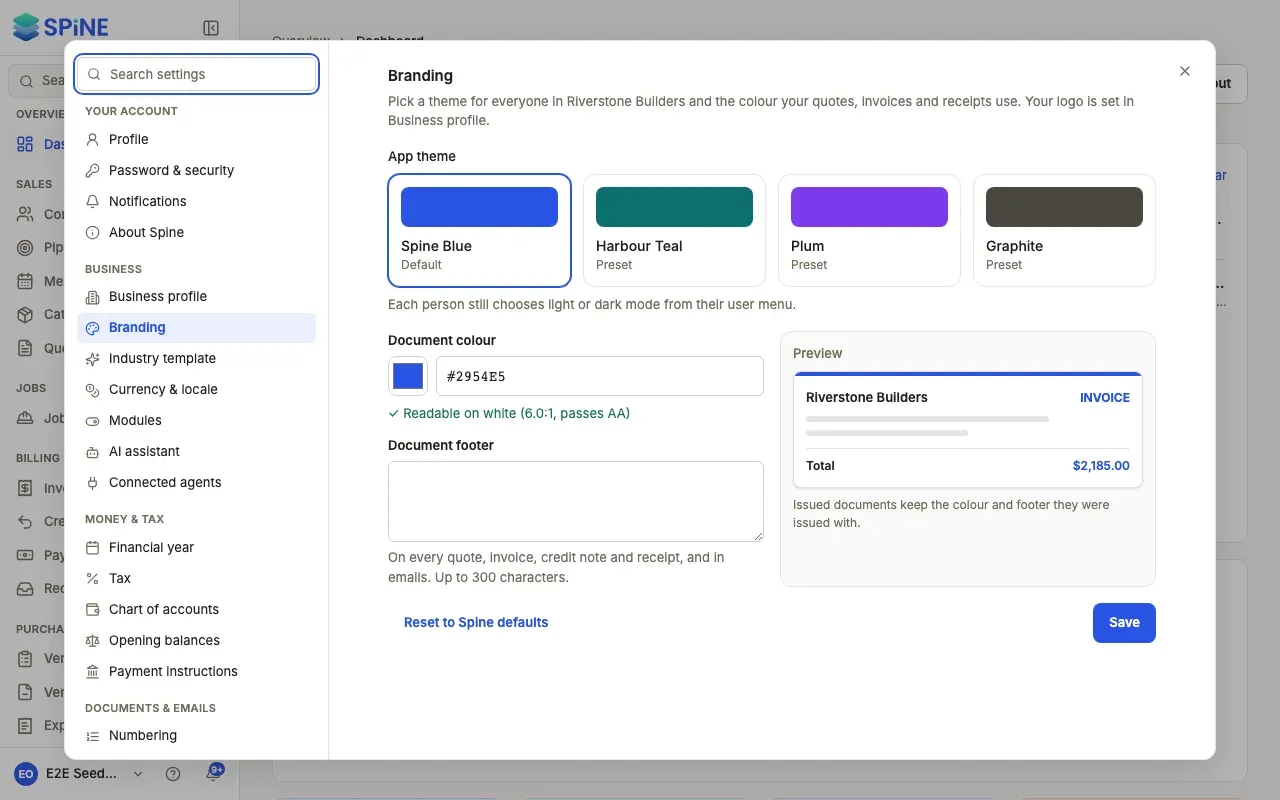
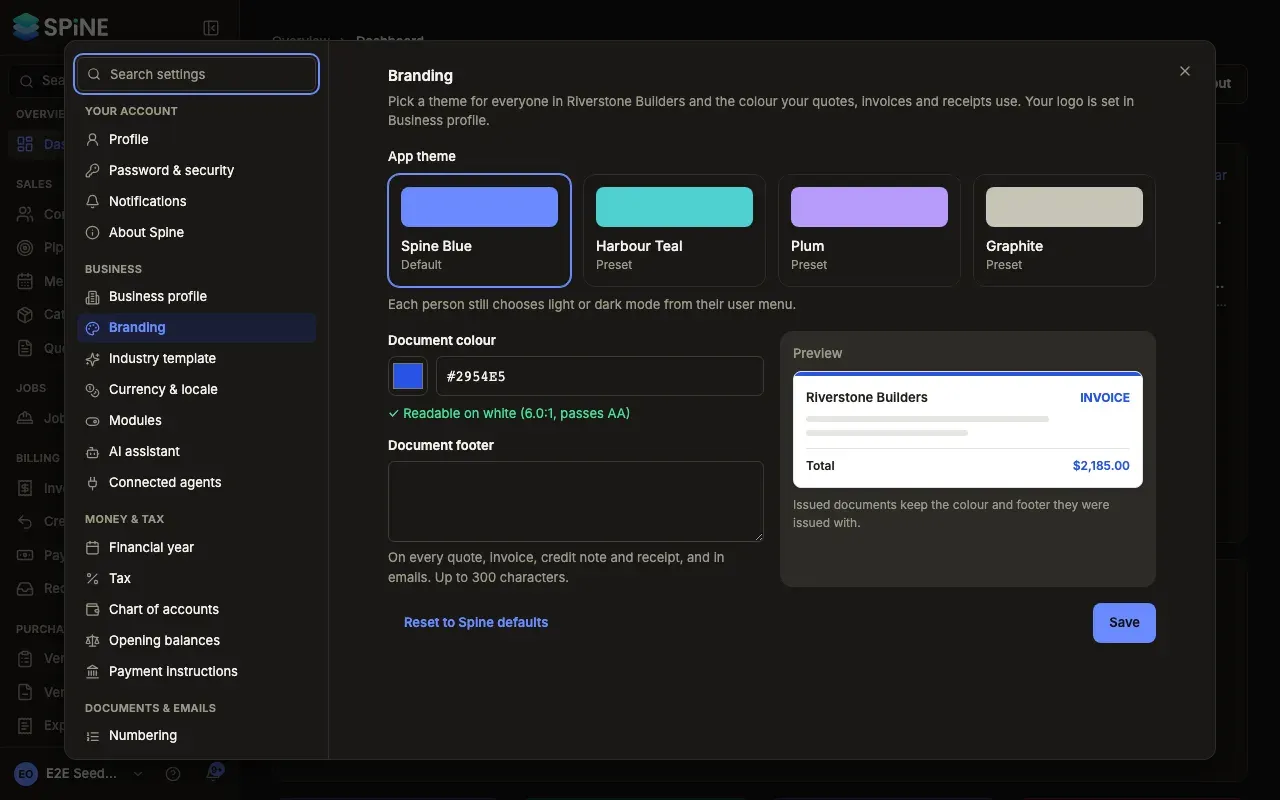
Pick an app theme — Under App theme, choose Spine Blue (marked Default), Harbour Teal, Plum or Graphite. The theme changes buttons, links, the active item in the sidebar and focus rings, in light and dark mode.
-
Set the document colour — Under Document colour, pick a colour or type it as
#and six hex digits, for example#2954E5. A check underneath tells you whether it’s readable, such as “✓ Readable on white (6.0:1, passes AA)”. -
Write a document footer — Document footer is printed on every quote, invoice, credit note and receipt, and in emails. Up to 300 characters.
-
Check the preview and press Save — The Preview shows a sample invoice with your colour and footer. A “Saved” message appears when it’s done.
Good to know
Section titled “Good to know”- Each person keeps their own light or dark mode. “Each person still chooses light or dark mode from their user menu.” The theme sits on top of that choice.
- Status colours never change. Paid, due soon, overdue and draft keep their usual colours with every theme, so they always mean the same thing.
- The Spine logo stays blue. Themes change the app’s accent colour only.
- Too light a colour can’t be saved. Documents are printed on white, so a colour under 4.5:1 shows “Too light to read on white … Pick a darker colour — documents need at least 4.5:1.”
- Issued documents keep theirs. “Issued documents keep the colour and footer they were issued with.”
Last updated with Spine 1.0.0-beta.2