

Change your profile and sign-in email
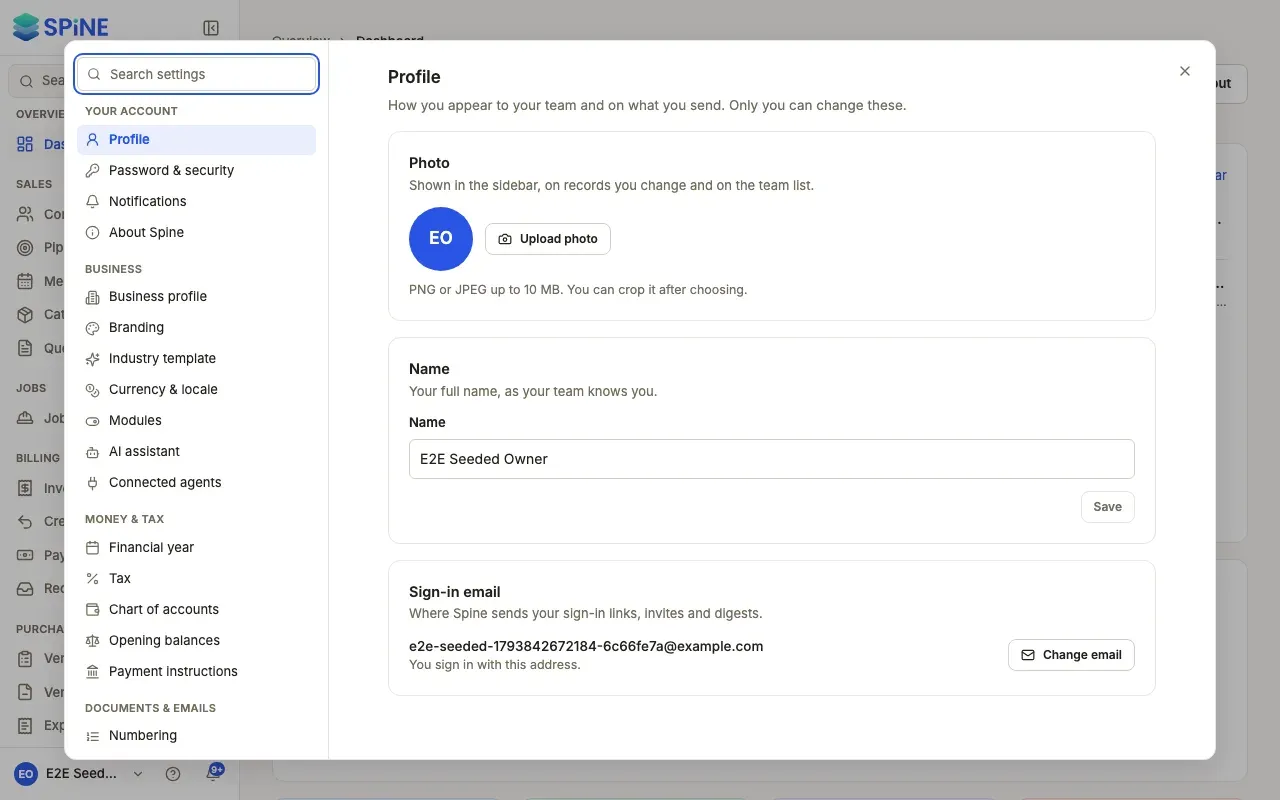
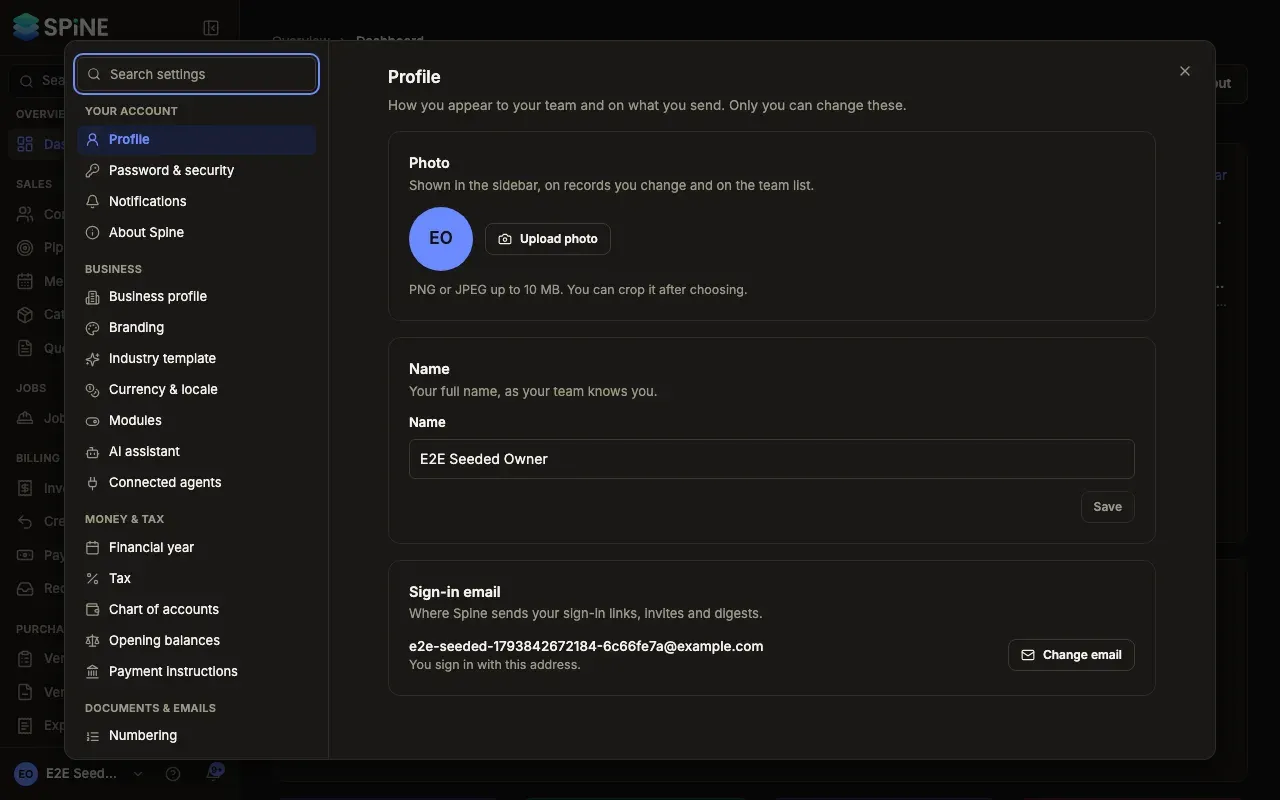
Your profile is “How you appear to your team and on what you send. Only you can change these.” Everyone has it, whatever their role.
-
Open Settings › Profile — Open your user menu, choose Settings, and pick Profile under Your account.
-
Change your photo — Press Upload photo (or Change photo) and choose a PNG or JPEG up to 10 MB. Crop it, then confirm. “Photo updated.” Your photo shows in the sidebar, on records you change and on the team list.
-
Change your name — Under Name, type your full name as your team knows you, and press Save. “Profile updated. Your team sees your new name.”
-
Change your sign-in email — Press Change email. In Change your sign-in email, enter the New email and your Current password, then press Change email.
Good to know
Section titled “Good to know”- Removing your photo asks “Remove your photo?” first. Your initials show instead, everywhere your photo was.
- Your sign-in email is “Where Spine sends your sign-in links, invites and digests.” After you change it, you sign in with the new address, and Spine tells your old address it changed.
- On the field app, the phone has its own Profile screen; this pane is the web app’s.
Last updated with Spine 1.0.0-beta.2