

Edit or delete a draft invoice
A draft invoice is yours to change. Nothing is in your books until it’s issued, so you can edit the customer, dates and lines as often as you like, or delete the draft altogether. Once an invoice is issued, neither is possible.
Edit a draft
Section titled “Edit a draft”-
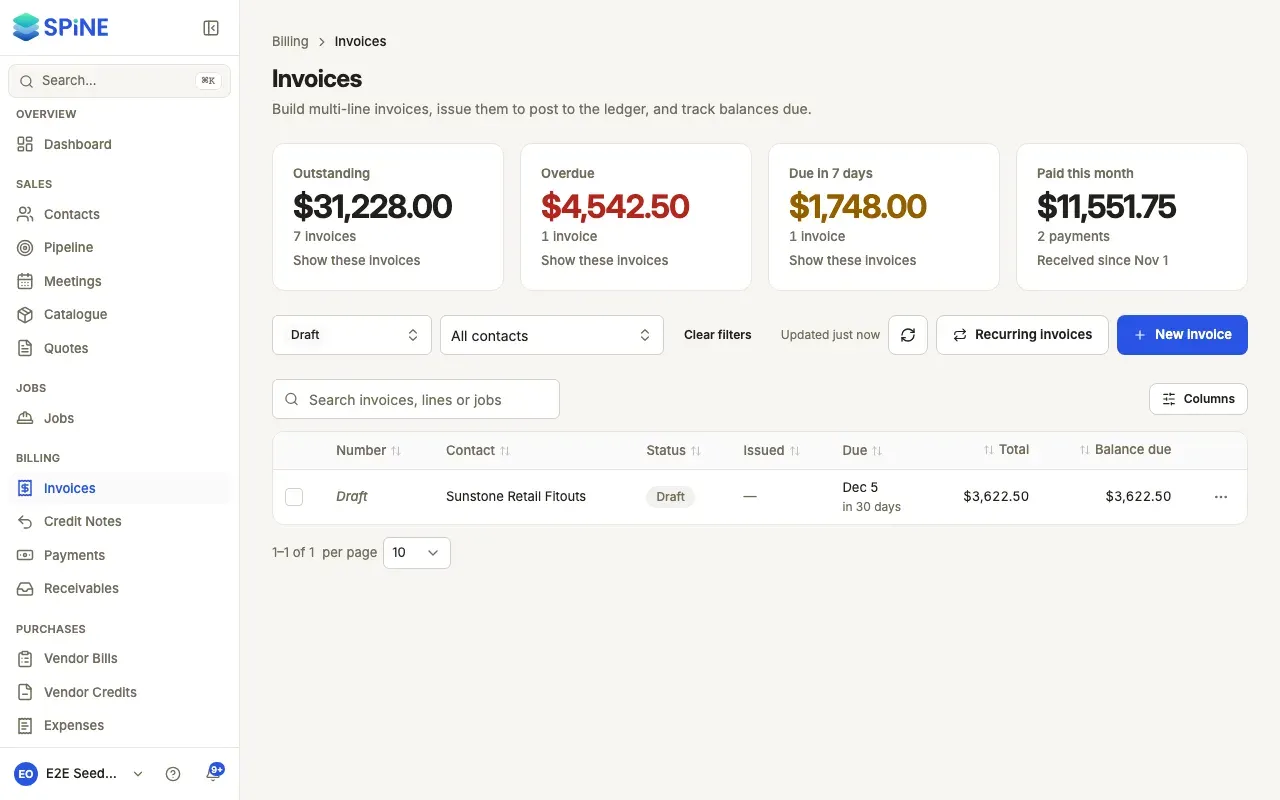
Open the draft — Go to Invoices and open it. Its page is titled Draft invoice.
-
Press Edit — The builder opens with everything you saved. You can also choose Edit from the draft’s row menu in the list.
-
Make your changes — Change the lines, dates, notes or anything else. The totals update as you type.
-
Save — Press Save draft. The draft updates, and still nothing is posted to your books.
Delete a draft
Section titled “Delete a draft”-
Find the delete action — On the draft’s page, open More and choose Delete draft. Or choose Delete from its row menu.
-
Confirm — Delete this draft invoice? warns that this permanently removes the draft. Press Delete draft (or Delete, from the list) to go ahead, or Cancel to keep it.
A toast says Invoice deleted.
When you can’t edit or delete
Section titled “When you can’t edit or delete”- An issued invoice can’t be edited or deleted, by anyone. Edit and Delete draft aren’t offered. To correct it, issue a credit note or void it.
- If you have only Create/edit own invoices, a colleague’s draft opens without Edit. If your Team has Issue an invoice, you can still issue it.
Last updated with Spine 1.0.0-beta.2