

Find leads on the pipeline board
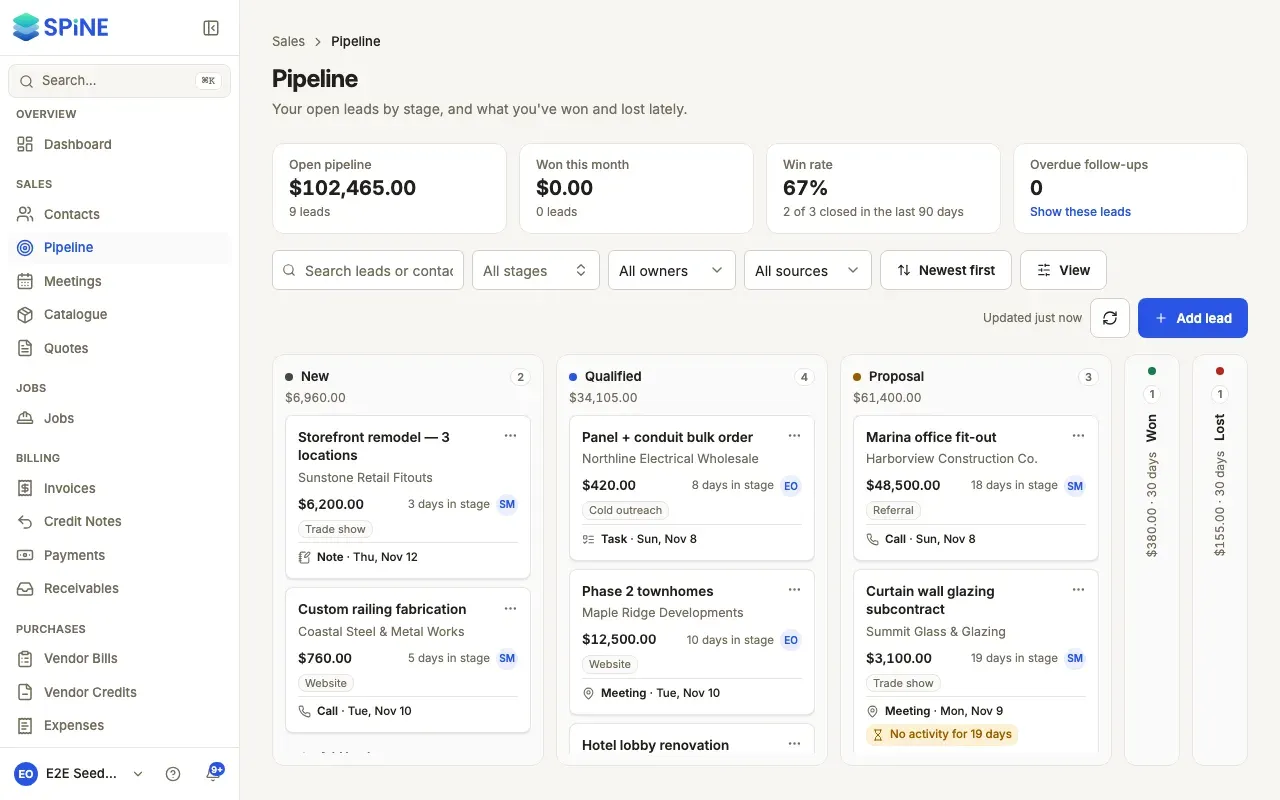
The pipeline board shows your open leads by stage, and what you’ve won and lost lately. The figures above it tell you what’s in play, and the filters narrow it to your own leads or one source.
- Open the pipeline — Go to Pipeline under Sales. Each open stage is a column with its count and total value at the top.
- Read the figures — The strip above the board shows Open pipeline (the total and how many leads), Won this month, Win rate (won out of the leads closed in the last 90 days) and Overdue follow-ups.
- Search — Type in Search leads or contacts… to find a lead by its title or contact.
- Filter — Choose a stage in All stages, an owner in All owners (My leads, a colleague, or Unassigned), or a source in All sources. The filters work together.
- Sort — Choose Value: high to low, Value: low to high, Newest first, Oldest first or Title (A–Z).
- Choose what cards show — Press View and turn Show value or Show source on or off.
Reading a card
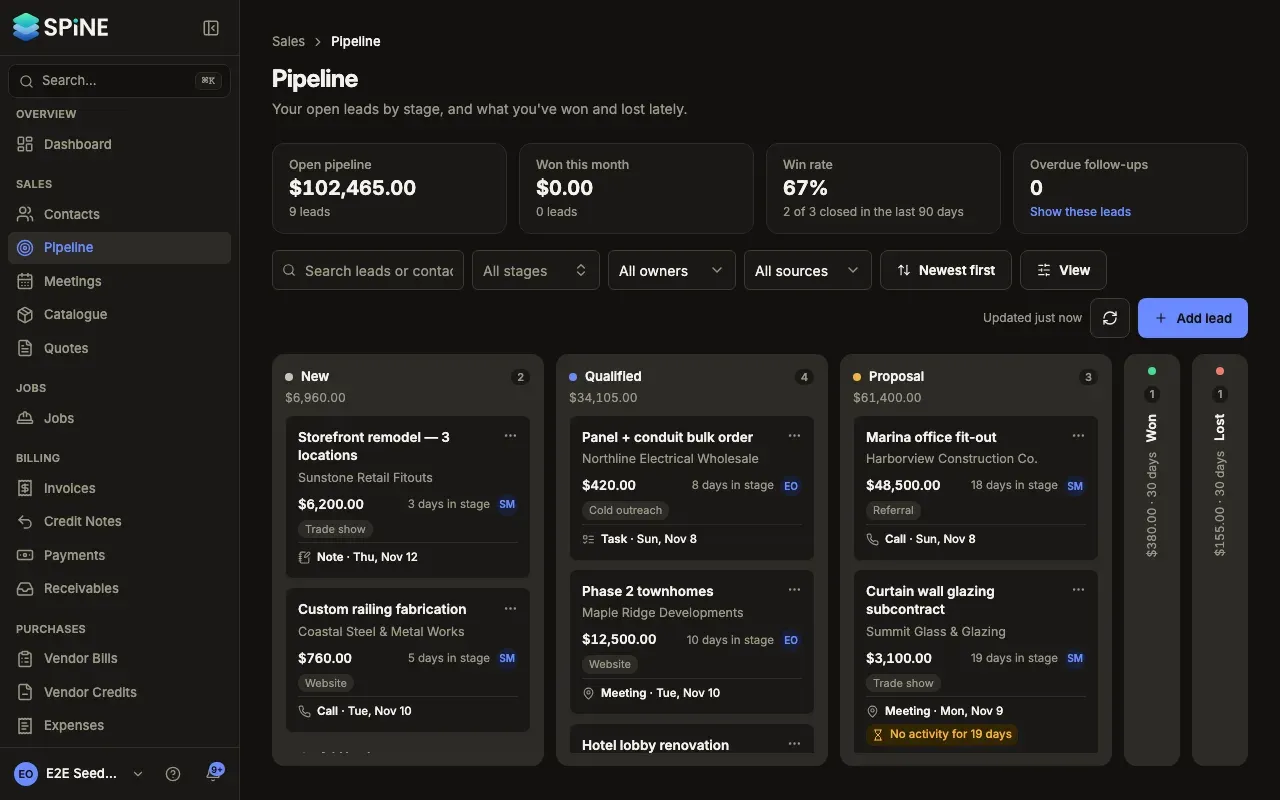
Section titled “Reading a card”Each card shows the title (or the contact’s name), the contact, the value, the owner’s initials and how long the lead has sat in its stage, such as “12 days in stage”. Hover over the initials to see the owner’s name.
- If the lead has an open follow-up, the card shows the next one, such as “Call · Fri 16 Oct”. Past its date, it shows “Overdue”.
- An open lead with no activity and no change for 14 days or more shows “No activity for 14 days”. It’s a nudge to get in touch.
Won and Lost
Section titled “Won and Lost”Won and Lost are slim columns at the right, with their count and total for the last 30 days. Press one to open it and see those leads, newest first. Press its header again to close it. To find leads closed longer ago, choose Won or Lost in the stage filter.
Find leads that need you
Section titled “Find leads that need you”Press Overdue follow-ups to show only the open leads with a follow-up past its date. Press it again to show all leads.
Come back to the same board
Section titled “Come back to the same board”The address in your browser keeps your search, filters and sort, so Back and bookmarks bring you to the same board. Press Refresh pipeline to see colleagues’ changes. The board also refreshes when you come back to the tab after 30 seconds or more away.
If nothing matches, you see “No leads match these filters” with Clear filters. With no leads at all, you see “No leads yet” and Add lead.
Last updated with Spine 1.0.0-beta.2