

Find or delete a vendor payment
The Vendor payments list shows money paid out and what each payment paid. Each payment has its own page with the bills it paid. If a payment was recorded by mistake, you can delete it: the bills owe again and a reversing entry is posted.
Find a payment
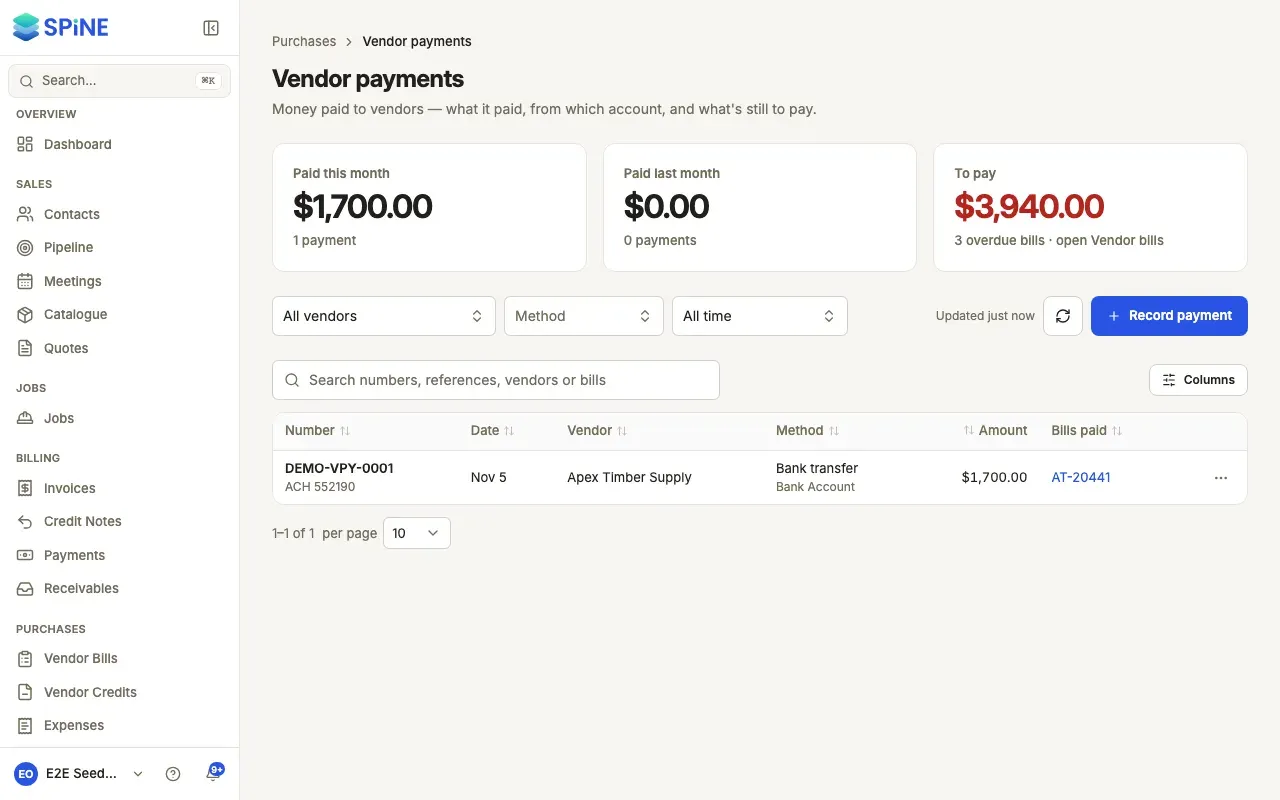
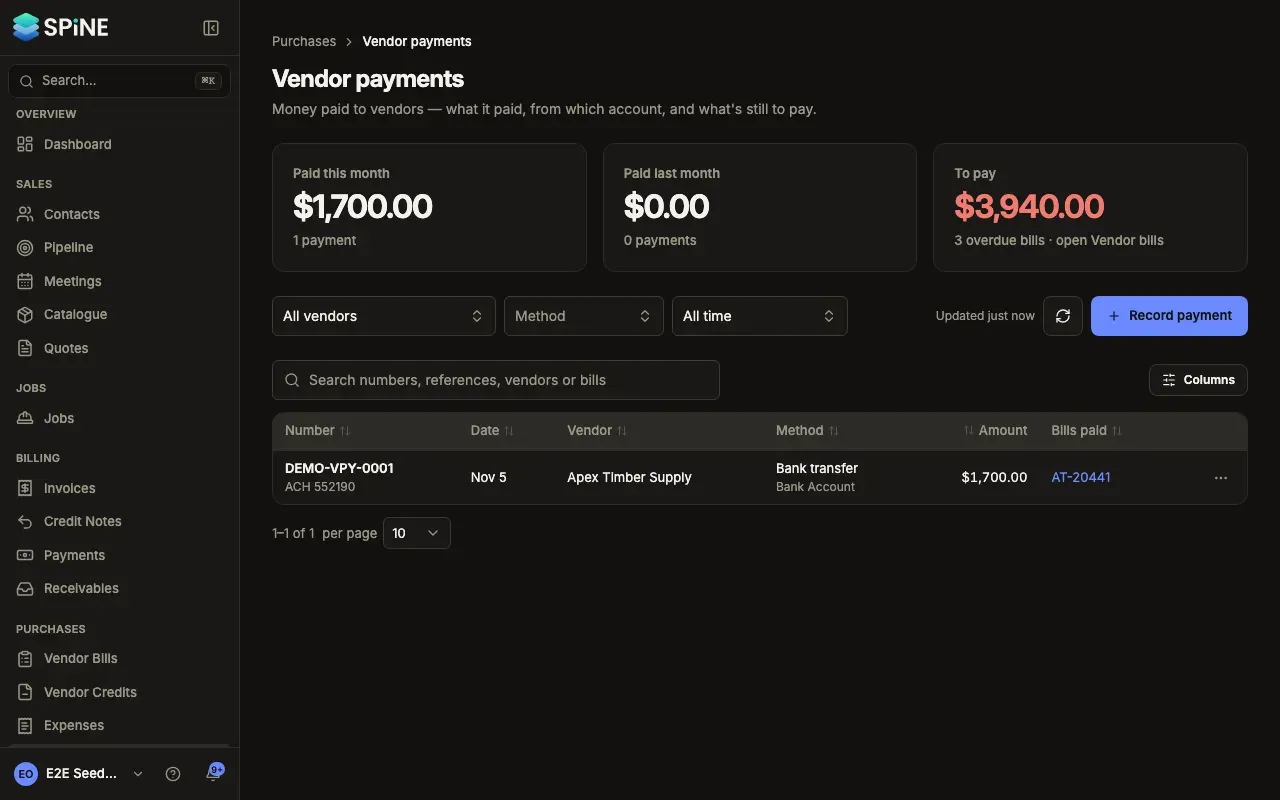
Section titled “Find a payment”Go to Vendor Payments. The cards show Paid this month, Paid last month and To pay — the balance on overdue bills. Pressing To pay opens Vendor bills filtered to overdue.
Each row has the number with the reference under it, the date, the vendor, the method with the account under it, the amount and the bills it paid. The newest comes first. Filter by vendor, method or date (All time, This month, Last month, Last 90 days, This financial year), or search numbers, references, vendors or bills.
You can also press ⌘K (Ctrl K on Windows) and type a payment’s number, its reference or the vendor’s name. Matches show in a Vendor payments group.
Read a payment’s page
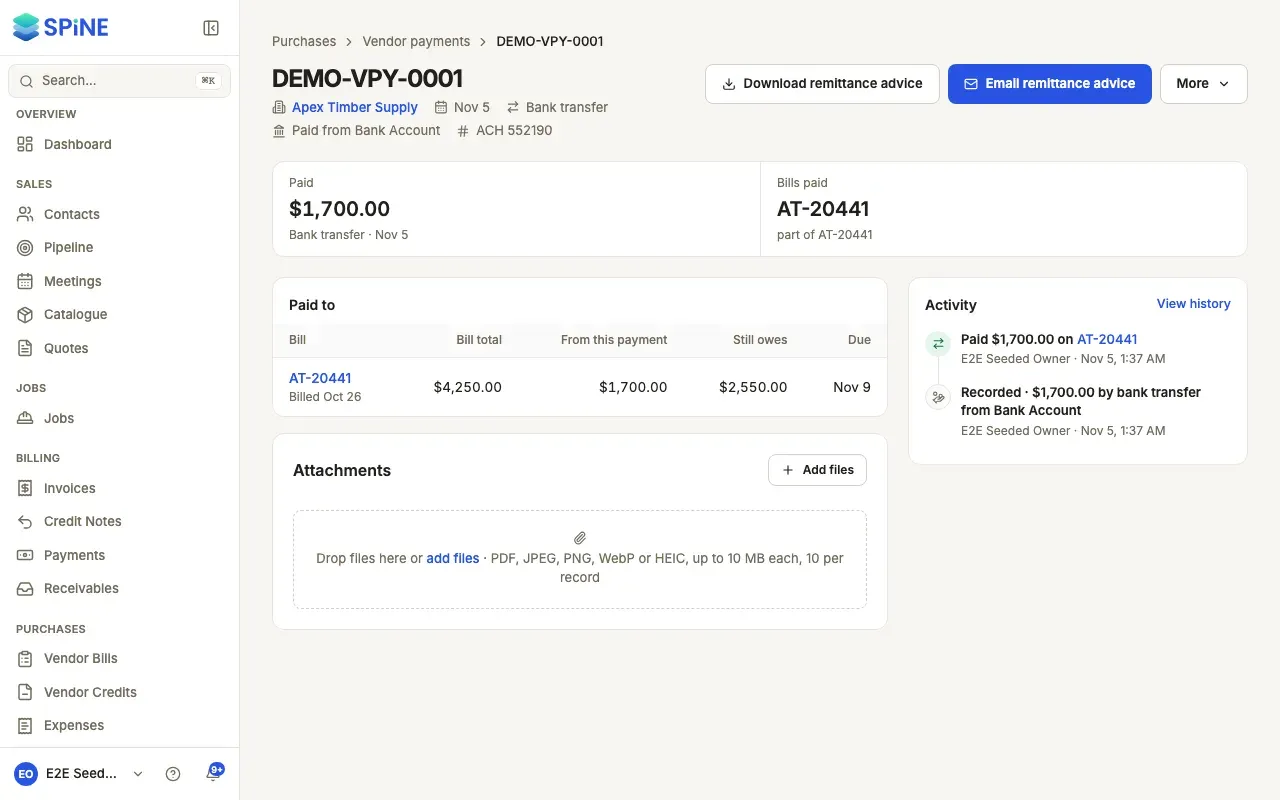
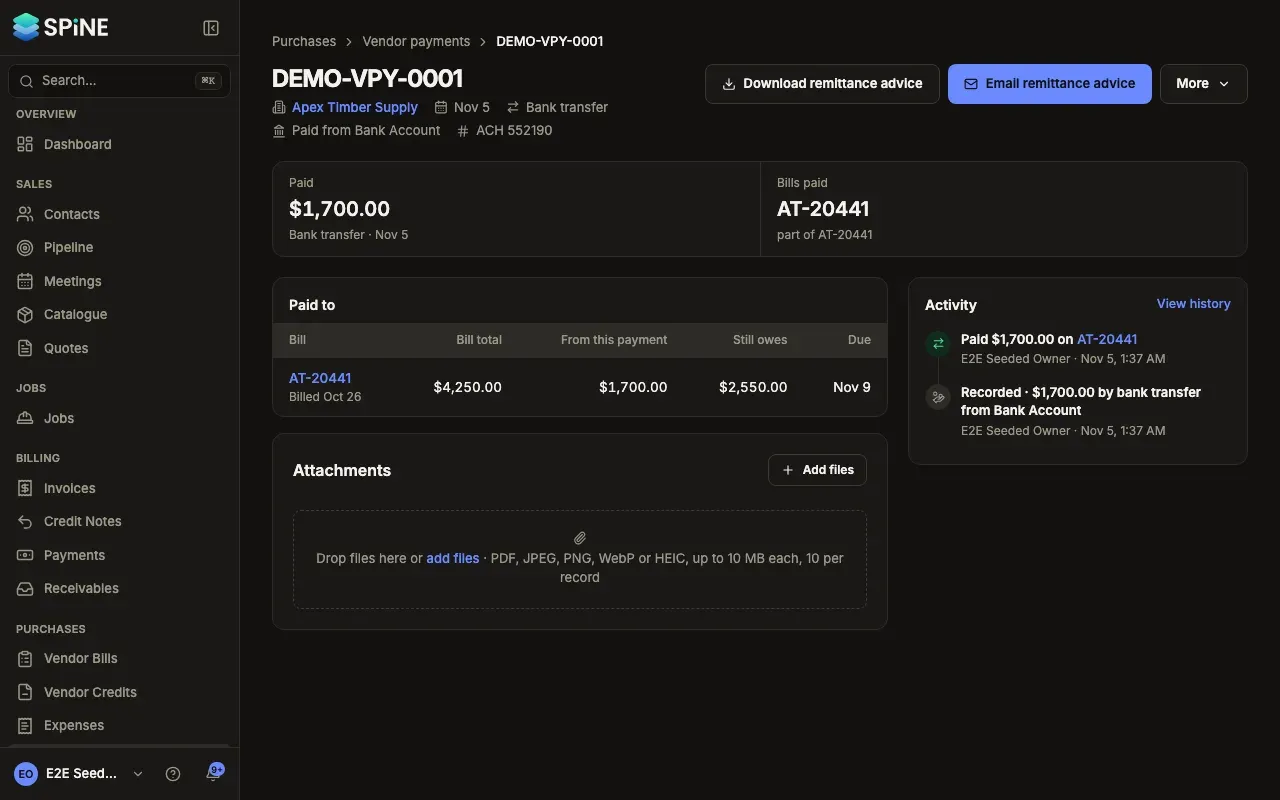
Section titled “Read a payment’s page”Open a payment to see its page. Under the title: the vendor, the date, the method, “Paid from” the account, and the reference. The strip shows Paid and Bills paid. Paid to lists each bill with its date, its total, what this payment put on it, what it still owes (“Paid” at zero) and its due date. Activity lists when it was recorded, each bill it paid and any remittance advice emailed.
Delete a payment
Section titled “Delete a payment”-
Open the payment — Open it from the list or from a bill’s Payments.
-
Choose Delete payment — Open More and choose Delete payment.
-
Read what happens — “Delete VPY-0012?” says it’s removed for good, how much each bill will owe again, and that a reversing entry posts today. Go back does nothing.
-
Confirm — Press Delete payment.
The list opens with “VPY-0012 deleted” in a toast. Each bill’s balance returns, and the bills’ Activity says the payment was deleted.
Last updated with Spine 1.0.0-beta.2