

Choose when your daily digest arrives
The daily digest is one email each morning with what needs you today and what happened yesterday, so you know your day before you open Spine. It’s on for Owners at 7:00 AM, Monday to Friday, and off for everyone else until they turn it on.
-
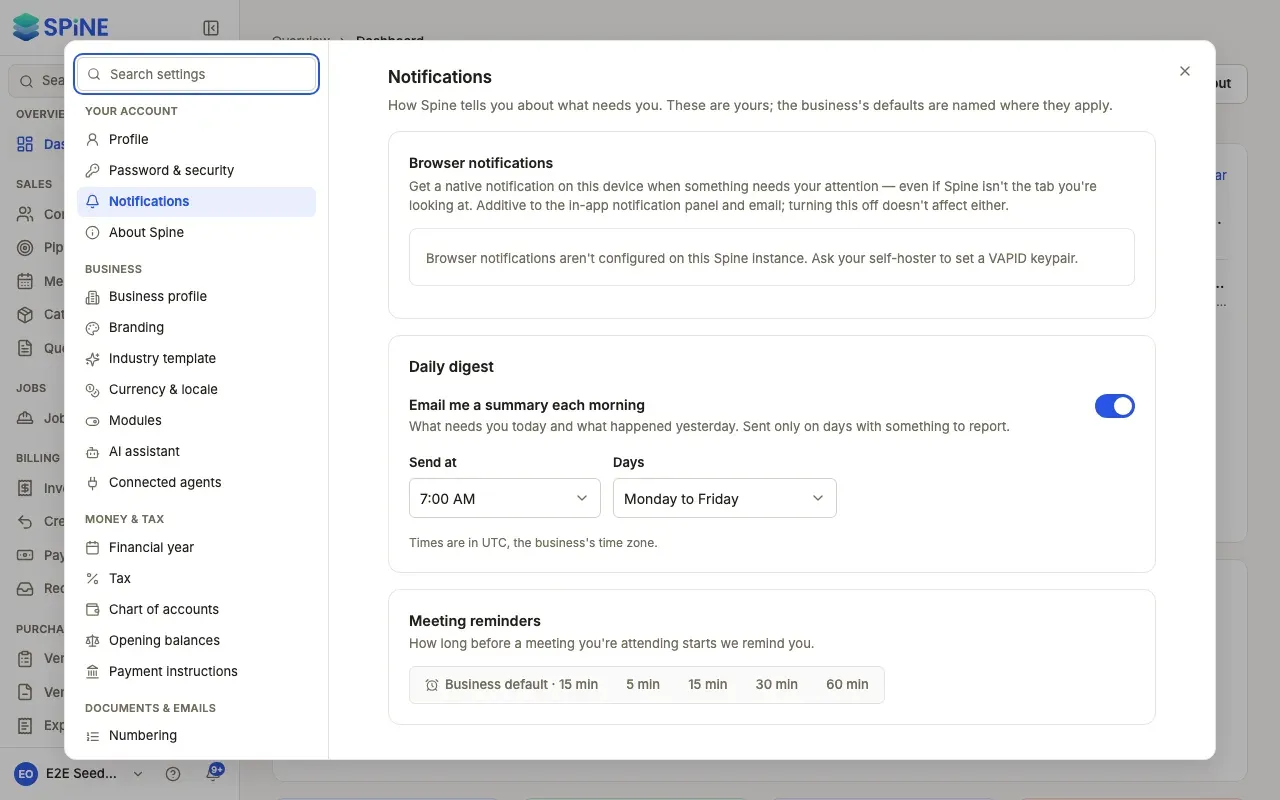
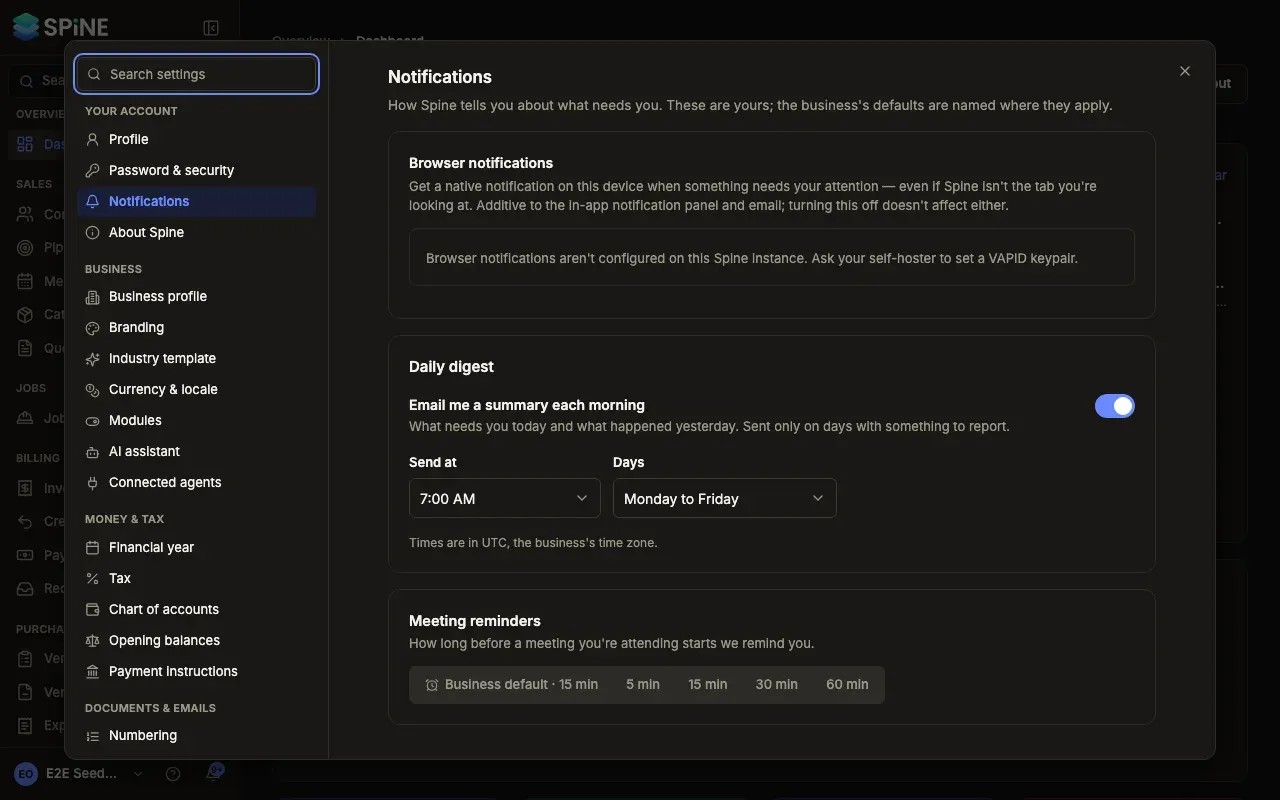
Open your notification settings — Open your user menu, choose Settings, then Notifications under Your account.
-
Switch it on or off — Under Daily digest, use the Email me a summary each morning switch.
-
Choose the time — Pick Send at, any half hour from 5:00 AM to 11:00 AM. Times are in the business’s time zone, named under the choices.
-
Choose the days — Pick Days: Monday to Friday or Every day.
Changes save as you make them. The toast confirms, for example “Daily digest on: Monday to Friday.” or “Daily digest turned off.”
What’s in the digest
Section titled “What’s in the digest”- The subject says how much needs you, such as “Your Spine day: 6 things need you · Mon 5 Oct”.
- What needs you — the same counts as the attention list on your dashboard.
- Today — your meetings and milestones.
- Yesterday — money received, quotes accepted and quotes viewed.
- Open dashboard — a button to go straight to Spine.
Field users’ digests never contain money figures.
The footer says why you got it and where to turn it off or change the time.
Last updated with Spine 1.0.0-beta.2