

Make a bundle
If you often quote the same set of items together, such as the labour, materials and disposal for a bathroom refit, save them as a bundle. On a quote or invoice, picking the bundle adds all its lines at once.
- Tick the items — Go to Catalogue and tick the items that belong in the bundle.
- Start the bundle — In the bar, press Make a bundle.
- Name it — The Make a bundle dialog opens. Fill in Name, such as “Bathroom refit”, and, if you like, Description (optional) to say what’s included for your team.
- Set the quantities — Each item starts at a quantity of 1. Change the Quantity of any item. The dialog shows the Total before tax.
- Save — Press Save bundle. A “Bundle saved” toast shows, and the bundle is listed on the Bundles tab.
Prices and tax come from each item’s defaults. You can change them on the document after you add the bundle.
If you can’t save it
Section titled “If you can’t save it”- All the items must be in one currency. Otherwise you see “Choose items in one currency.” and nothing is saved.
- Each item needs a quantity above 0.
- A bundle holds a limited number of items; Spine tells you if you’ve ticked too many.
The Bundles tab
Section titled “The Bundles tab”Open the Bundles tab to see each bundle with its lines and total. Search with Search bundles, or filter by status. From a bundle’s menu:
- Edit changes its Bundle name and Description. Its lines stay as they were saved.
- Archive hides it from the item picker; Restore brings it back.
- Delete removes it for good, after Spine asks “Delete “…”?“. Quotes and invoices that used it keep their lines.
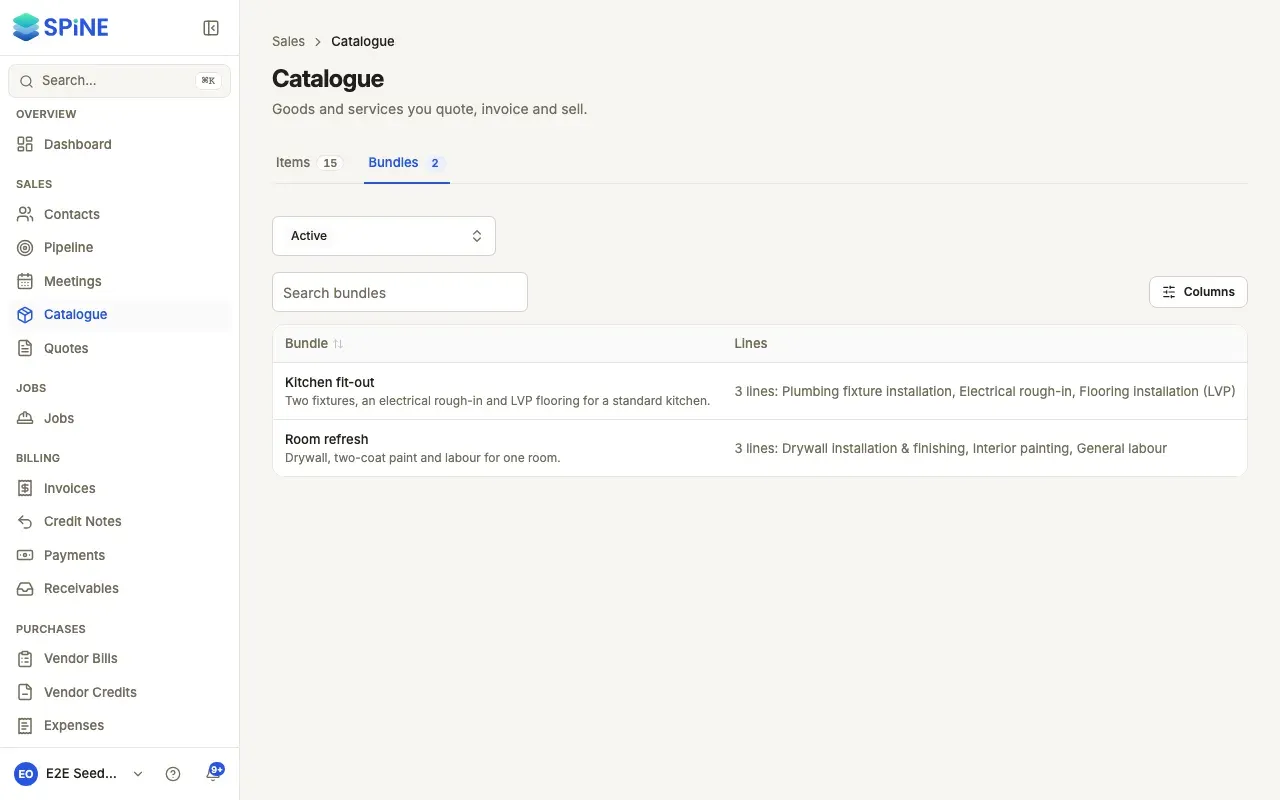
With no bundles yet, the tab says “No bundles yet” with Choose items, which takes you to the Items tab.
Last updated with Spine 1.0.0-beta.2