

Choose whether prices include tax
Some businesses quote prices with tax already in them; others add tax on top. Spine lets you set the default for your business, and each line on a document can still go the other way.
Set the default
Section titled “Set the default”- Open Settings › Tax — Open your account menu, choose Settings, then Tax.
- Turn on Prices include tax by default — The helper reads “New quote/invoice lines default to tax-inclusive pricing. Each line can still override this.” Turn it off to add tax on top of prices.
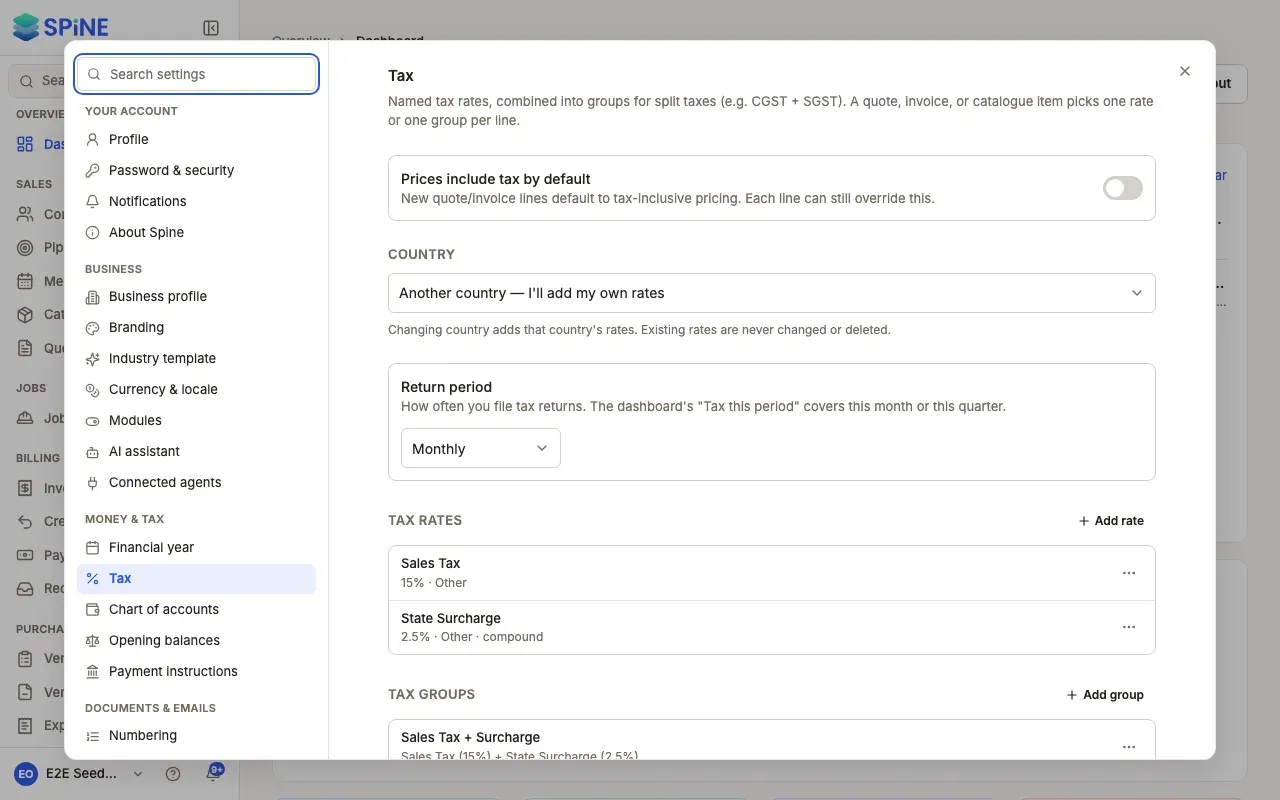
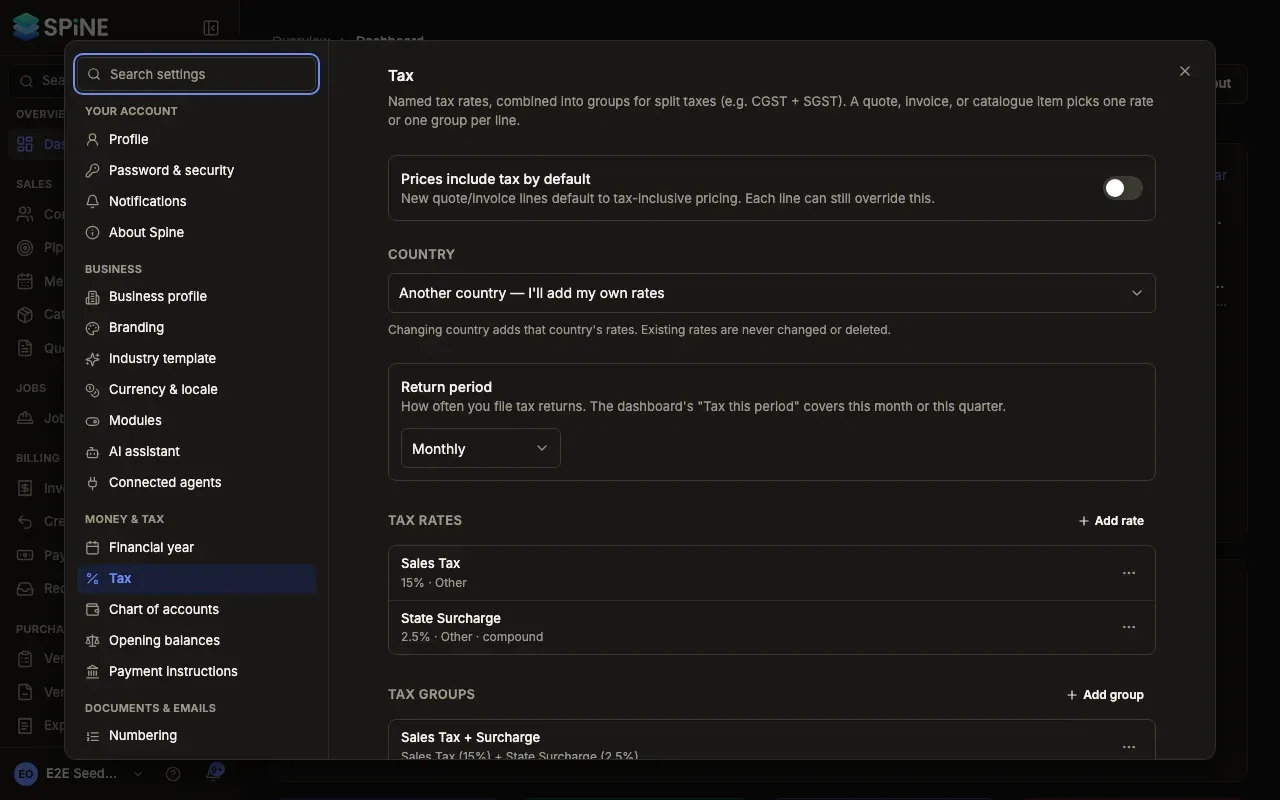
The setting changes new lines only. Lines already on documents keep how they were priced.
What it does to a line
Section titled “What it does to a line”A line priced 115.00 with a 15% rate:
| Setting | Net | Tax | Total |
|---|---|---|---|
| Prices include tax (on) | 100.00 | 15.00 | 115.00 |
| Tax added on top (off) | 115.00 | 17.25 | 132.25 |
Change it on one line
Section titled “Change it on one line”- Open the draft — Open the quote, invoice, vendor bill or variation order you’re editing.
- Tick or untick Price includes tax — On the line, change Price includes tax. That line’s net, tax and total recompute. Other lines don’t change.
- Save — Each line keeps its own setting when you reopen the document.
Change a line’s tax rate
Section titled “Change a line’s tax rate”A line from a catalogue item starts with the item’s tax. Pick a different rate or group on the line and the line uses it; the catalogue item stays as it was.
Last updated with Spine 1.0.0-beta.2