

Set your meeting reminders
Spine reminds you shortly before a meeting starts, by every channel you have — the bell, browser notifications and email. The business has a default lead time, and each person can choose their own.
Set your own reminder time
Section titled “Set your own reminder time”-
Open your notification settings — Open your user menu, choose Settings, then Notifications under Your account.
-
Choose a lead time — Under Meeting reminders, pick 5 min, 15 min, 30 min or 60 min, or Business default to follow the business’s setting.
It saves at once. The toast says, for example, “You’ll be reminded 30 minutes before.”
Set the business default
Section titled “Set the business default”-
Open Settings — Open your user menu, choose Settings, then Meeting reminders under Sales & meetings.
-
Choose the default — Pick 5 minutes before, 15 minutes before, 30 minutes before or 60 minutes before, and press Save. It starts at 15 minutes.
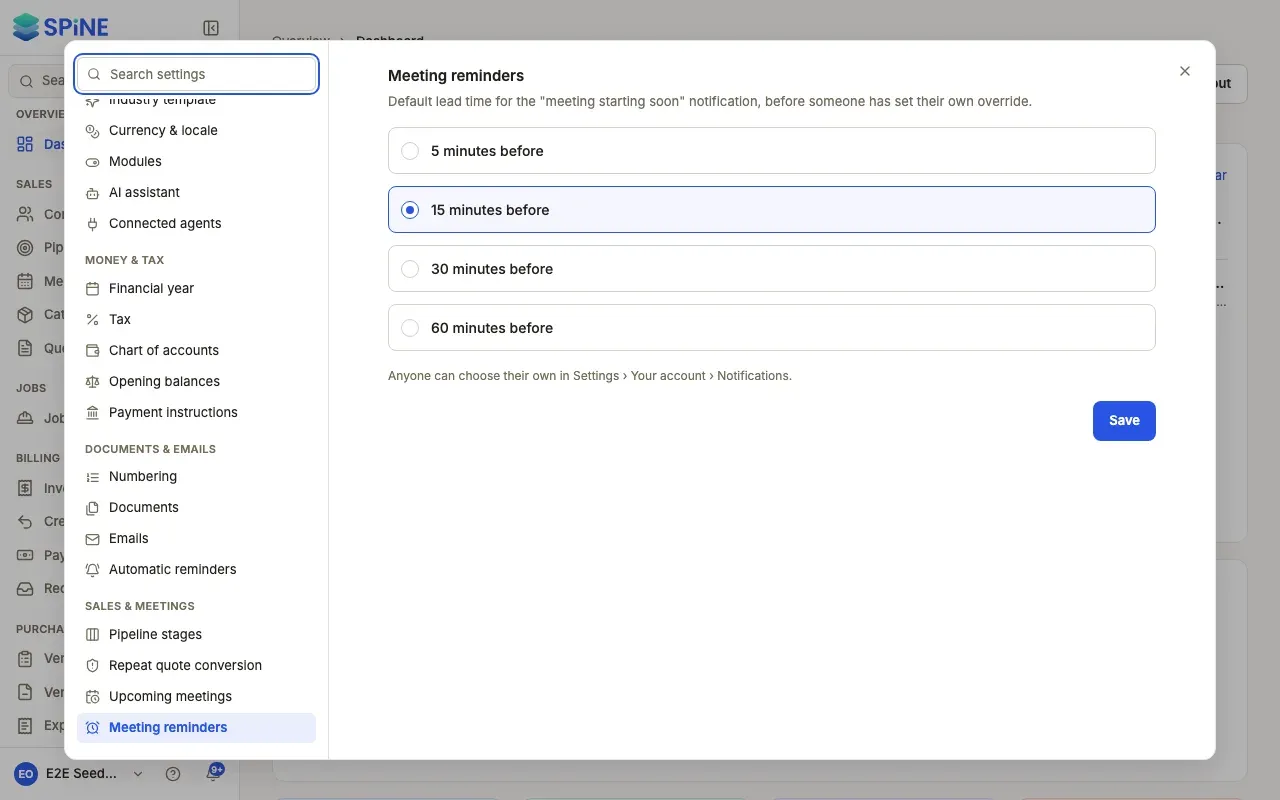
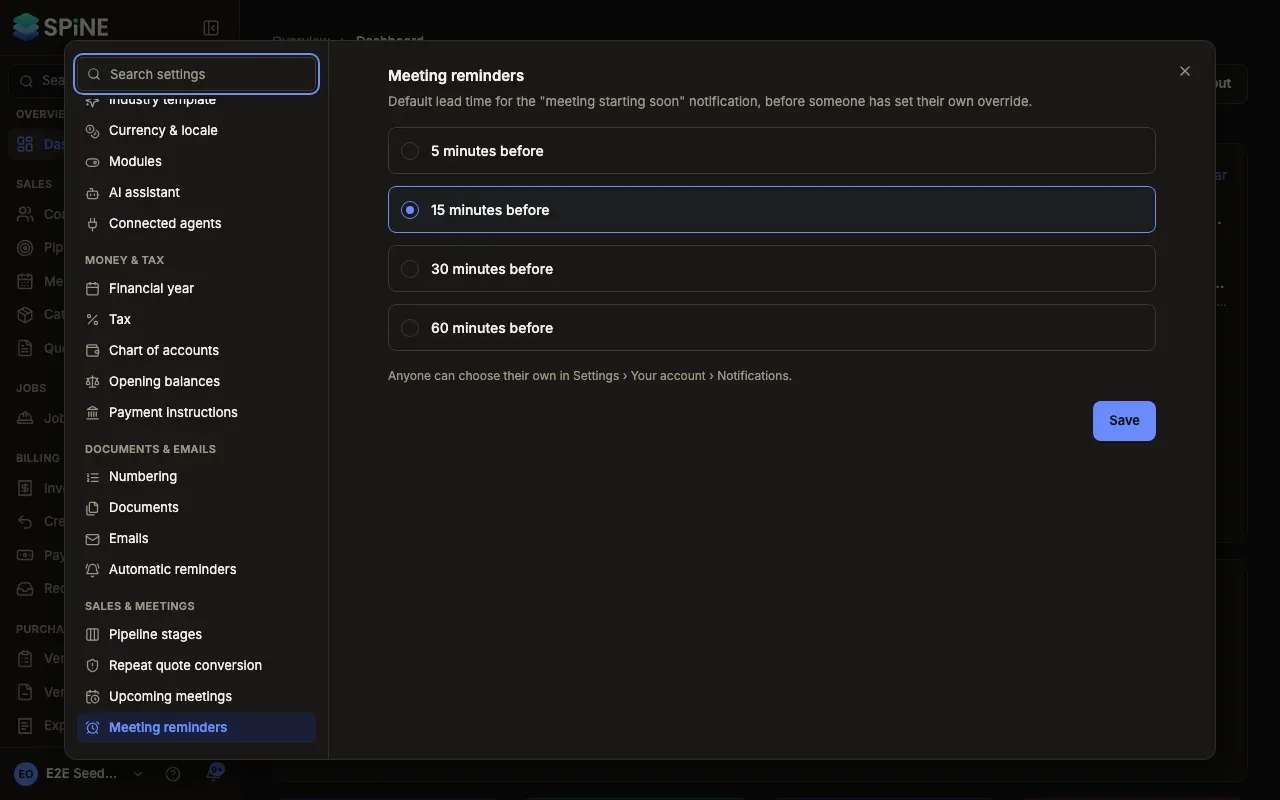
The default applies to everyone who hasn’t chosen their own.
Who gets a reminder
Section titled “Who gets a reminder”- You get one for meetings you organise, and meetings you’ve accepted or tentatively accepted.
- You don’t for meetings you’ve declined.
- Recurring meetings remind you once for each occurrence. Cancelled occurrences send nothing.
- Moved meetings — if a meeting’s time changes after you were reminded, you’re reminded again before the new time.
See Meetings to schedule meetings and invite people.
Last updated with Spine 1.0.0-beta.2