

Review and reverse journals
Journals are never edited or deleted, so your books keep a full history. If a journal was wrong, you reverse it: Spine posts an entry that mirrors every line, and the original stays listed as Reversed. You can then copy it into a new journal and post it correctly.
Review your journals
Section titled “Review your journals”- Open Journals — Choose Journals in the sidebar. The cards show Total journals and Posted this year.
- Filter the list — Use Status (All journals, Posted or Reversed), From and To, or Search journals.
- Read the list — Newest first, each journal shows its Number, Date, Reason, Total, Status and Posted by.
- Open one — Click a journal to see its Lines: account, description, debit, credit and job, with Totals.
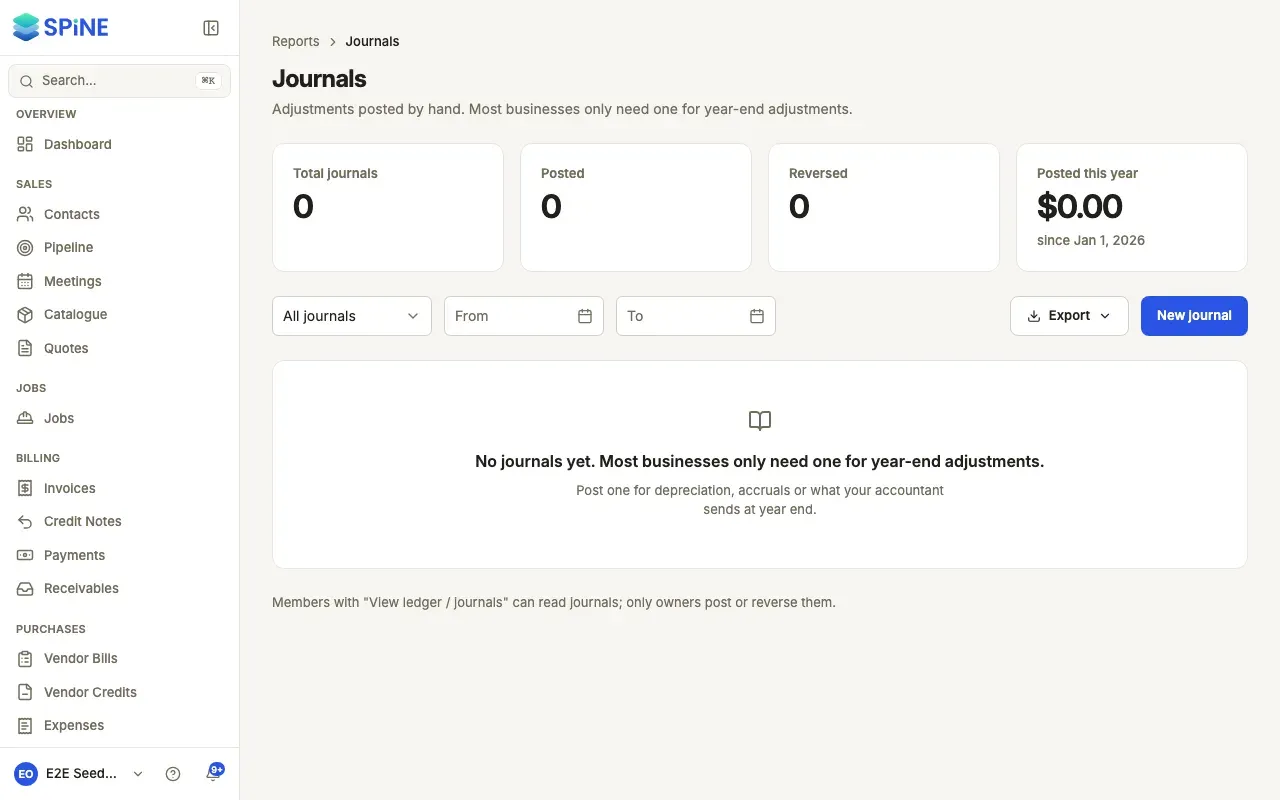
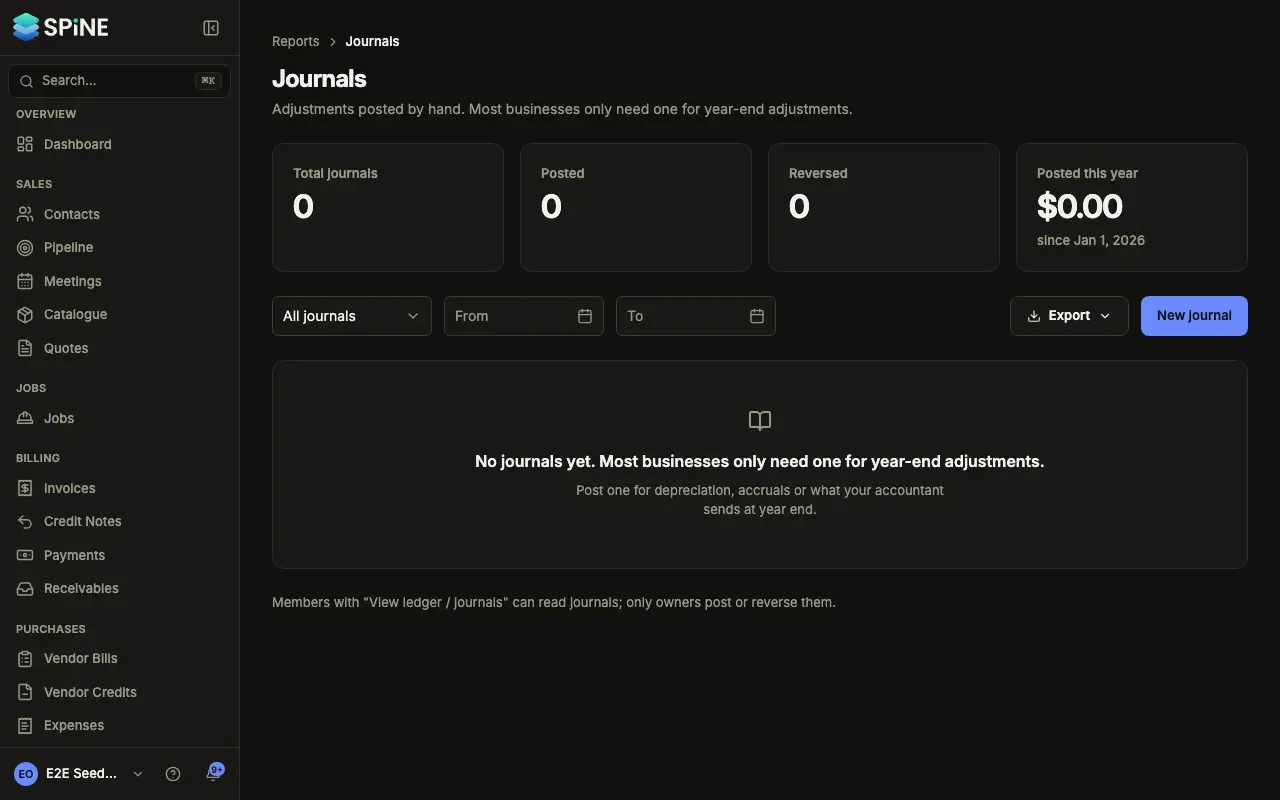
With no journals, the list says “No journals yet. Most businesses only need one for year-end adjustments.”
Reverse a journal
Section titled “Reverse a journal”- Open the journal — It must have the status Posted.
- Press Reverse — The Reverse dialog explains: “A reversing entry mirrors every line. The journal stays in the history as Reversed.”
- Set the date and reason — The Reversal date starts at today. Enter a Reason, for example “Wrong account”.
- Confirm — Press Reverse journal.
The journal now shows Reversed, and its Reversal section says when and by whom. Reverse is gone.
If a line is on a bank or cash account that’s already reconciled, Spine tells you the reconciliation has to be undone first. See Banking. A reversal dated inside a closed period is refused too.
Last updated with Spine 1.0.0-beta.2