

Set up billing milestones
Milestones split a job into stages you bill one at a time, such as “Foundation complete” or “Roof on”. Each is a share of the contract or a fixed amount, with a due date. When a stage is done, you mark it complete and raise its progress invoice. Without milestones, you can still bill the job however you like.
- Open the job — Go to Jobs, open the job and choose the Milestones tab. A job with none says “Set up how this job is billed”.
- Open the editor — Press Add milestones, or Edit milestones if the job already has some.
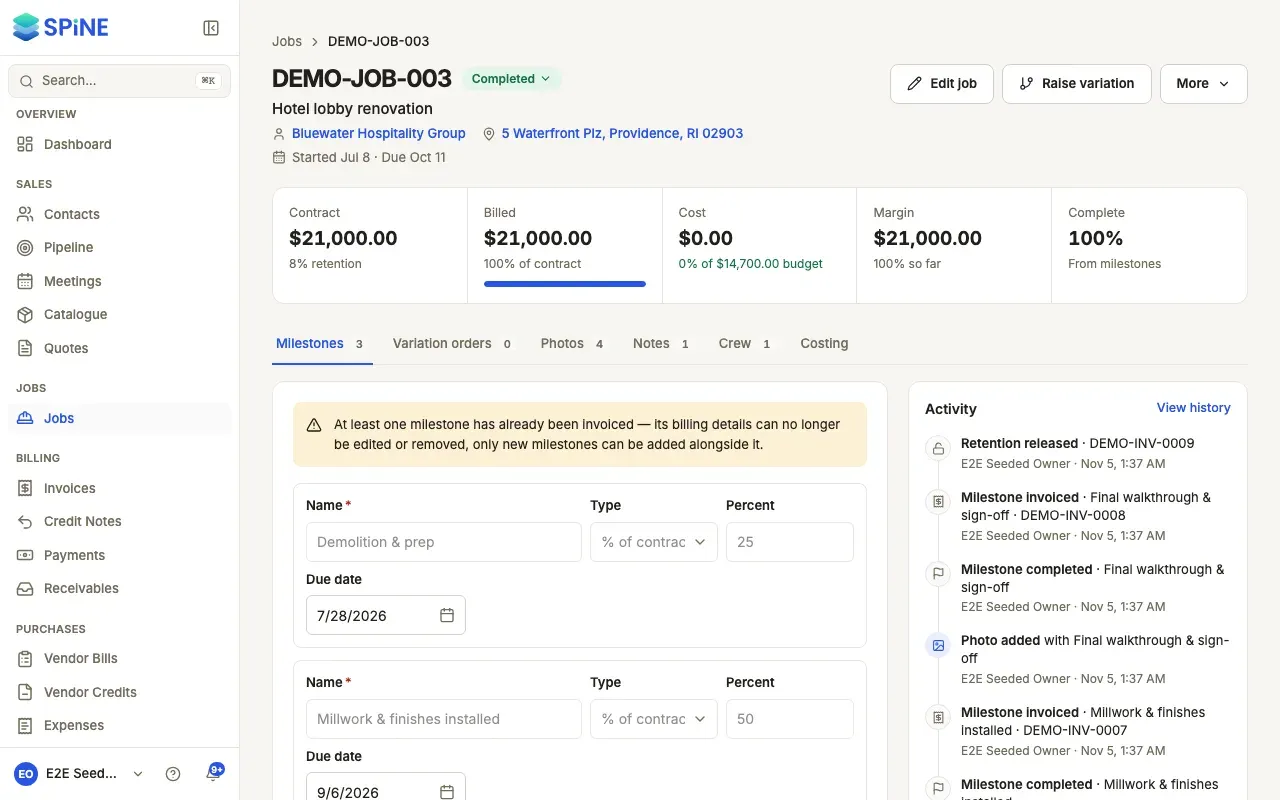
- Fill in each row — Give it a Name (for example “Foundation complete”), choose a Type (% of contract or Fixed amount), enter the Percent or amount, and pick a Due date.
- Add more stages — Press Add milestone for each extra row. To remove one, use the bin button on its row.
- Check the total — While you edit, “Percent total” shows the sum of the percentage rows. It must read 100%.
- Save — Press Save milestones. Each milestone shows its name, amount, due date and status Pending.
Rules when you save
Section titled “Rules when you save”- Every milestone needs a name (“Every milestone needs a name.”).
- You need at least one milestone (“Add at least one milestone.”).
- Percentage milestones must total exactly 100%. If they don’t, you see “Milestone percentages must total 100% (currently 80%)” and nothing saves.
- Fixed-amount milestones aren’t part of the 100% check. You can mix both types on one job.
Once something is invoiced
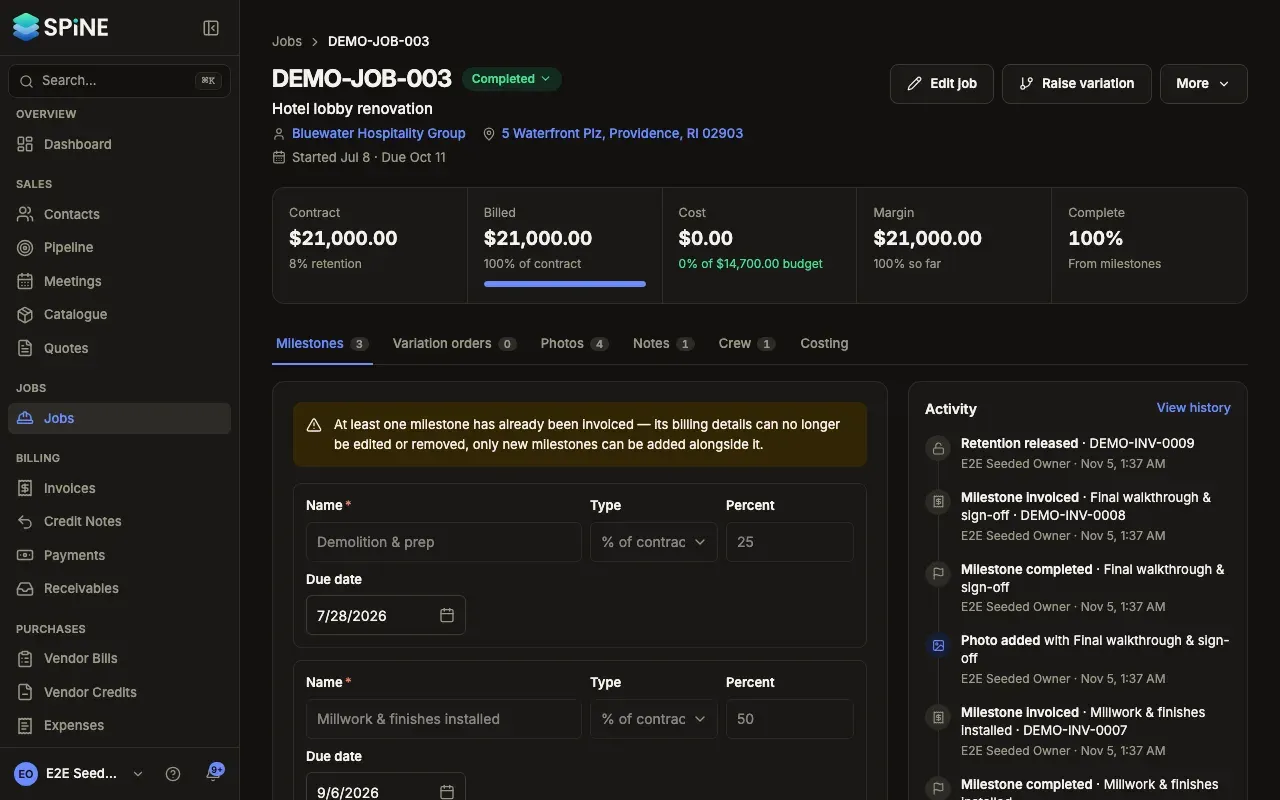
Section titled “Once something is invoiced”When at least one milestone is invoiced, its billing details are locked. You can’t edit or remove it, only add new milestones alongside it.
Reading the Milestones tab
Section titled “Reading the Milestones tab”The tab starts with “Billed amount of contract value” and a bar, and how many milestones are done. Each milestone then shows, in order:
- A step marker for Pending, Completed or Invoiced.
- Its amount and share of the contract.
- When it’s due (“Due 30 Oct · in 20 days”), or how overdue it is, in the overdue colour.
- Its action: Mark complete, Raise invoice or View invoice.
Screenshot: A job's Milestones tab showing billed so far, a progress bar and each milestone with its status, amount, due date and action
Next: Mark a milestone complete.
Last updated with Spine 1.0.0-beta.2