

Turn on connected agents
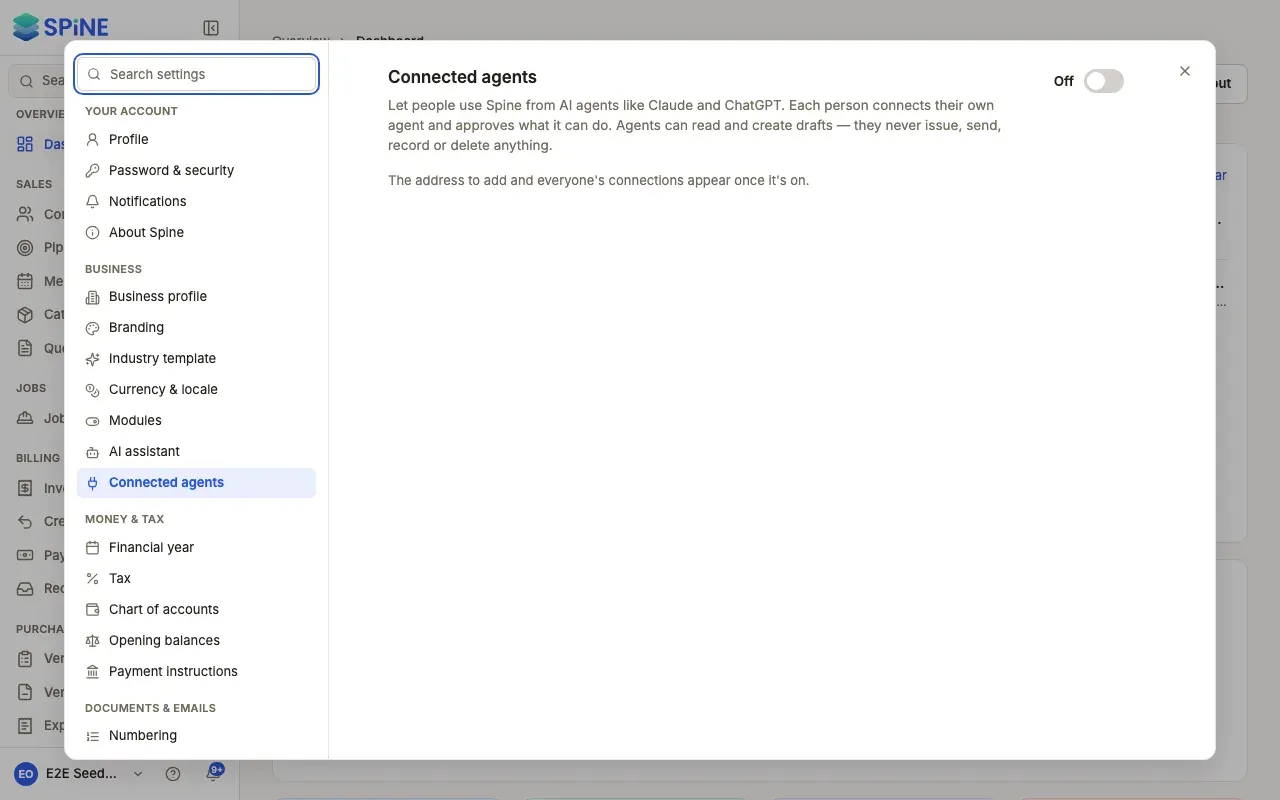
Connected agents are off on a new Spine. One switch decides whether anyone in your business can use Spine from Claude, ChatGPT or another agent. Once it’s on, each person connects their own agent with their own sign-in.
-
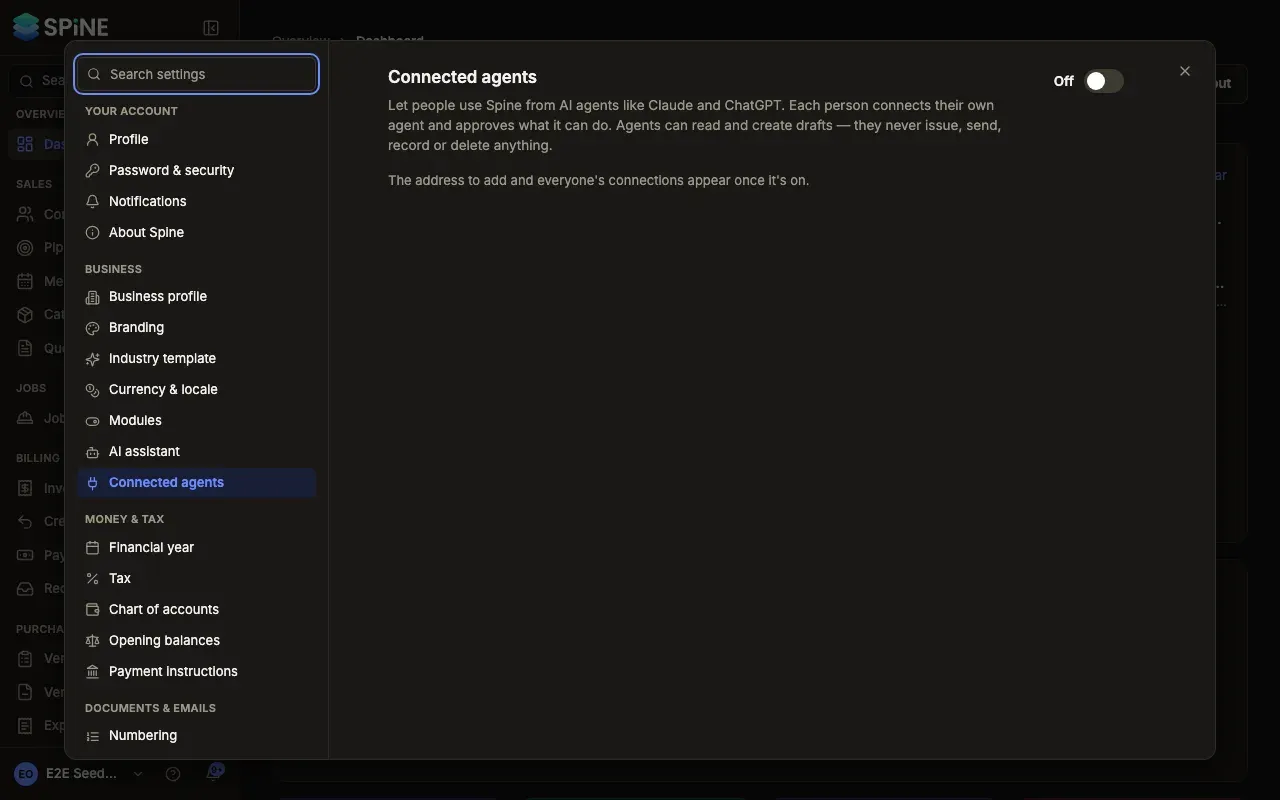
Open the settings — Open your user menu, choose Settings, then Connected agents under Business. Searching settings for “MCP”, “agent”, “Claude” or “ChatGPT” finds it too.
-
Switch it on — Use the switch at the top. “Turn on connected agents?” explains that an agent sees what the person who connected it can see, and sends it to that agent’s AI provider. It lists what agents can and can’t do.
-
Confirm — Press Turn on connected agents. The toast says “Connected agents are on”.
-
Share the address — The Connector address card shows the address people add to their agent, with Copy, and short How to connect notes for Claude, ChatGPT and Claude Code.
Choose whether agents can create drafts
Section titled “Choose whether agents can create drafts”Agents can create drafts is on to start with. Agents can then create leads, draft quotes, draft vendor bills and notes, for a person to check and finish in Spine. Switch it off and agents can only read; the draft tools disappear from every connected agent.
See every connection
Section titled “See every connection”Connections lists every agent connected in the business, by person, with what it can do, when it was connected and last used. You can disconnect any of them. See Disconnect an agent.
Turn connected agents off
Section titled “Turn connected agents off”Use the same switch. “Turn off connected agents?” says every connected agent stops working at once, and connections are kept for when you turn it back on. Press Turn off connected agents.
While it’s off, agents are told connected agents are turned off and to ask an Owner, and Connected agents under Your account is hidden for everyone. Settings › Modules shows its state, with Set up in Connected agents.
Last updated with Spine 1.0.0-beta.2