

Use the notification bell
The bell is the one place every notification arrives, whatever else you’ve turned on. It shows how many you haven’t read, so you don’t have to rely on email to notice things.
-
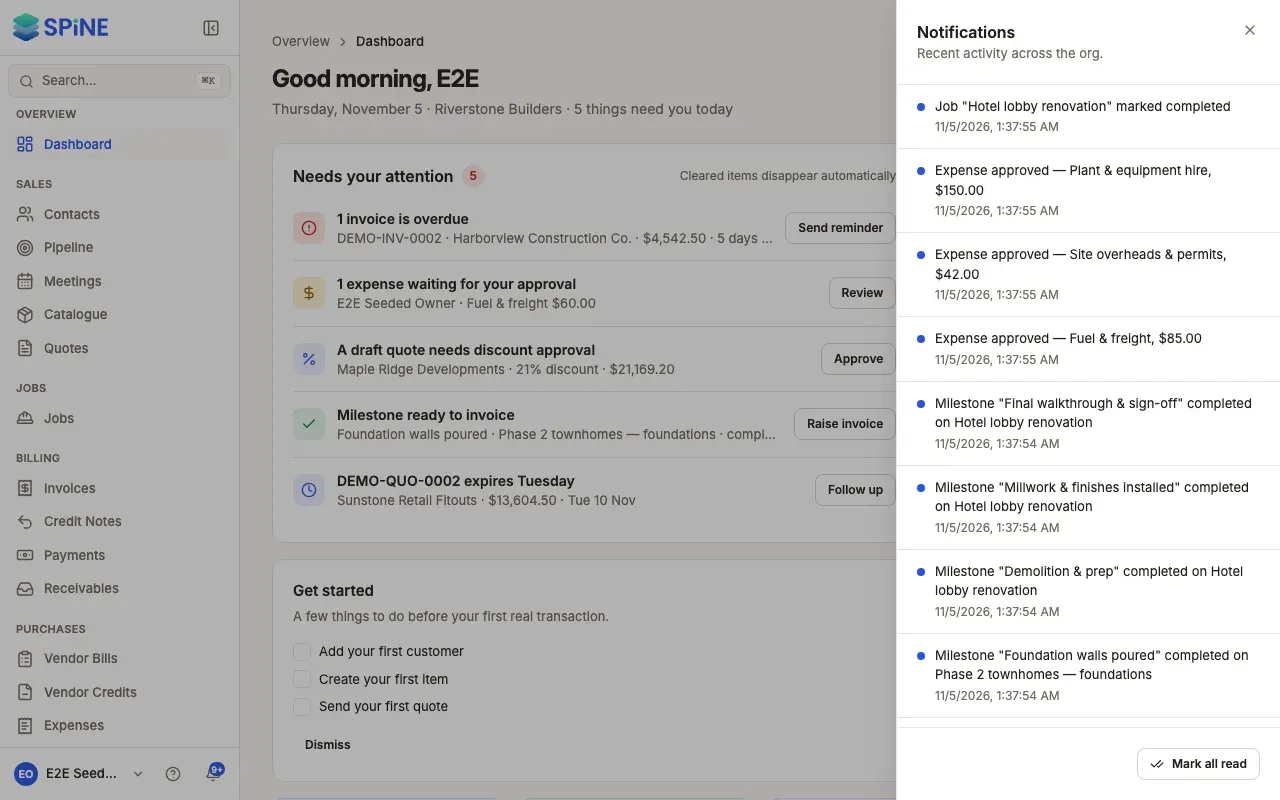
Find the bell — It’s at the foot of the sidebar. On a phone-width browser, it’s in the top bar. A count shows how many are unread — “9+” when there are more than nine.
-
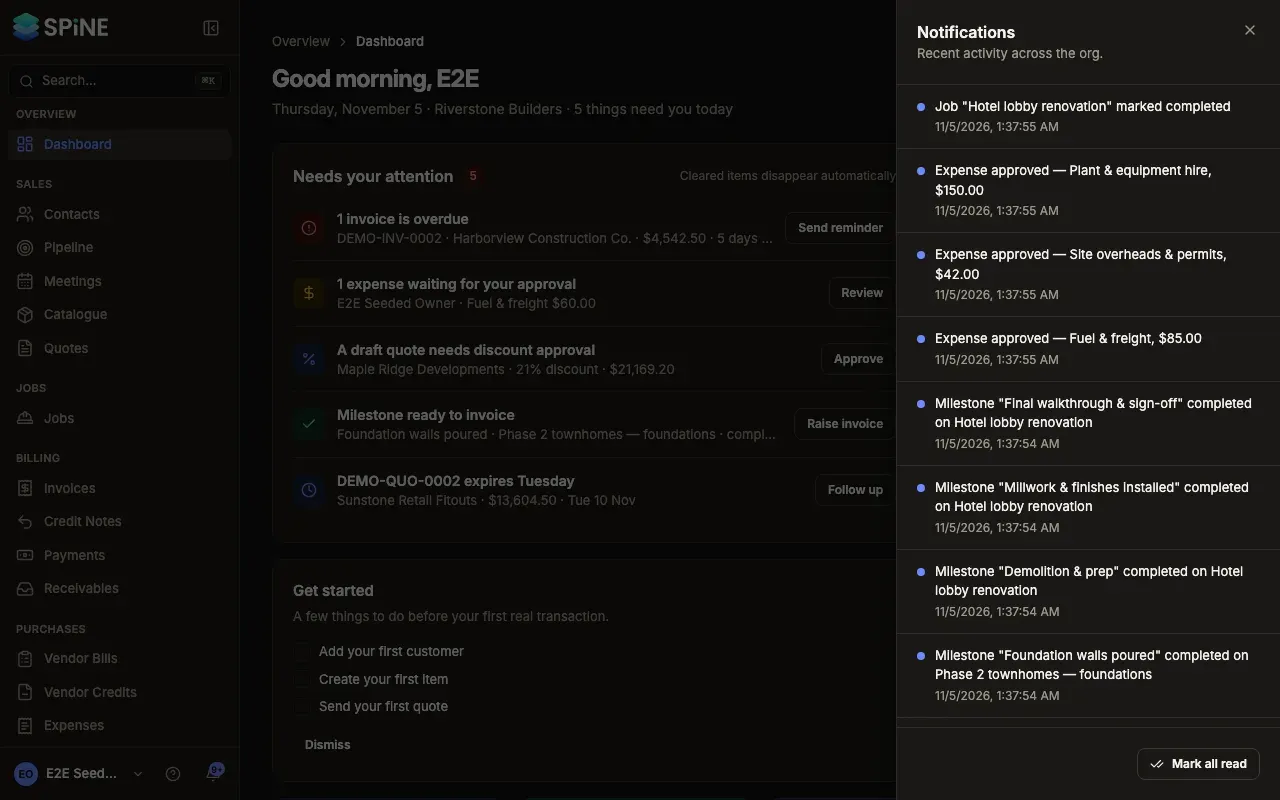
Open the panel — Press the bell. Notifications opens from the right with “Recent activity across the org.” and your notifications newest first. Each has a message, when it happened and a link. On a phone-width browser the panel fills the screen.
-
Open one — Press a notification to go to its record — the quote, job, expense or meeting. It’s marked read.
-
Mark everything read — Press Mark all read. The count goes to zero and stays at zero after a reload.
Things to know
Section titled “Things to know”- Read everywhere. Read one on your laptop and it’s read on your other browsers and devices too.
- New ones arrive by themselves. The count goes up within about 20 seconds of a new notification, without reloading the page.
- Nothing yet? The panel says “No notifications yet” and “You’ll see updates here as they happen.”
Last updated with Spine 1.0.0-beta.2