

Resend or cancel an invite
Invites wait on the Invites tab until the person accepts. From there you can send a lost email again, hand someone the link yourself, or cancel an invite sent by mistake.
-
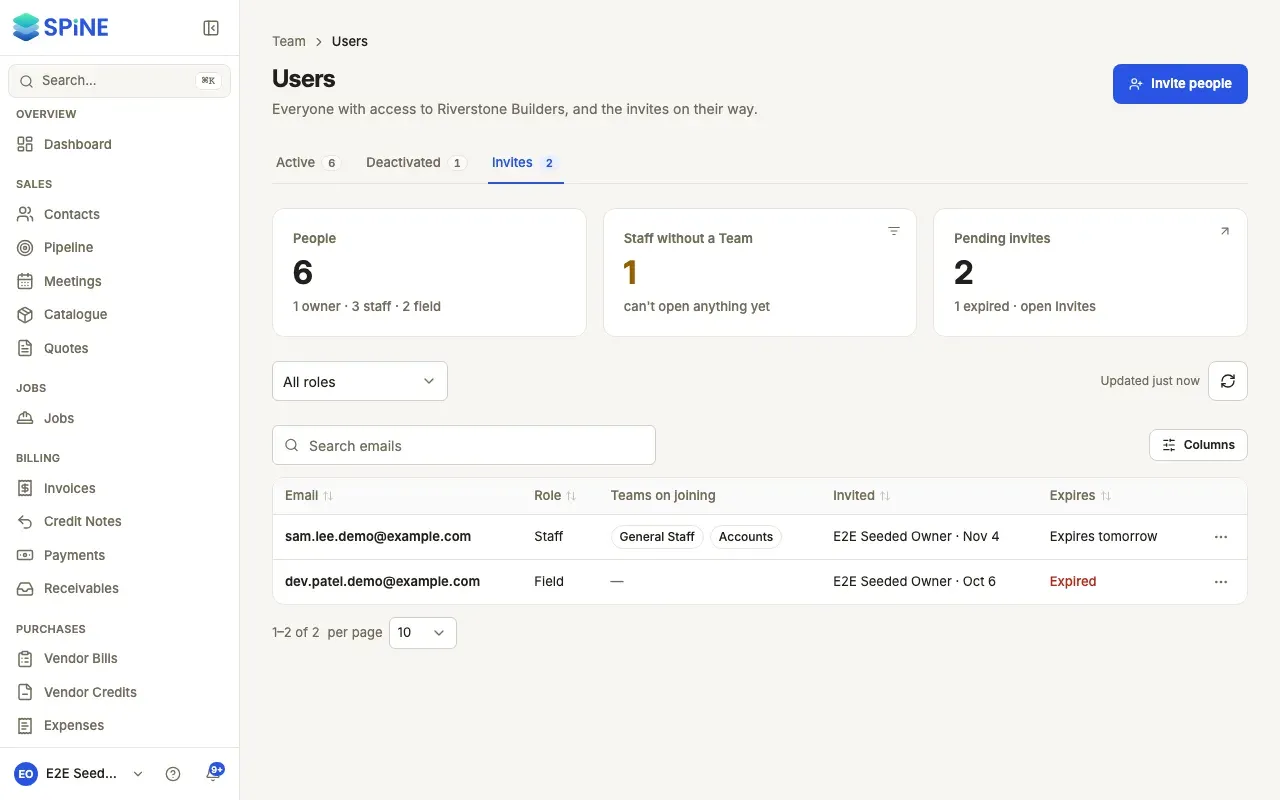
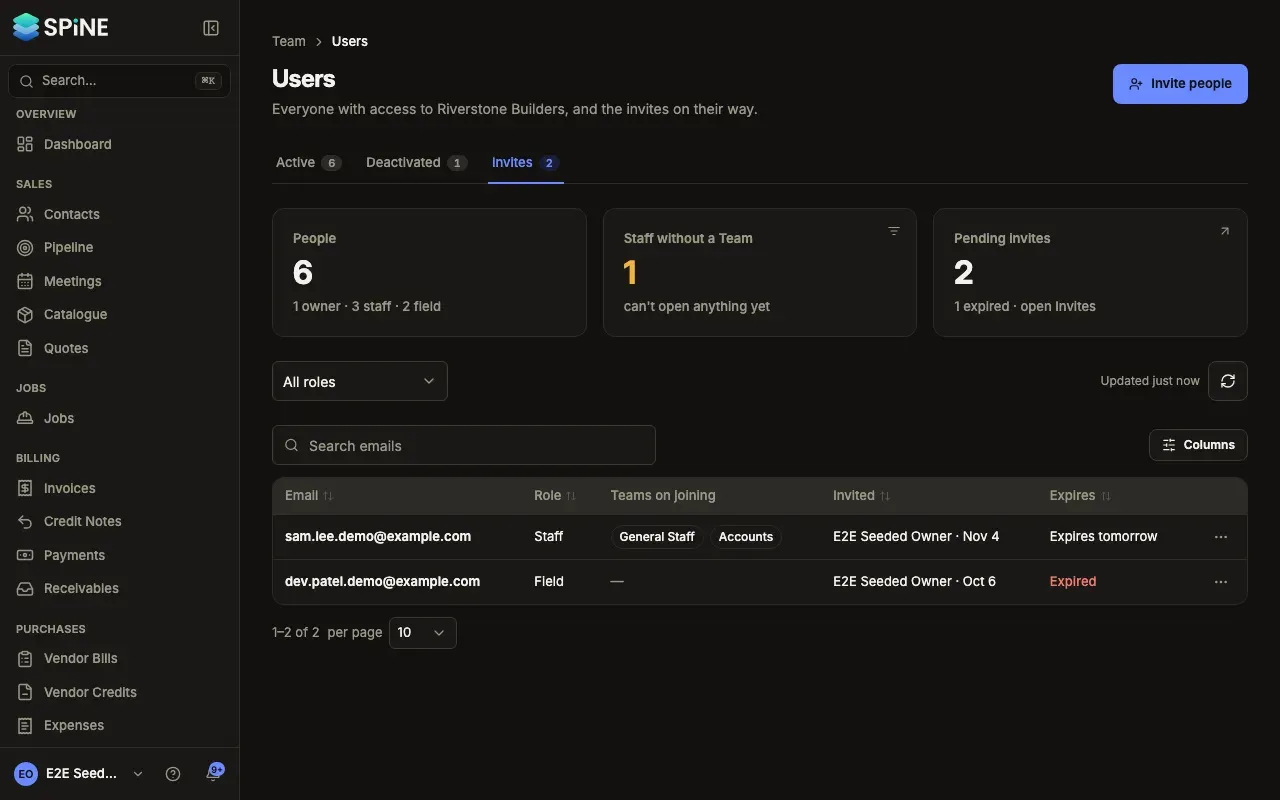
Open the Invites tab — Go to Team › Users and choose Invites. You can also press the Pending invites card, which counts how many have expired.
-
Find the invite — Each row shows the email, the role, the Teams on joining, who invited them and when (“Invited by name · 3 Oct”), and “Expires in 5 days”, “Expires today” or “Expired”. Search by email if the list is long.
-
Open its menu — Press the row’s actions menu and choose one of:
- Copy invite link — copies the link to paste into a message. The toast reminds you: only that email address can use it, signed in with that address.
- Resend — sends the email again. It’s the same link, and its time limit starts over.
- Cancel invite — Spine asks first: “Cancel this invitation?” Press Cancel invitation to stop the link working, or Keep invitation.
Expired invites
Section titled “Expired invites”An invite that runs out shows “Expired”. Choose Resend to send it again with a fresh time limit. The person can’t use an expired, cancelled or already accepted invite; they see “This invitation can’t be used” and are asked to get a new one.
If it doesn’t work
Section titled “If it doesn’t work”If resending or cancelling fails, a message above the list says so — for example “Couldn’t resend the invite to email.” Try again, and check that email is set up in Settings if invites aren’t arriving.
Last updated with Spine 1.0.0-beta.2