

Export or print a report
Every report has the same Export menu. Your accountant can work with the numbers in Excel, your bank can have a clean PDF, and you can print a copy for a meeting. The file always holds what’s on screen: the same range, filters, search and comparison columns.
- Set up the report — Open the report and choose the range, filters, comparison or basis you want in the file.
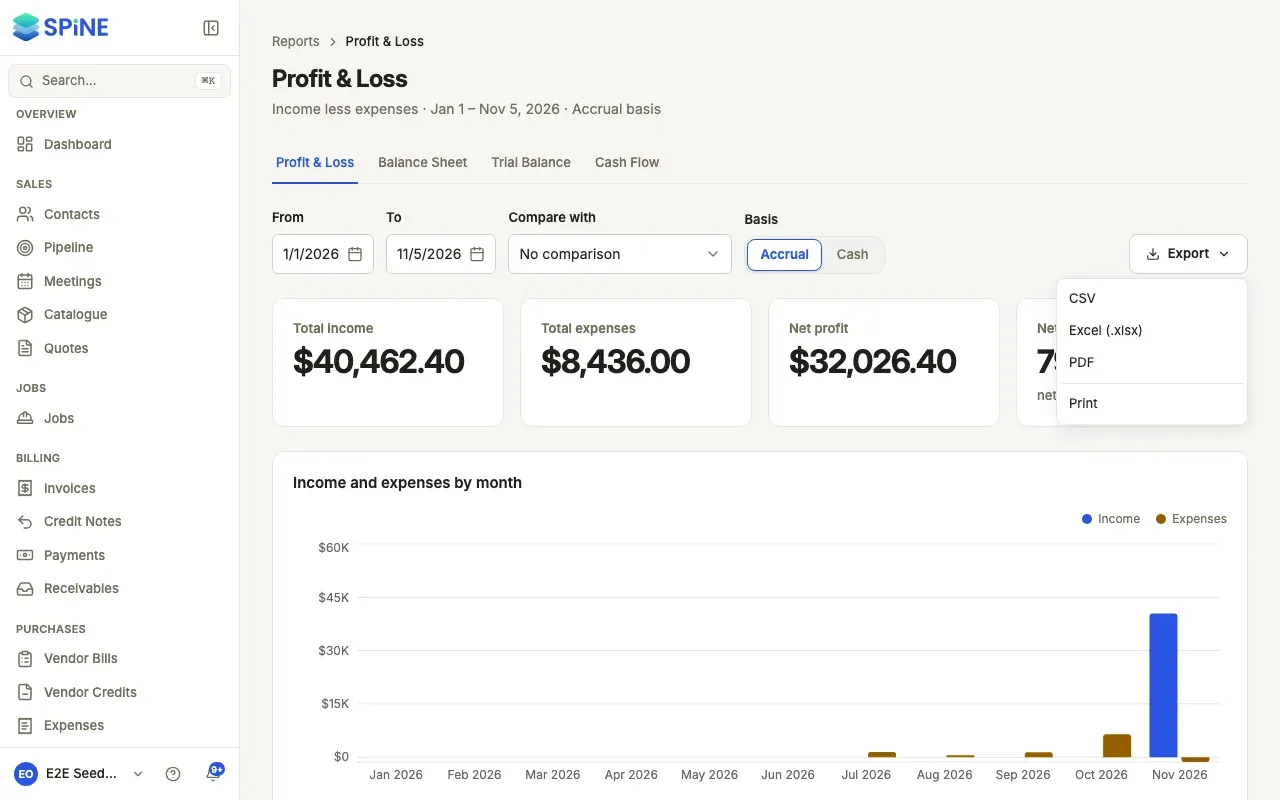
- Open Export — Press Export, on the right of the toolbar.
- Choose a format — CSV, Excel (.xlsx), PDF or Print. CSV, Excel and PDF download straight away.
What each format gives you
Section titled “What each format gives you”- CSV: one row per account, job, customer or document, with plain decimal amounts and the currency in its own column. The file is named after the report and its range.
- Excel (.xlsx): amounts are numbers with two decimals, not text. Headings are bold, the first row is frozen, and the business name, report name and range are in the first rows.
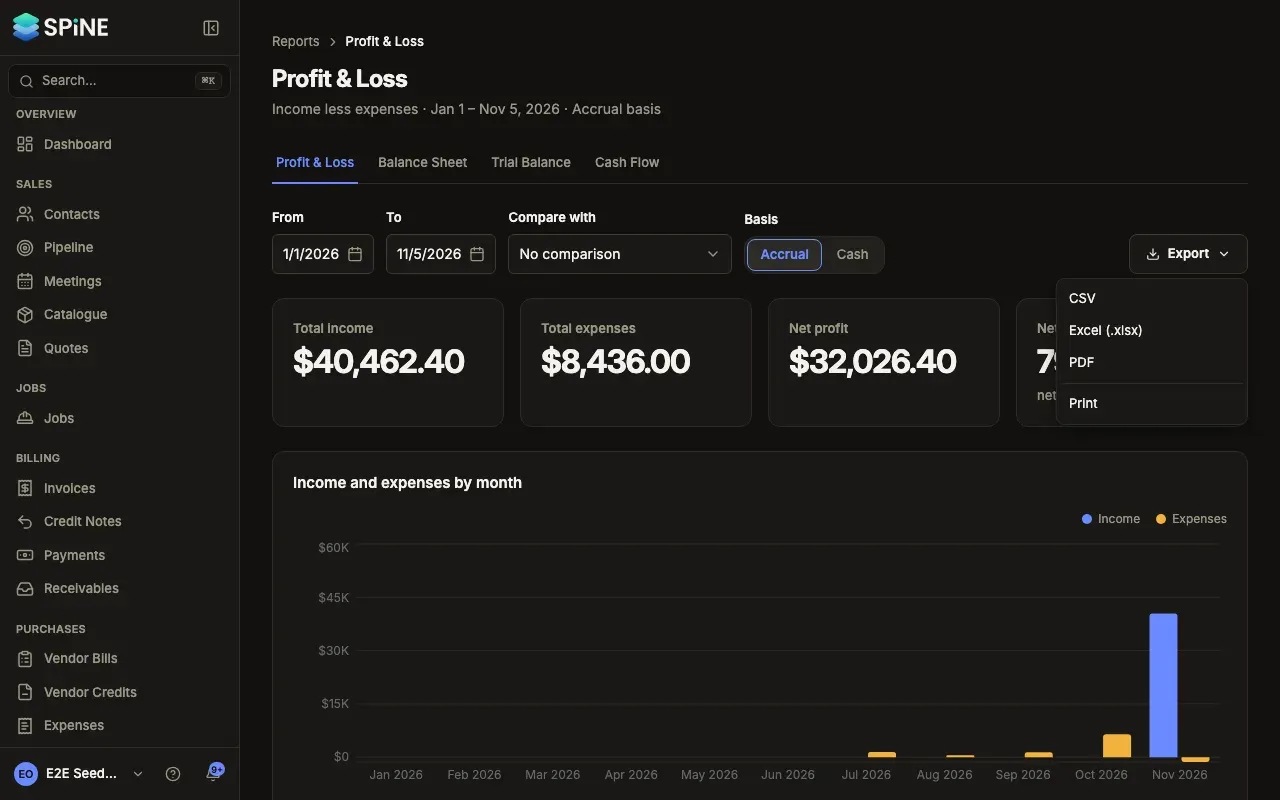
- PDF: your logo, business name, report name, range or date, and basis (accrual or cash), with page numbers and “Prepared date” in the footer. A report with more than five amount columns turns landscape. The PDF is always light, even if you use Spine in dark mode.
- Print: opens your browser’s print dialog. The sidebar, toolbars and buttons are left out, and the report fills the page with its title, range and business name. On long tables, column headings repeat on every page and rows aren’t split across pages.
Export files can hold customer names and amounts. Store and share them with care.
The Tax Summary exports the same way. For a file your accountant imports into Tally, see Export your books for Tally.
Last updated with Spine 1.0.0-beta.2