

Turn on browser notifications
Browser notifications show your Spine notifications as alerts on your computer or phone, even with the Spine tab closed. They’re extra to the bell and email — turning them off doesn’t affect either. You turn them on for each device and browser separately.
-
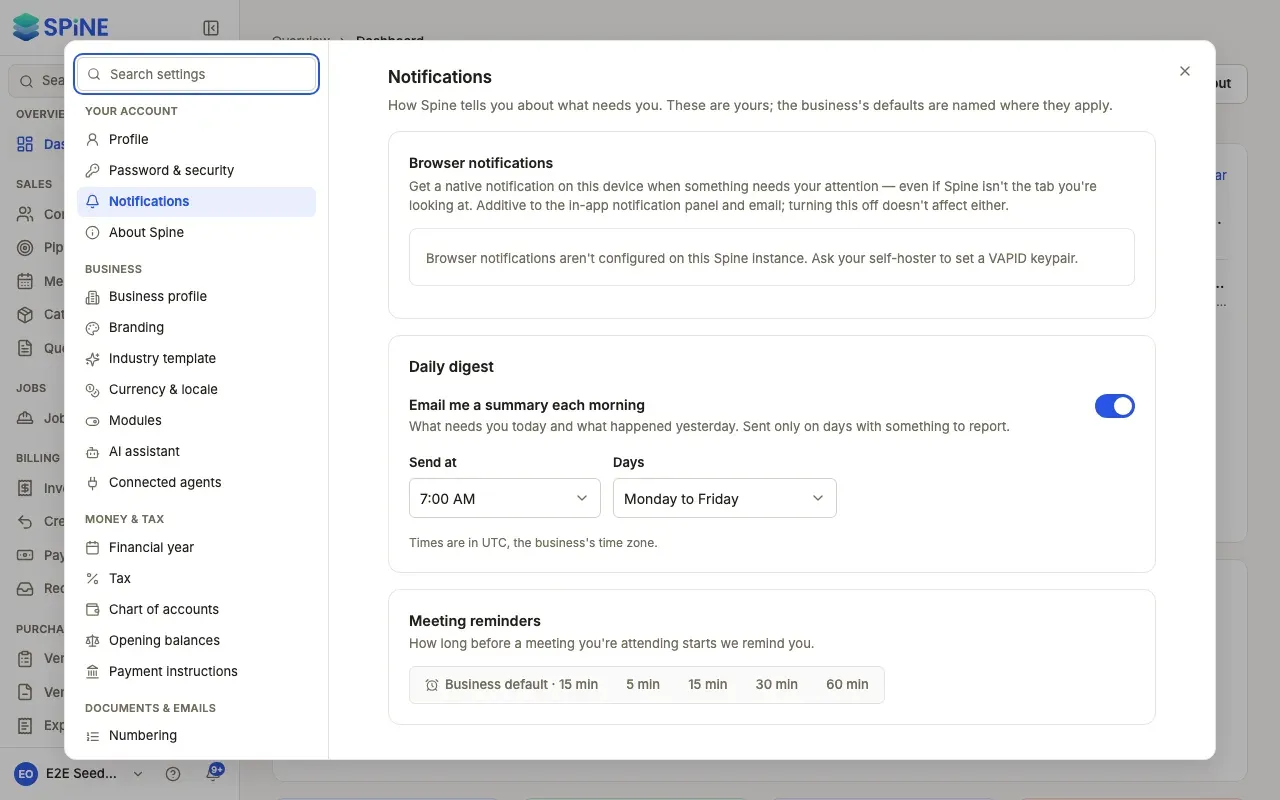
Open your notification settings — Open your user menu, choose Settings, then Notifications under Your account.
-
Find Browser notifications — It reads “Not enabled on this device” and “Turn this on to receive push notifications on this device.”
-
Press Turn on — Your browser asks whether Spine may show notifications. Allow it.
-
Check it’s on — The section reads “Enabled on this device” and “This device will receive push notifications.”
What happens next
Section titled “What happens next”When a notification is created for you, your operating system shows it with its message. Click it to open Spine at the record it’s about.
Several devices
Section titled “Several devices”Turn it on in each browser you use. Turning it off on one — press Turn off — doesn’t stop the others.
If it doesn’t turn on
Section titled “If it doesn’t turn on”- “Blocked by the browser” — you blocked notifications for Spine earlier. Re-enable them in your browser’s site settings, then come back and press Turn on.
- “This browser doesn’t support push notifications.” — use a different browser on this device.
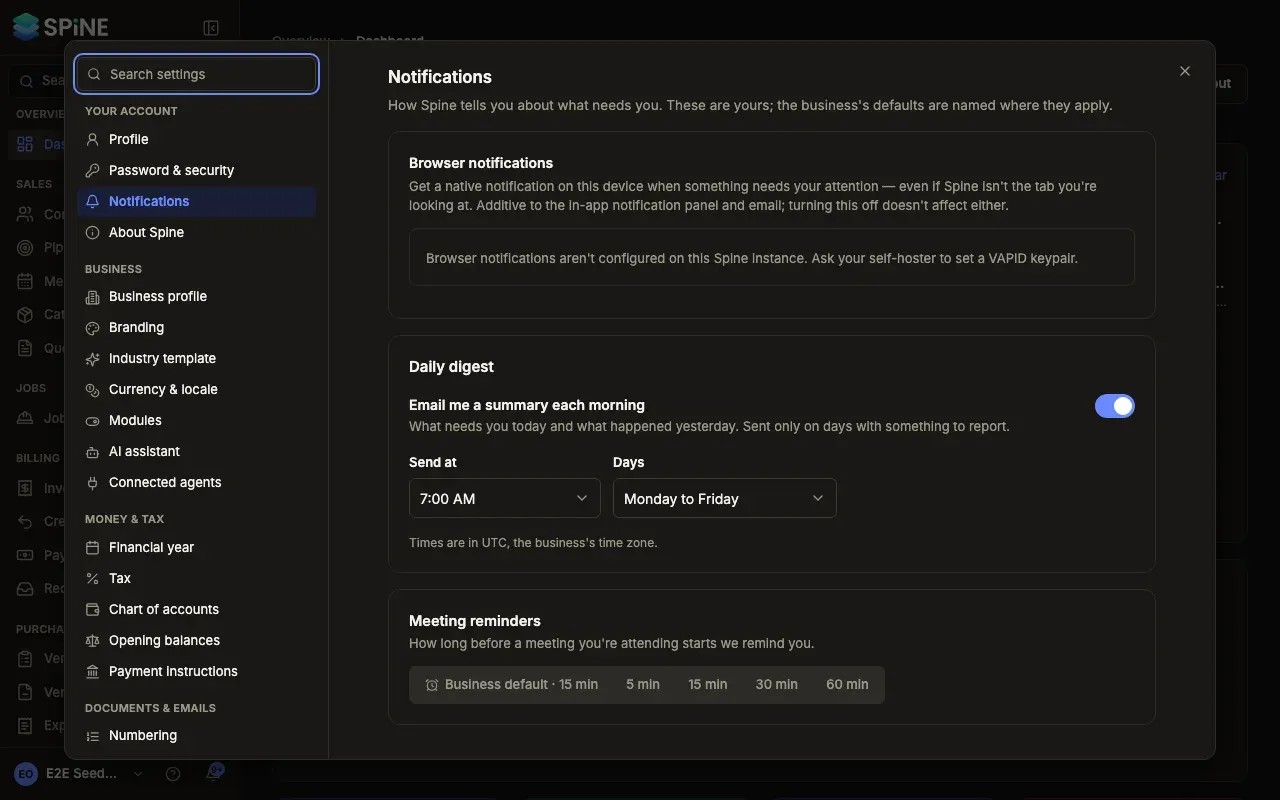
- “Browser notifications aren’t configured on this Spine instance.” — whoever runs your Spine server needs to set a VAPID keypair. The bell and emails still work.
Last updated with Spine 1.0.0-beta.2