

Follow what happened to a quote
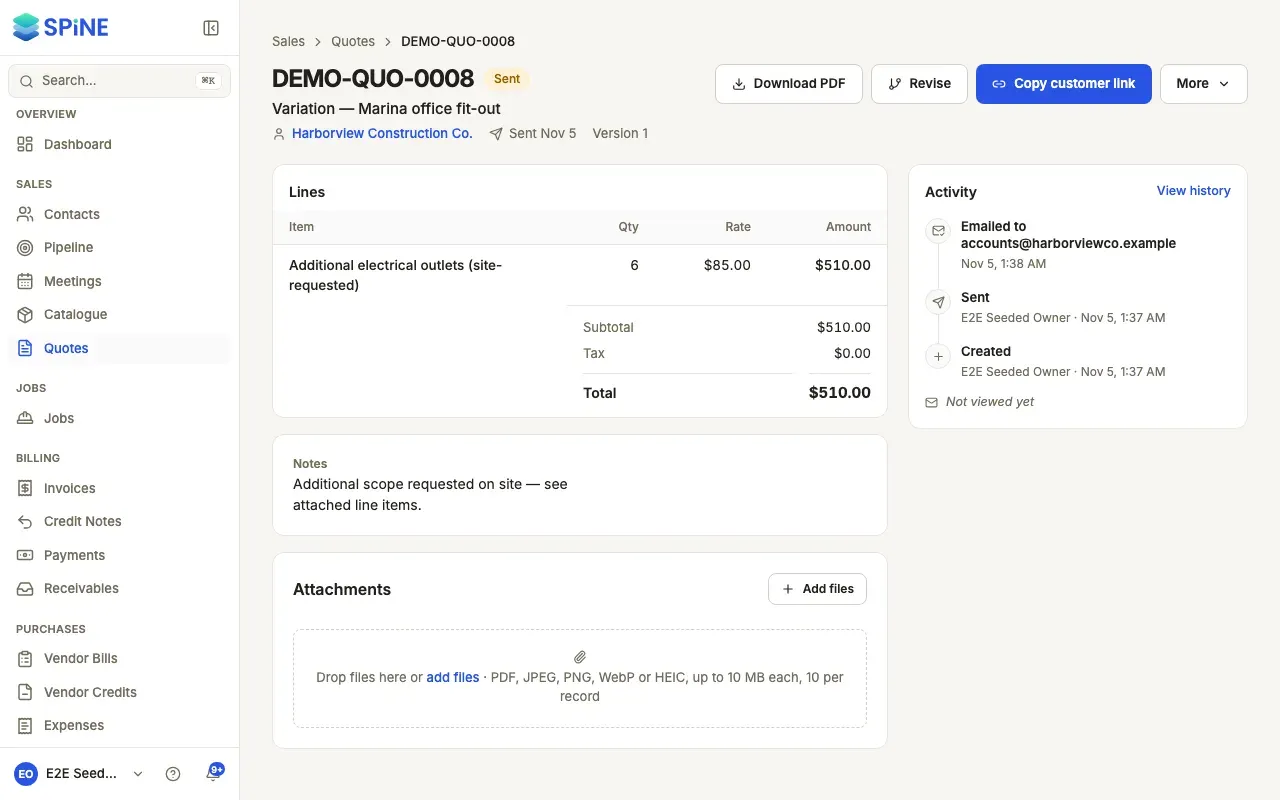
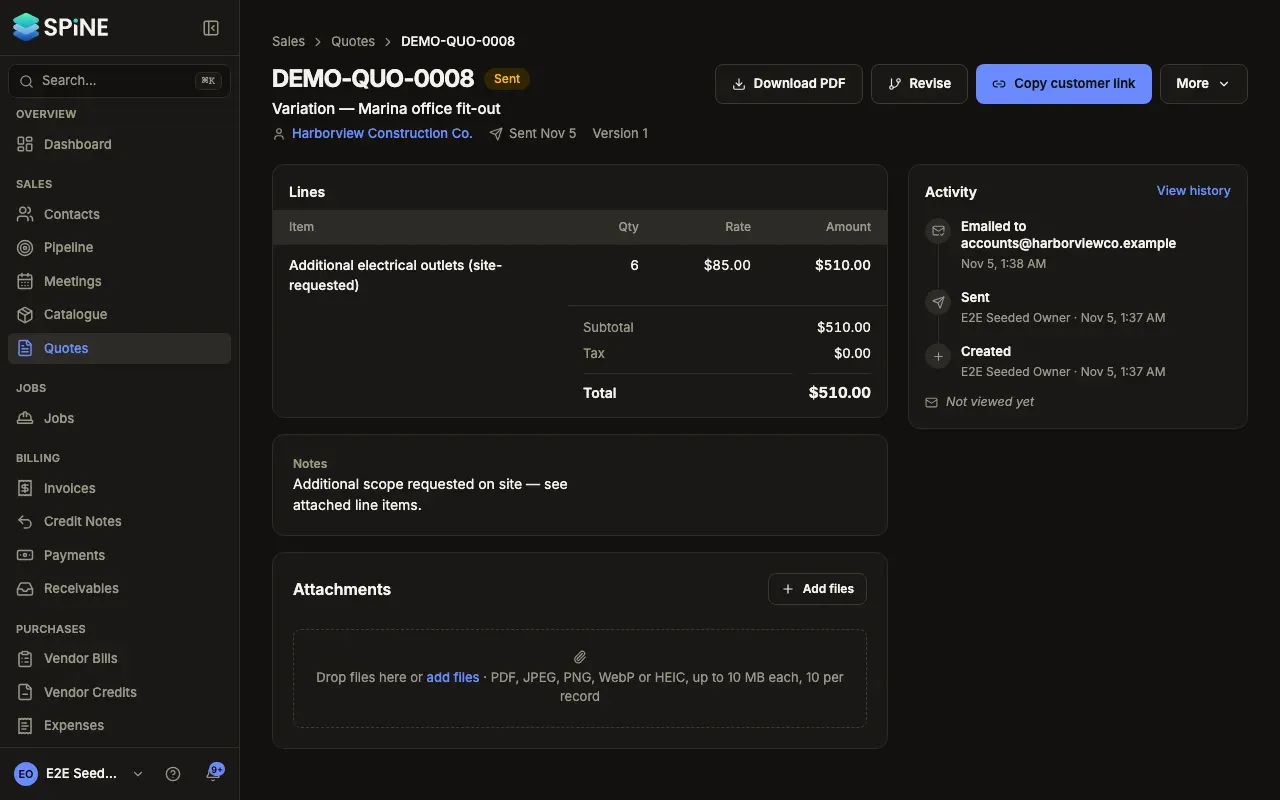
A quote’s page shows what the customer gets and what to do next. Its Activity tells the quote’s whole story, including when the customer looked, so you can call at the right moment.
-
Open the quote — Go to Quotes and open a row.
-
Read the header — The heading is the quote number (“Draft quote” for a draft) with its status. Under it are the title, the contact (a link to them), “Sent” with the date, and “Valid until” with how long is left or how long ago it expired.
-
Take the next step — One primary button offers the next step for the quote’s status: Send quote for a draft, Copy customer link while it’s sent, Convert to invoice once accepted, and Revise when it’s declined or expired. Other actions sit beside it and under More, each only when you may use it.
-
Read the Activity panel — Newest first, it lists when the quote was created, edited, approved, sent and emailed (or “Email failed” with the reason), when a link was copied, when the customer viewed it, and when it was revised, accepted or declined, or converted, with who did it and when.
-
Use the Related panel — It links to the lead the quote is for, every version (v1, v2 and so on, each with its status chip, and “this one” beside the version you’re on) and any job or invoice made from it.
Reading the activity
Section titled “Reading the activity”- Several views in a row show as one entry: “Viewed by the customer 3 times · last” with the time.
- A sent quote nobody has opened ends with Not viewed yet.
- A version 2 starts with Revised from a link to version 1.
- View history (in the panel or under More) shows field-by-field changes.
How it was accepted
Section titled “How it was accepted”When the customer accepted online, the page says “Accepted online by the customer on” the date, with their comment. When it was accepted on site, it shows Accepted on site, who signed and when, which team member witnessed it, a preview of the signature and View signature full size. A decline on site shows Declined on site with the reason, if one was given.
The lines and totals
Section titled “The lines and totals”The lines show as a table: Item (with its description), Qty, Rate, Discount and Tax (only when a line has them), and Amount. Headings span the row in bold. Under the table are the Subtotal, the Discount (when there is one), the tax by name (for example CGST and SGST for an Indian business) and the Total.
Jobs only appear under Related when the Jobs & field module is on.
Last updated with Spine 1.0.0-beta.2