

Tell customers how to pay
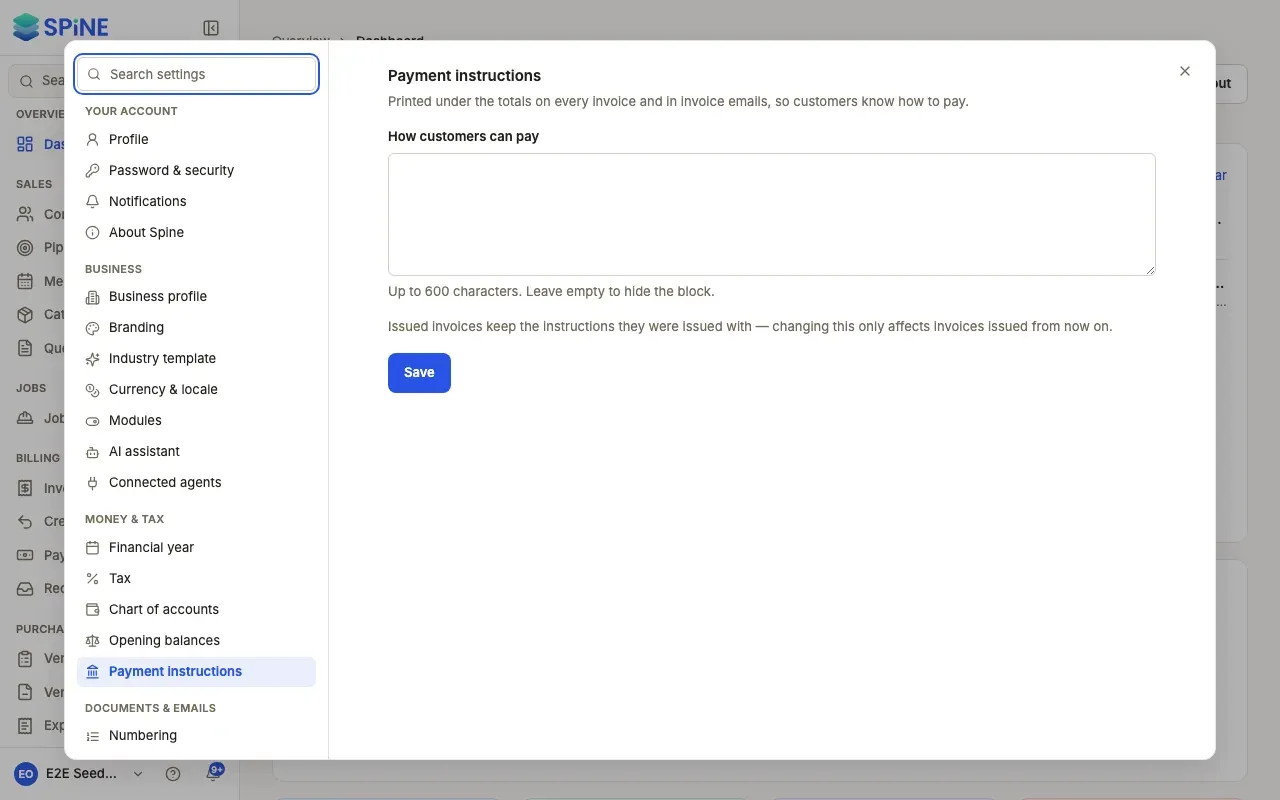
Payment instructions are “Printed under the totals on every invoice and in invoice emails, so customers know how to pay.” Enter them once and every invoice you issue carries them. In India you can add your UPI ID and a QR code too.
-
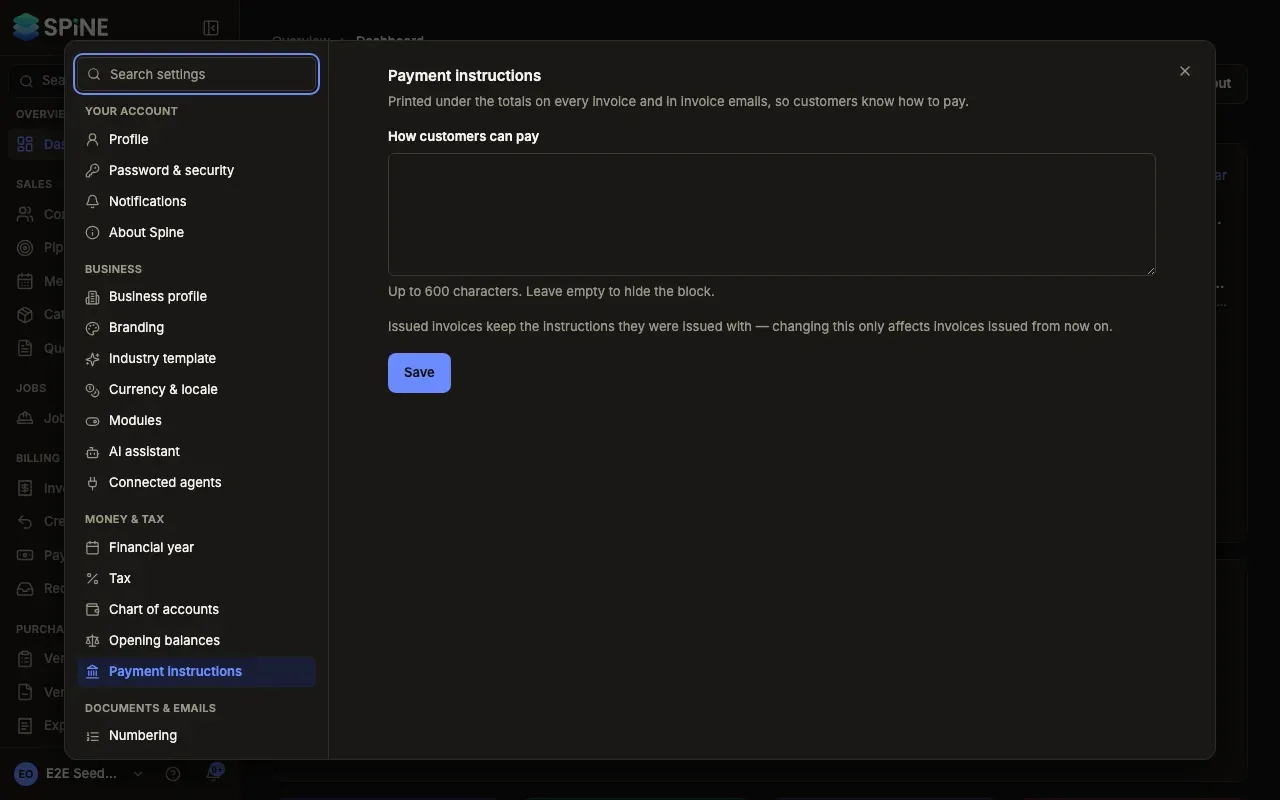
Open Settings › Payment instructions — Open your user menu, choose Settings, and pick Payment instructions under Money & tax.
-
Write how customers can pay — In How customers can pay, enter your bank name, account number, routing or sort code, or whatever your customers need. Up to 600 characters. Leave it empty to hide the block.
-
Add UPI (India only) — When your currency is INR, enter your UPI ID (for example
riverstone@okhdfc) and Payee name. Tick Show a UPI QR code on invoices to print a code for each invoice’s balance due. -
Press Save — A “Saved” message appears.
Good to know
Section titled “Good to know”- Only new invoices change. “Issued invoices keep the instructions they were issued with — changing this only affects invoices issued from now on.”
- A QR code doesn’t record the payment. “Payments still need recording — or find them when you reconcile.”
- The UPI fields only show for INR. Other currencies see the instructions box only.
For how the instructions look on an invoice, see Invoices and credit notes.
Last updated with Spine 1.0.0-beta.2