

Add a lead
A lead is a job you might win. Add one as soon as an enquiry comes in, so the pipeline shows what’s in play and what it could be worth. You can add a lead from the pipeline or from the contact’s page.
Add a lead from the pipeline
Section titled “Add a lead from the pipeline”- Open the drawer — Go to Pipeline and press Add lead. The Add lead drawer opens. If you press it from a column, the lead starts in that column’s stage.
- Say who it’s for — In Contact, start typing and choose the contact (“Select a contact…”).
- Describe it — Fill in Title, such as “Kitchen extension”. If you leave it blank, the card shows the contact’s name.
- Add its value — Choose the Stage, and fill in Estimated value and Currency.
- Add the details — Choose an Owner (any active member, or Unassigned), an Expected close date, and a Source. In Source, pick one you’ve used before or type a new one (“Select or type a source…”).
- Save — Press Add lead. The lead appears in its stage column with its title, contact and value, and the column’s total goes up.
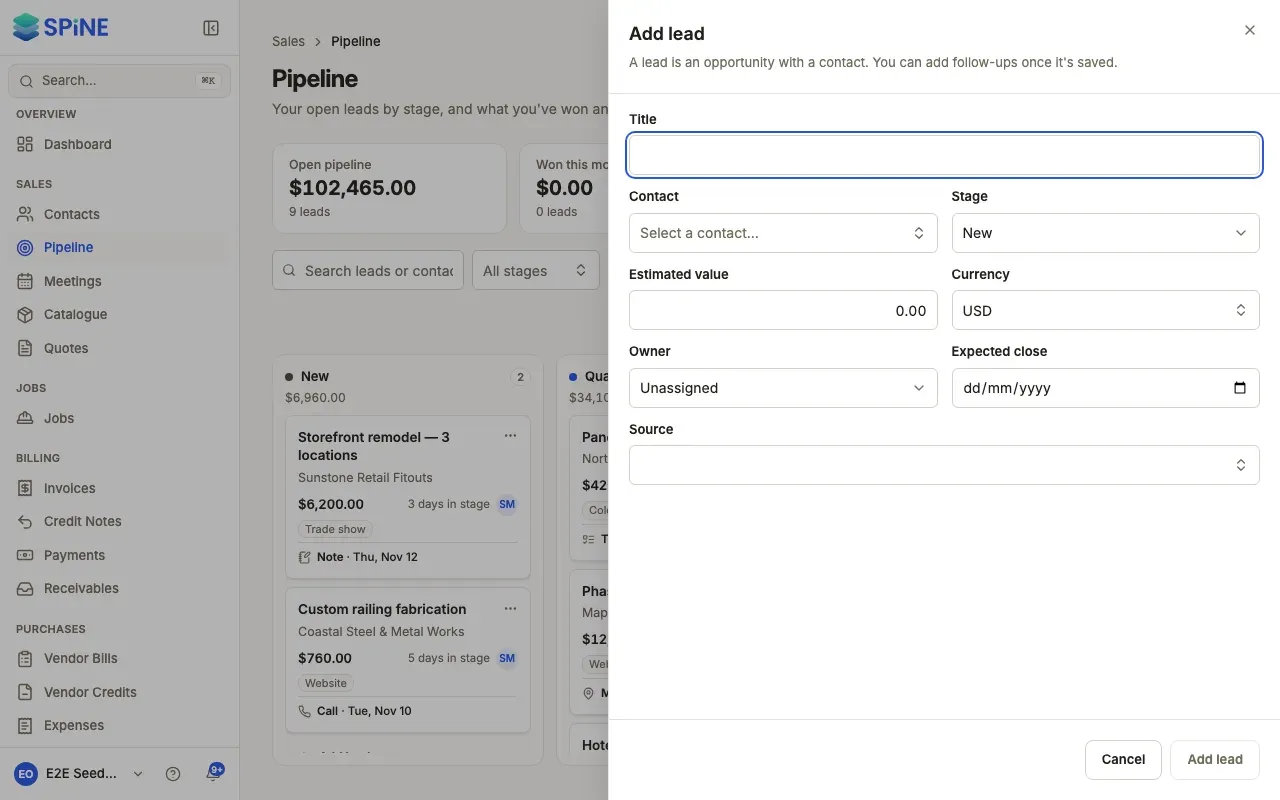
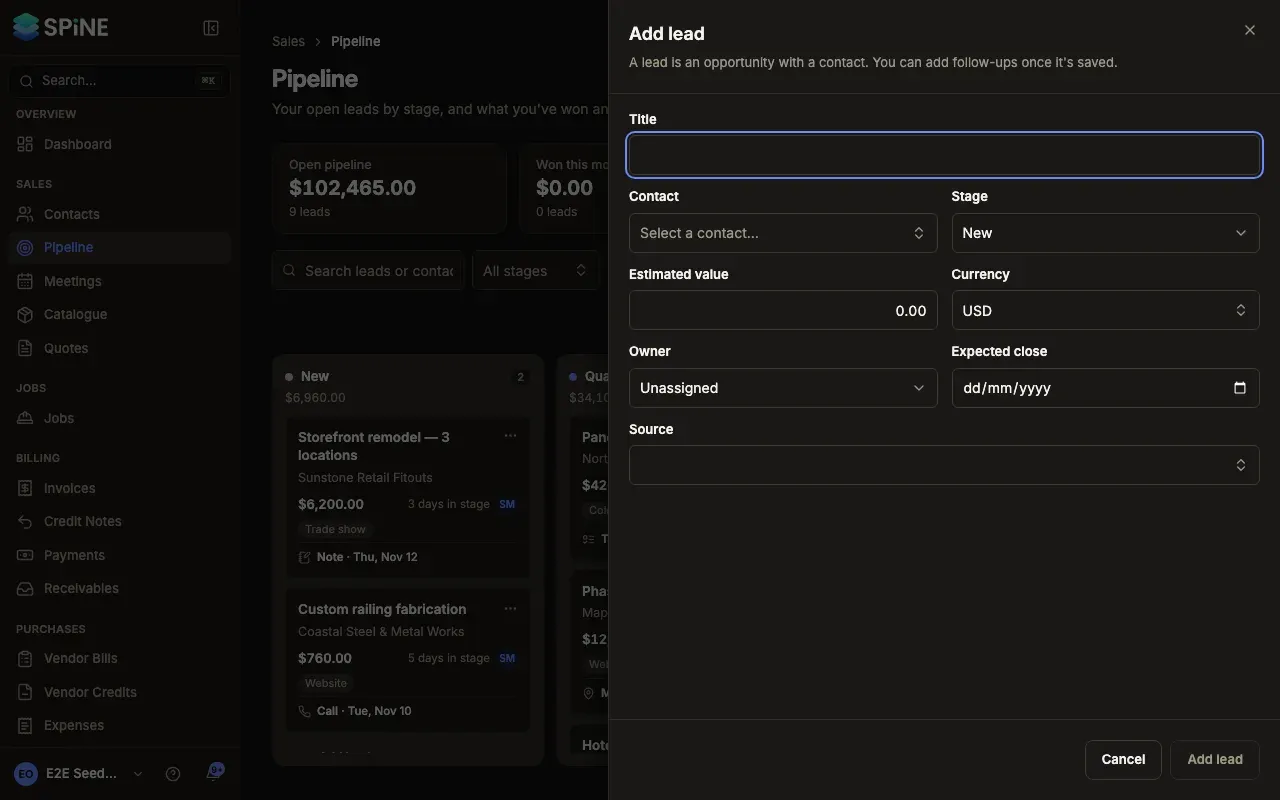
Once the lead is saved, its drawer also shows Follow-ups, Quotes and History. See Work a lead from its drawer.
Add a lead from a contact
Section titled “Add a lead from a contact”- Open the contact — Go to Contacts, open the contact and choose the Leads tab.
- Add the lead — Press Add lead. The contact is already chosen. Fill in Title, Stage, Estimated value and Currency.
- Save — Press Add lead. A “Lead added” toast shows and the lead is listed with its title, stage and value.
To change a lead from this tab, press the edit button beside it, change the details and press Save changes.
The owner and the creator
Section titled “The owner and the creator”The Owner is the person working the lead. You can change it at any time. The person who created the lead stays its creator, and that’s what decides who can change it: “own leads” means leads you created, not leads you own on the board. See Choose who can change contacts and leads.
Last updated with Spine 1.0.0-beta.2