

Create an invoice
Use the invoice builder to bill work that didn’t start as a quote, or anything you want to bill by hand. A new invoice saves as a draft: it has no number and nothing goes into your books until you issue it.
-
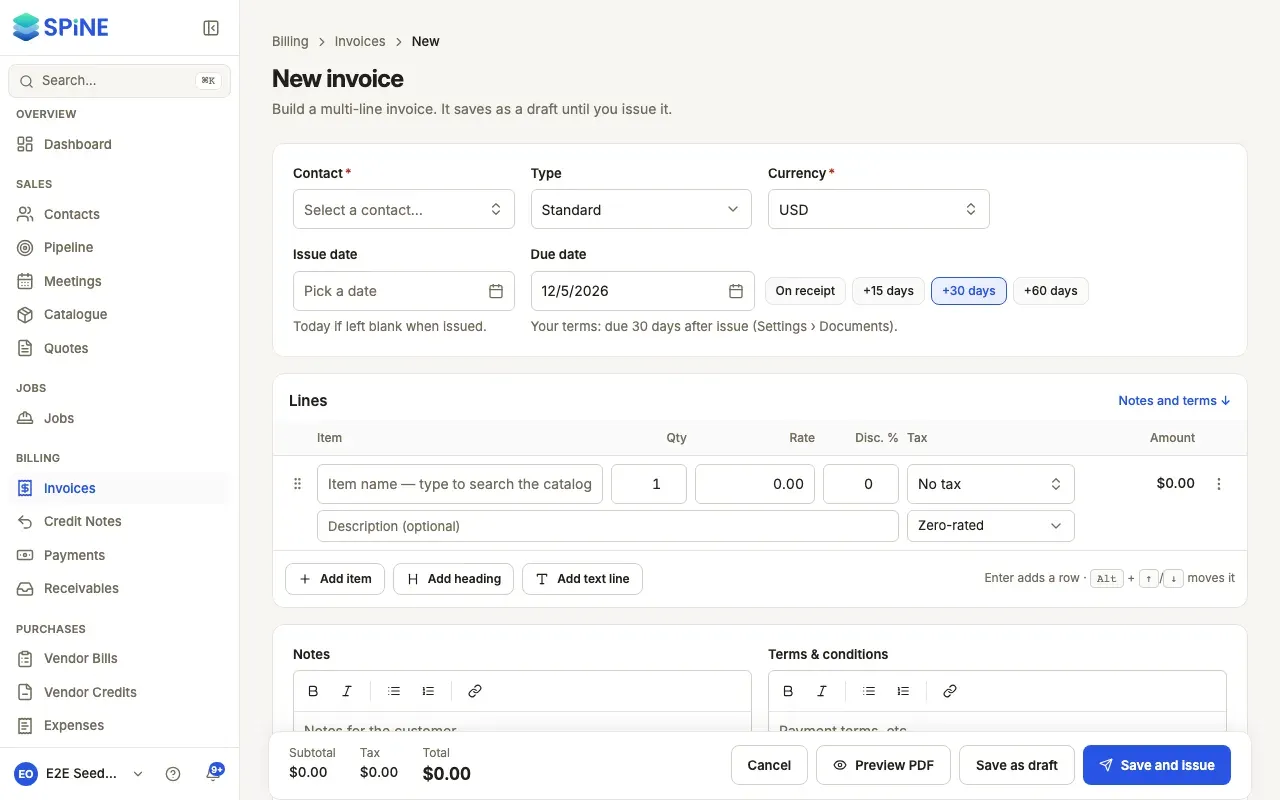
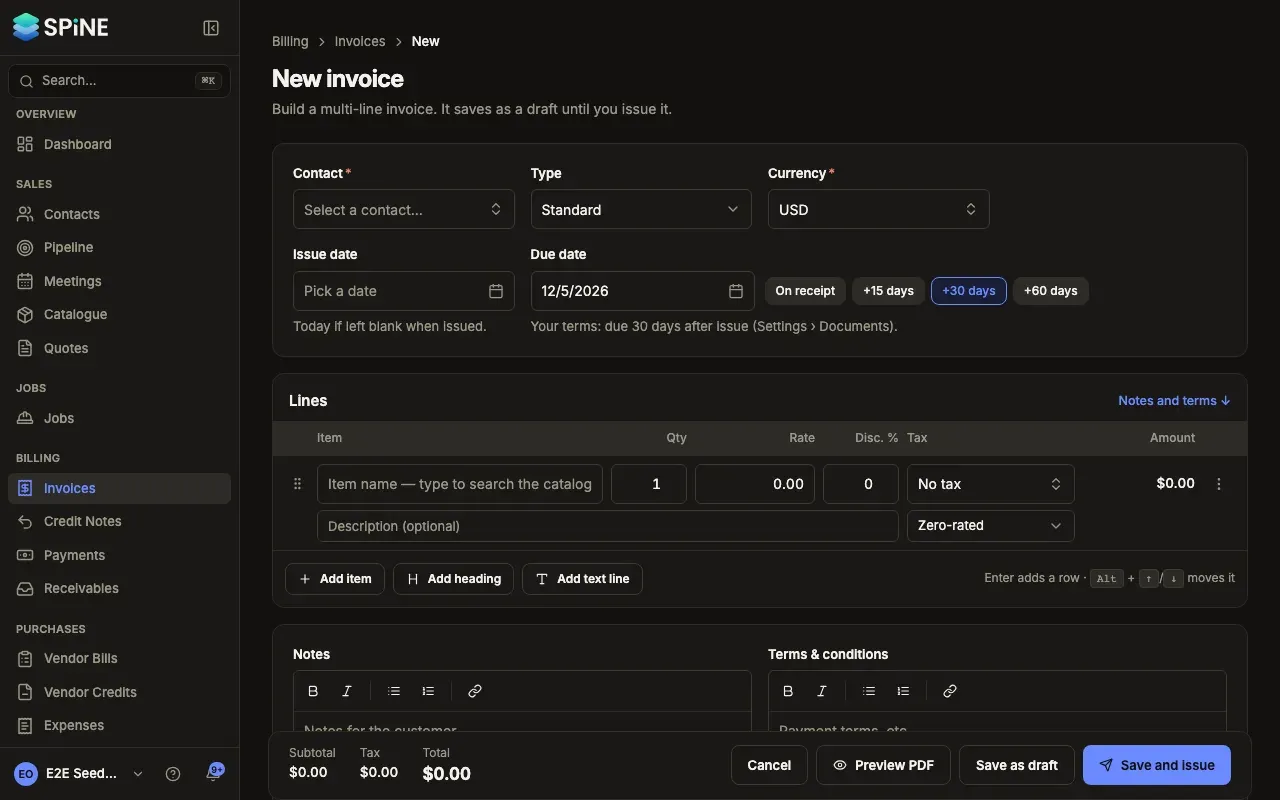
Start the invoice — Go to Invoices and press New invoice.
-
Choose the customer — Pick the Contact. Check the Currency, and leave Type on Standard for an ordinary invoice.
-
Set the dates — Leave Issue date blank to use the day you issue it. Due date starts from your payment terms. Press On receipt, +15 days, +30 days or +60 days to change it; the one that matches shows pressed.
-
Add the lines — Press Add item and fill in Item, Qty, Rate, Disc. % and Tax for each line. Use Add heading to group lines and Add text line for a note between them. Drag a line, use its menu, or press Alt + ↑ or ↓ to move it.
-
Add notes and terms — Fill in Notes (the customer sees them on the invoice) and Terms & conditions.
-
Save it — Press Save as draft. To issue it straight away, press Save and issue instead.
Totals and tax
Section titled “Totals and tax”The bar at the bottom of the builder stays in view as you scroll. It shows Subtotal, Tax and Total, and they update as you type. Tax is worked out on each line and rounded once per line. Tick Price includes tax on a line when the rate you entered already has the tax in it.
Press Preview PDF to see the invoice as it is on screen. The preview carries a faint “DRAFT — Preview only — not a valid invoice” watermark, and nothing is saved.
Your payment terms
Section titled “Your payment terms”The due date comes from Invoices due in, under Settings › Documents (Owners only). It takes 0 to 365 days; 0 means due on receipt, and new businesses start at 30. If an invoice is issued without a due date, it gets one from this setting, so it can become overdue and be reminded.
Other ways to start an invoice
Section titled “Other ways to start an invoice”- From an accepted quote, press Convert to invoice. See Quotes.
- From a completed milestone, press Raise invoice. See Invoice a milestone and release retention.
- From an old invoice, use Duplicate. See Duplicate an invoice.
- On a schedule. See Set up a recurring invoice.
Next: Issue an invoice.
Last updated with Spine 1.0.0-beta.2