

Choose how Spine notifies you
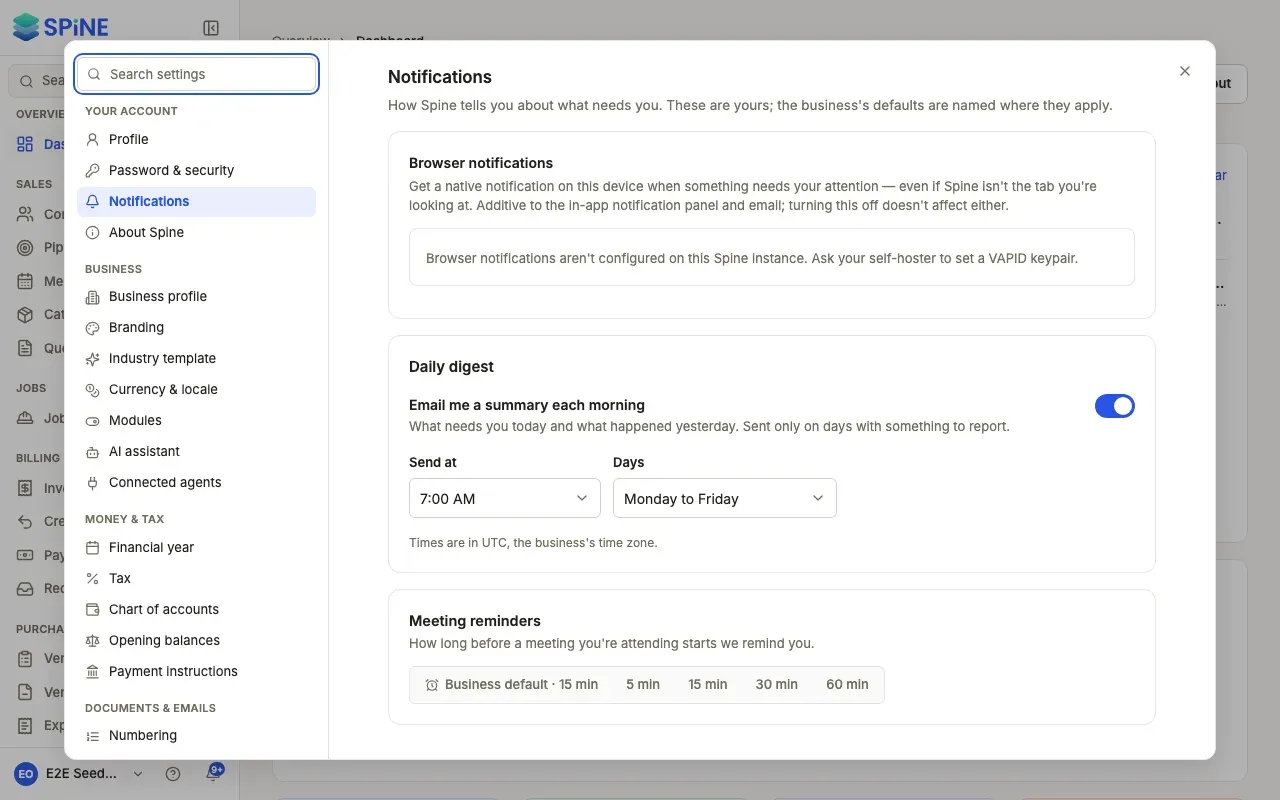
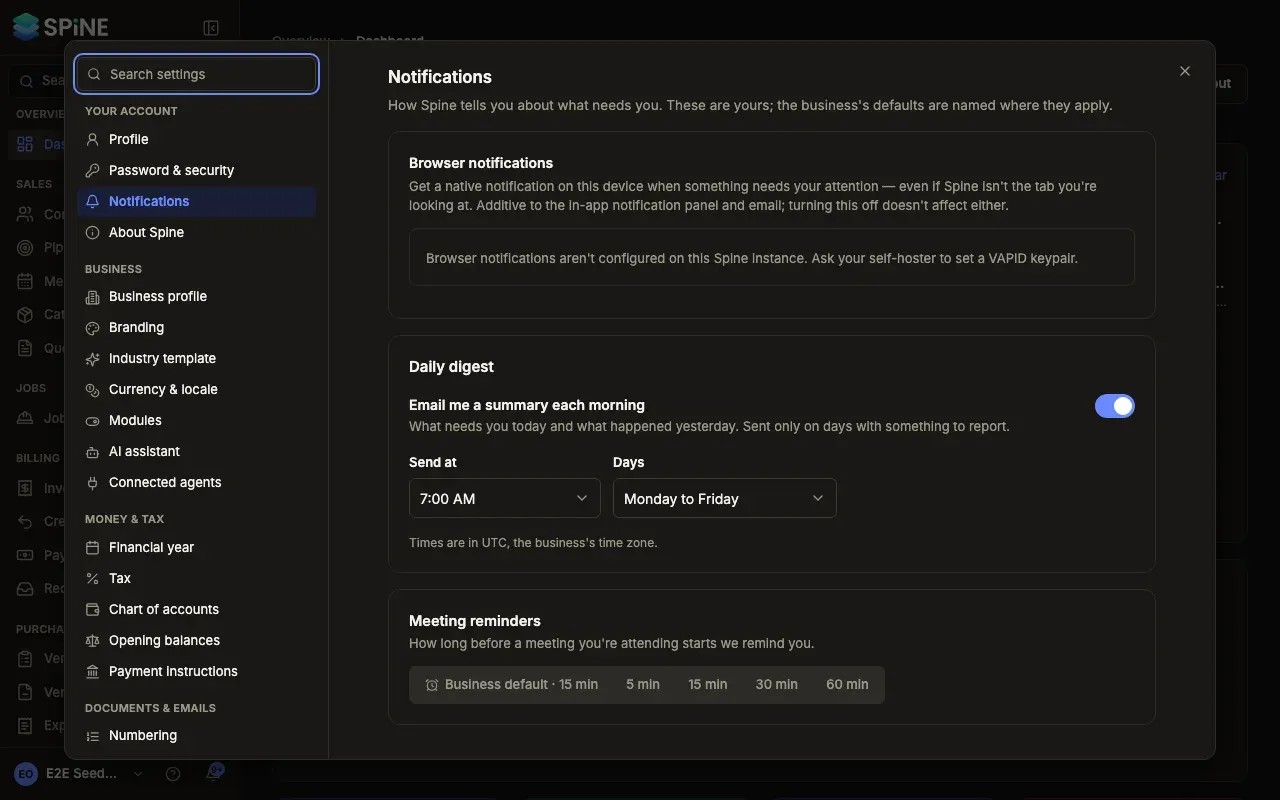
The Notifications pane covers “How Spine tells you about what needs you. These are yours; the business’s defaults are named where they apply.” Each setting here changes only your own notifications.
-
Open Settings › Notifications — Open your user menu, choose Settings, and pick Notifications under Your account. Changes save as you make them.
-
Browser notifications — Press Turn on to get a notification on this device when something needs you, even when Spine isn’t the tab you’re looking at. Your browser asks for permission. Turn off stops it on this device only.
-
Daily digest — Turn on Email me a summary each morning: “What needs you today and what happened yesterday. Sent only on days with something to report.” Choose Send at and Days (every day, or Monday to Friday).
-
Meeting reminders — Choose how long before a meeting you’re attending we remind you: Business default (the Owner’s setting, for example “Business default · 15 min”), 5 min, 15 min, 30 min or 60 min.
If something doesn’t work
Section titled “If something doesn’t work”- “Blocked by the browser” — you’ve blocked notifications for Spine. Re-enable them in your browser’s site settings, then press Turn on.
- “Browser notifications aren’t configured on this Spine instance.” — whoever runs Spine hasn’t set them up on the server yet.
- “This browser doesn’t support push notifications.” — try another browser.
Times are in your organisation’s time zone. For the notification bell and what you’re notified about, see Notifications.
Last updated with Spine 1.0.0-beta.2