

Preview and download a quote PDF
Every quote has a branded PDF: the same document the customer gets attached to the email. Preview it while you build the quote, or download it to print or share another way.
-
Preview while you build — In the quote builder, press Preview PDF in the bar at the bottom. The quote as it is on screen opens as a PDF in a new tab. Nothing is saved: your draft and its unsaved changes stay as they were.
-
Preview a saved draft — Open the draft and press Preview PDF.
-
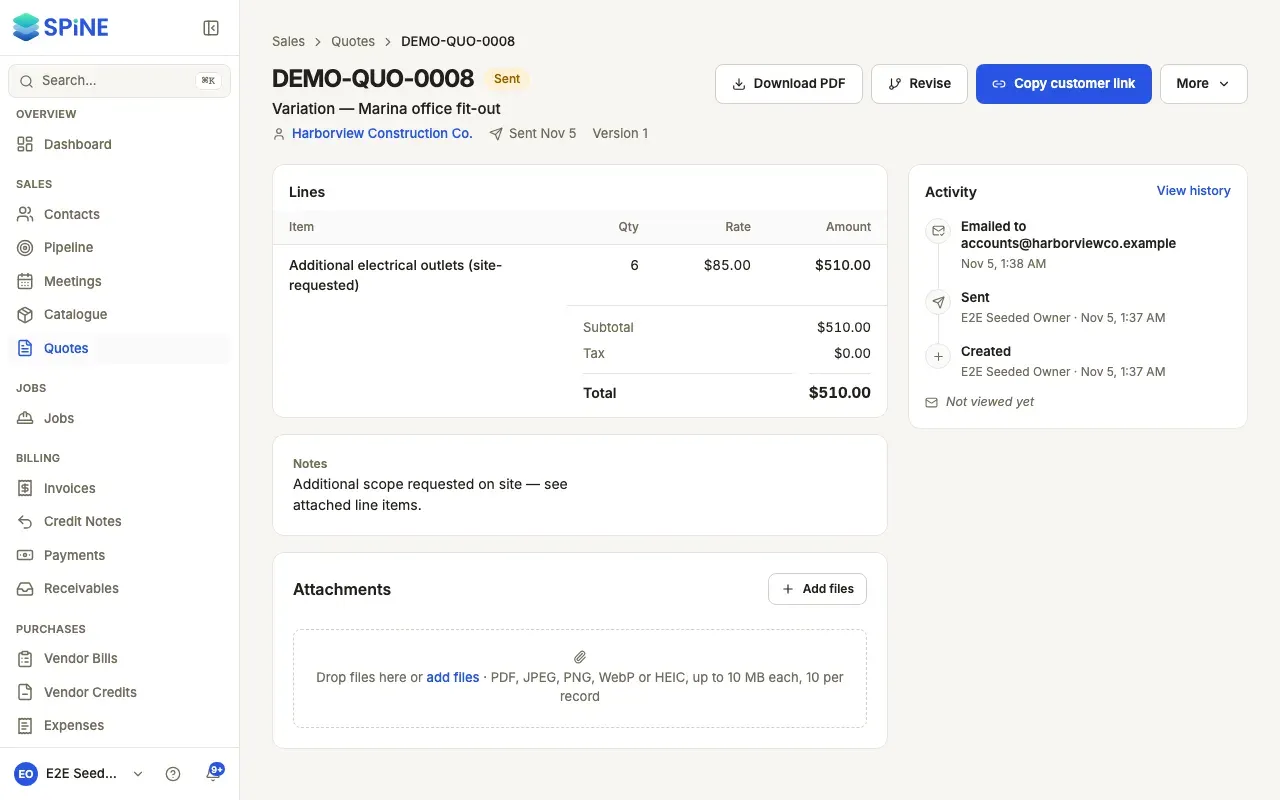
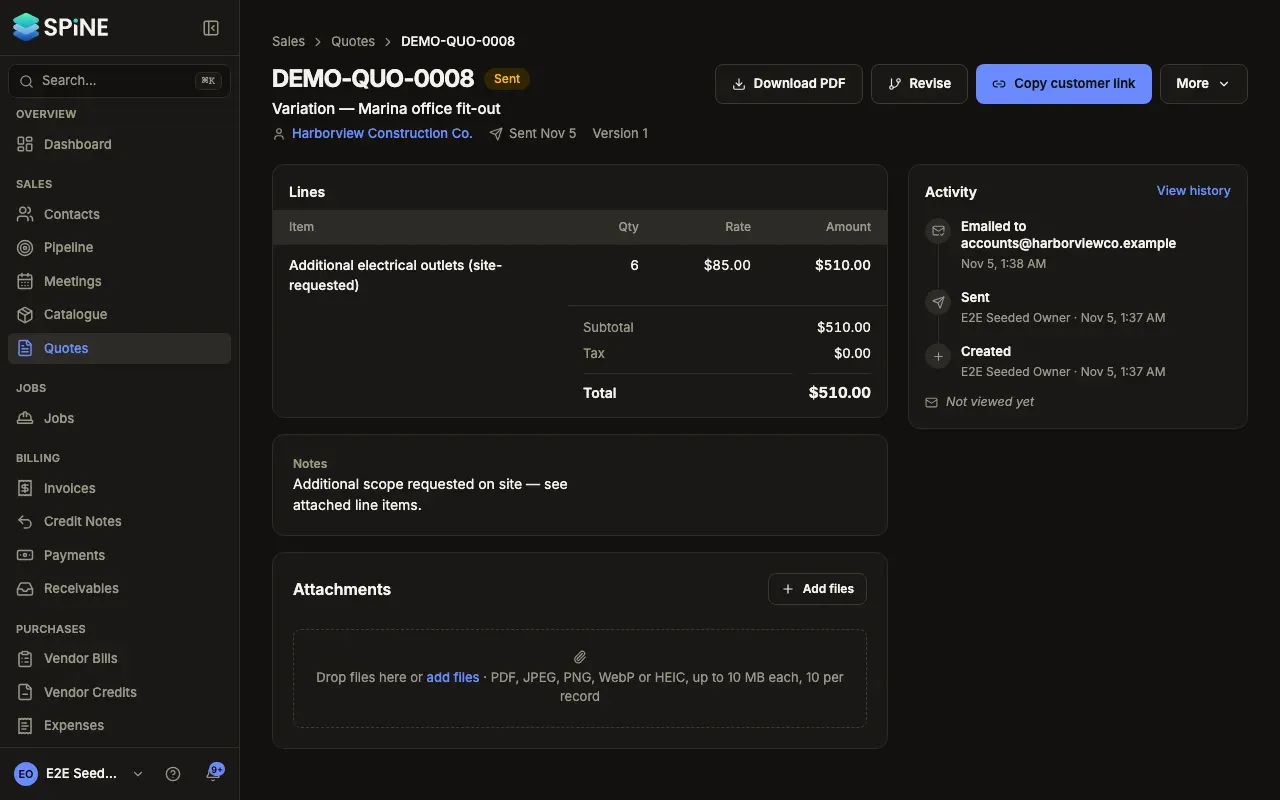
Download a sent quote — Open the quote and press Download PDF. The file is named after the quote number. You can also choose Download PDF from the row’s … menu on the Quotes list.
What the PDF shows
Section titled “What the PDF shows”The PDF shows your business name, address and logo, the word QUOTE, the number (or DRAFT before it’s sent), the date issued, Prepared for with the customer, and the quote’s title if it has one. Then come the lines with quantity, unit price, tax and total, headings in bold as section titles, text lines as paragraphs, then the Subtotal, Tax and Total, your notes and your terms.
Make the PDF yours
Section titled “Make the PDF yours”- Your logo and address come from Settings › Business profile.
- Your brand colour and footer come from Settings › Branding; the colour is the PDF’s one accent.
- The title, columns, default notes and terms, signature and paper size are set per document in Settings › Documents, on the Quote tab.
These settings are Owner-only. See Settings.
A quote’s PDF always comes out the same for the same quote, so a downloaded copy matches what the customer received.
If you preview without choosing a contact, you see “Select a contact to preview the quote.”
Last updated with Spine 1.0.0-beta.2