

Turn on the AI assistant
AI is off until an Owner connects a provider and switches it on. You choose where AI requests go: a model running on your own network, or a cloud service paid for with your business’s own key.
-
Open the AI settings — Open your user menu, choose Settings, then AI assistant under Business. Searching settings for “AI”, “provider” or “model” finds it too.
-
Choose a provider — Under Provider, pick:
- Local or OpenAI-compatible — a model on your own network (such as Ollama or vLLM) or any OpenAI-compatible service. Enter the Server address, for example
http://192.168.1.20:11434/v1, and an API key (optional) if your server asks for one. - Anthropic Claude — enter your business’s API key.
- Local or OpenAI-compatible — a model on your own network (such as Ollama or vLLM) or any OpenAI-compatible service. Enter the Server address, for example
-
Choose the model — Model lists the models the provider reports. You can type one it doesn’t list.
-
Test the connection — Press Test connection. It shows “Connected · model · reads images: yes” (or no). If it can’t connect, it says why and asks you to check the address and key.
-
Save — Press Save. The toast says “AI provider saved”.
-
Switch AI on — Use the switch at the top of the pane. For a provider outside your own network, “Turn on AI?” says business data will be sent to that host when people use AI features, and lists what each feature sends. Press Turn on AI. The toast says “AI assistant is on”.
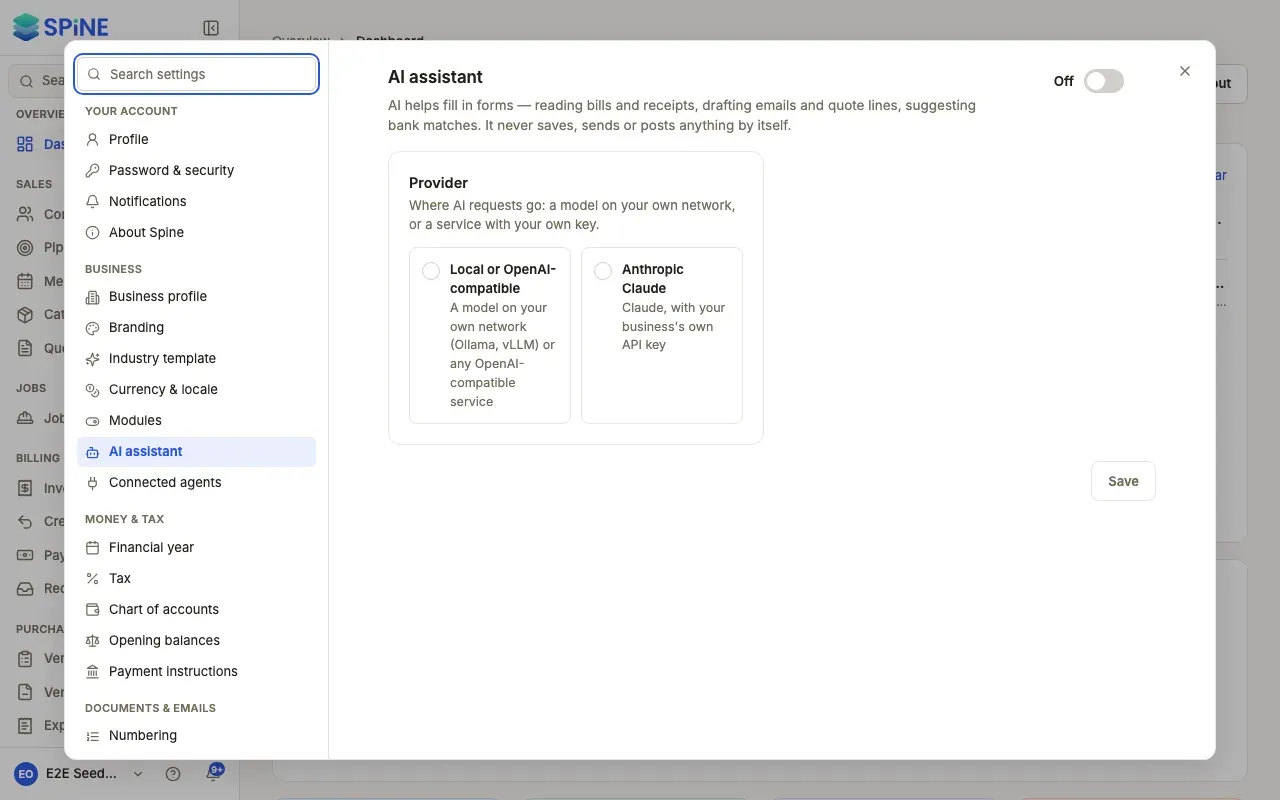
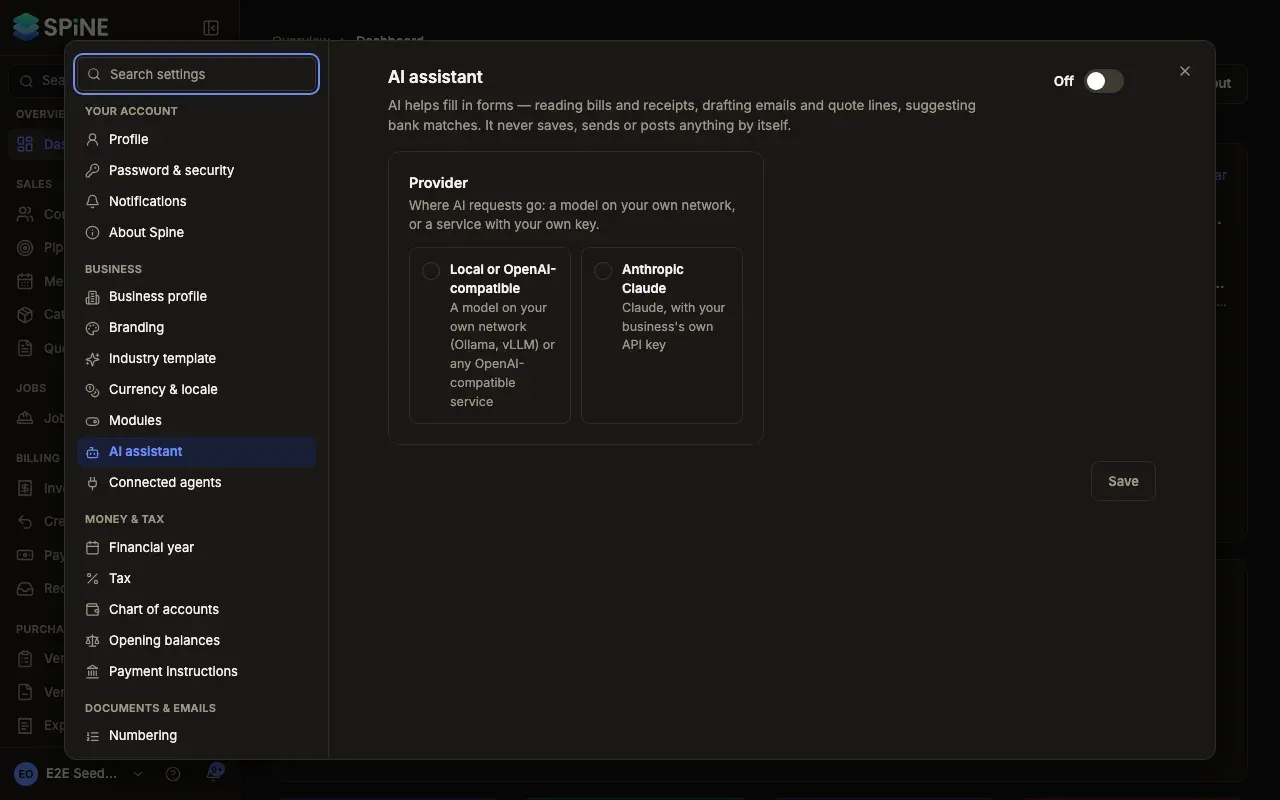
If you switch AI on before saving a provider, Spine says “Connect a provider first.” and the switch stays off.
About the API key
Section titled “About the API key”The key is stored encrypted. It’s never shown again, written to logs or included in data exports. After saving, it shows only its last four characters, with Replace key.
Switch AI off
Section titled “Switch AI off”Use the same switch. “Turn off AI?” says AI buttons disappear for everyone and nothing already saved changes. Press Turn off AI.
The AI assistant row in Settings › Modules shows the same setting — “Off” or “On” with the provider’s host — and Set up in AI assistant opens this pane.
Changing the provider later
Section titled “Changing the provider later”Changing the provider, model or key is recorded in the audit log, without the key. If you move AI to a cloud host while it’s on, Spine asks “Send AI requests here?” first; press Use this provider.
Last updated with Spine 1.0.0-beta.2