

Build a quote
A quote starts as a draft. You can change it as often as you like, and the customer sees nothing until you send it. Totals update as you type, with tax worked out line by line.
-
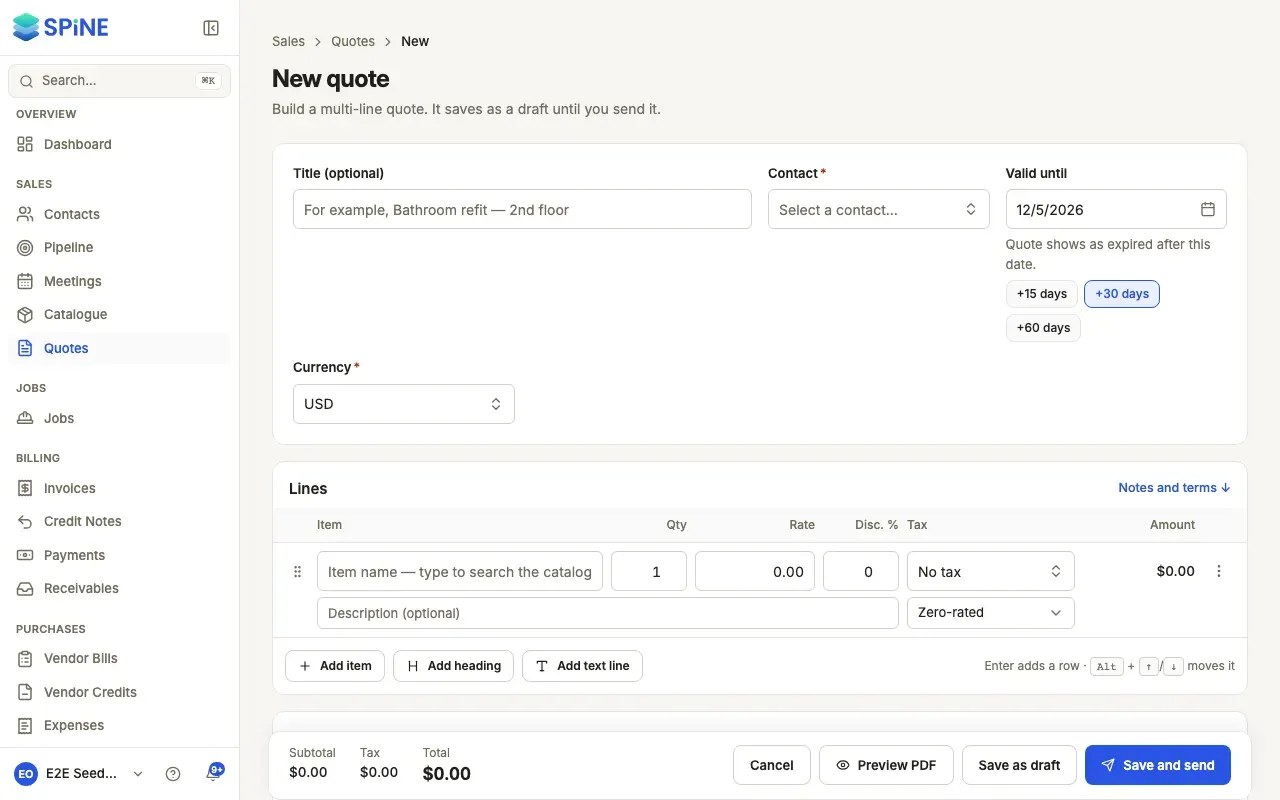
Start the quote — Go to Quotes and press New quote.
-
Fill in the top — Give it a Title (optional), such as “Bathroom refit — 2nd floor”, so you can tell a customer’s quotes apart. Choose the Contact (required) and the Currency. Valid until starts at today plus your usual number of days; press +15 days, +30 days or +60 days to change it, or clear it.
-
Add item lines — In Item, type to search your catalogue and pick an item. Its price and tax fill in, and you can change them. Set Qty, Rate, Disc. % and Tax. The Amount and the totals update straight away.
-
Add a line that isn’t in the catalogue — Type its name and choose Use “name” as a one-off line. Tick Also save to catalogue to add it as a catalogue item when you save the quote.
-
Add sections — Press Add heading for a section title, or Add text line for a paragraph. They have no quantity or price and add nothing to the totals.
-
Add notes and terms — Notes are shown to the customer on the quote. Put payment terms and conditions in Terms & conditions.
-
Save — Press Save as draft (on a draft you’re editing, Save draft). You land on the quote’s page.
Working with lines
Section titled “Working with lines”- Add description under an item adds a second, lighter line of detail.
- Drag a row by its handle, or use Move up and Move down in the row’s menu (or Alt + ↑/↓).
- Price includes tax and Remove line are in the row’s menu.
- Press Enter in the last row’s Amount or Tax field to start a new row.
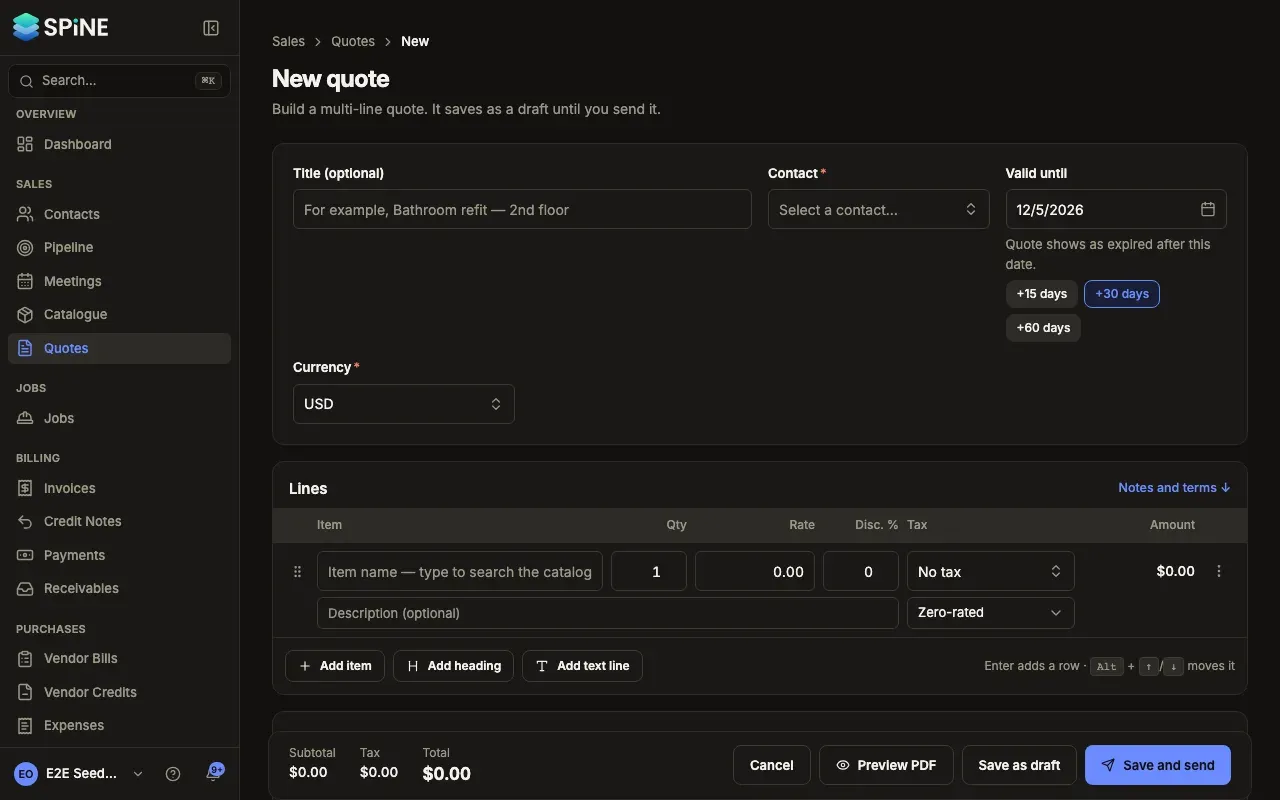
The bar at the bottom stays in view, with the totals, Cancel, Preview PDF, Save draft and Save and send. Save and send saves the draft and opens the send dialog; you see it only if you may send quotes and no discount needs approval.
A quote started with Create quote on a won lead has the lead’s contact and says which lead it’s for. To add a standard package in one go, see Save and reuse lines as a bundle.
Last updated with Spine 1.0.0-beta.2