

Edit, archive or delete a contact
Edit a contact when its details change. Archive a contact you no longer work with: it leaves your lists and pickers but keeps all its history. Delete only a contact you added by mistake.
Edit a contact
Section titled “Edit a contact”- Open the contact — Go to Contacts and open it, or choose Edit from the row’s menu.
- Change the details — Press Edit. Change the type, name, email, phone, tax ID or website.
- Save — Press Save. A “Contact updated” toast shows.
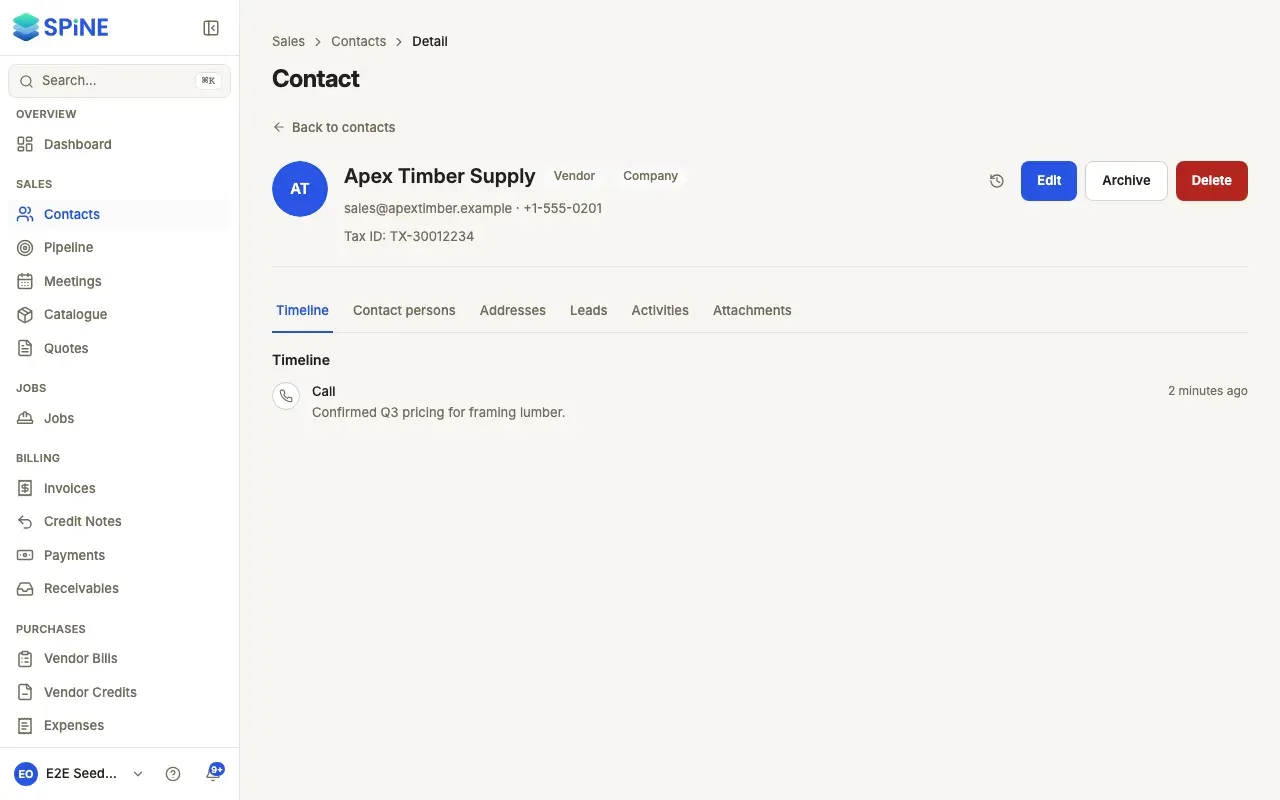
To add a logo, press Upload logo on the contact’s picture. To see who changed what, press View history. Each change reads as a sentence, such as “Sarah Mendes changed the phone from +1-555-0107 to +1-555-0177”.
Pause automatic reminders for one customer
Section titled “Pause automatic reminders for one customer”If your business sends automatic payment reminders, a customer’s page has Pause automatic reminders. Turn it on and the customer won’t get automatic reminders until you turn it off again. A toast says “Reminders paused” or “Reminders on”.
Archive or restore a contact
Section titled “Archive or restore a contact”On the contact’s page, press Archive, or choose Archive from the row’s menu in the list. A toast says “Contact archived”. To bring it back, filter the list by Archived, open the contact and press Restore.
Delete a contact
Section titled “Delete a contact”- Choose Delete — On the contact’s page, press Delete, or choose Delete from the row’s menu.
- Confirm — Spine asks “Delete …?” and explains that this permanently removes the contact and its persons and addresses. Press Delete to go ahead, or Cancel.
Last updated with Spine 1.0.0-beta.2