

Approve or reject an expense
Approval is the check before an expense counts. Approving posts it to your books: the category’s expense account and input tax go up, and the account it was paid from goes down. Rejecting posts nothing and tells the submitter why, so they can fix it.
-
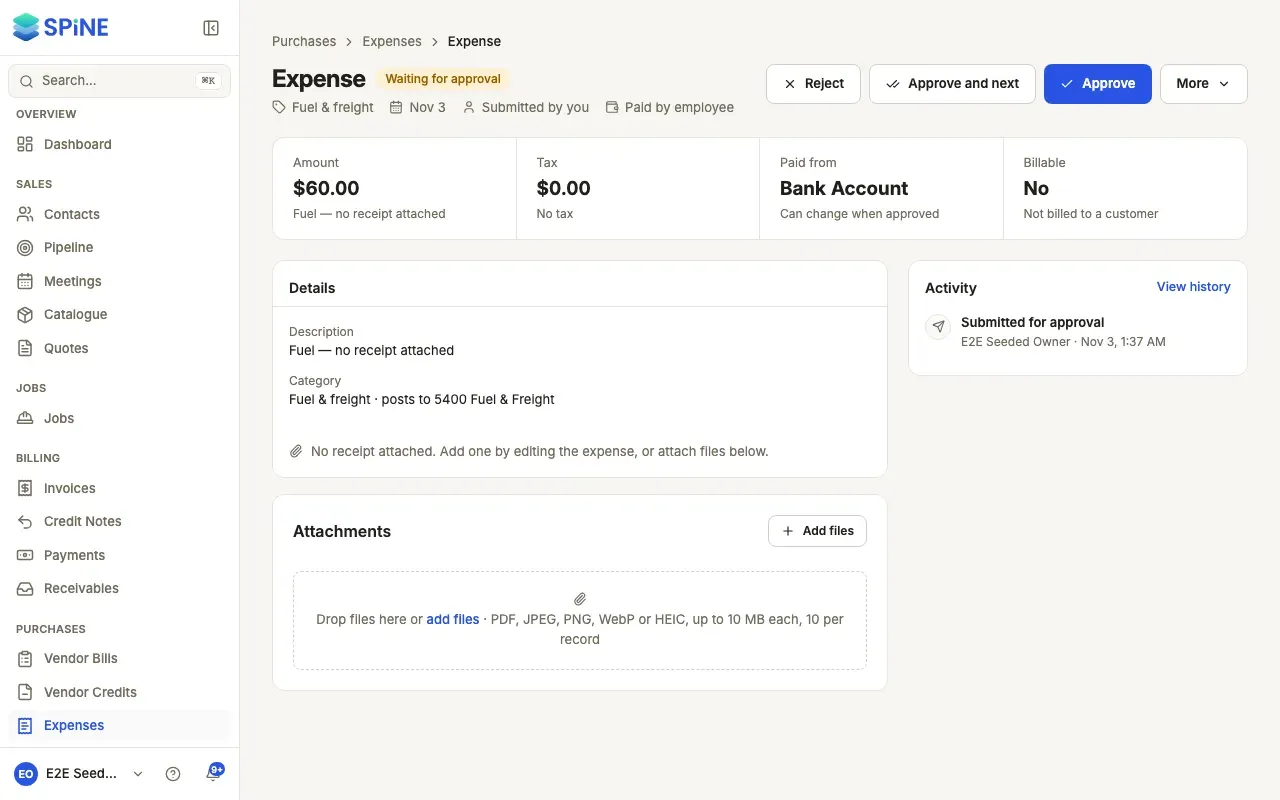
Open the expense — Go to Expenses and press the Waiting for approval card, then open an expense. Its page opens at its own address.
-
Check it against the receipt — The receipt is previewed beside the details: the photo, or the first page of a PDF. Open it full size if you need to. The strip shows Amount, Tax, Paid from and Billable, with the description and, for labour, each row.
-
Approve — Press Approve. “Approve this expense?” shows the account it’s paid from (Paid from), which you can change, and an optional Comment the submitter sees. Press Approve to confirm.
-
Or reject — Press Reject. “Reject this expense?” asks for the Reason — “Why is this being rejected?”. Press Reject to confirm.
What happens next
Section titled “What happens next”- Approved: a toast says it’s approved and posted to your books. The expense gets its number and reads Approved. The submitter is told in Spine and by email (“Expense approved — <category>”).
- Rejected: “Expense rejected” — it isn’t posted. The submitter sees your reason on the expense and can fix and resubmit it.
If you leave the reason empty, you see “Say why it’s rejected, so it can be fixed.”
Work through the queue
Section titled “Work through the queue”Press Approve and next instead of Approve. After you confirm, the next expense waiting for approval opens, oldest first. When there are none left, Spine says “That was the last one waiting for approval.”
To approve a whole batch from the list, see Approve several expenses at once.
Your own expenses
Section titled “Your own expenses”As Staff, when you open your own waiting expense, Approve and Reject aren’t offered, and the page says “Someone else needs to approve your own expense.” You can still edit or delete it while it waits.
The expense’s Activity keeps a record of each step — submitted, edited, rejected with the comment, resubmitted, approved with the account, and billed — with who and when.
Last updated with Spine 1.0.0-beta.2