

Create a Team
A Team is a group of Staff who need the same access — your accounts person, site supervisors or estimators. Every business starts with one Team, General Staff, marked Default. Create more when different people need different access.
-
Open Teams — In the sidebar, go to Team › Teams and press Create Team.
-
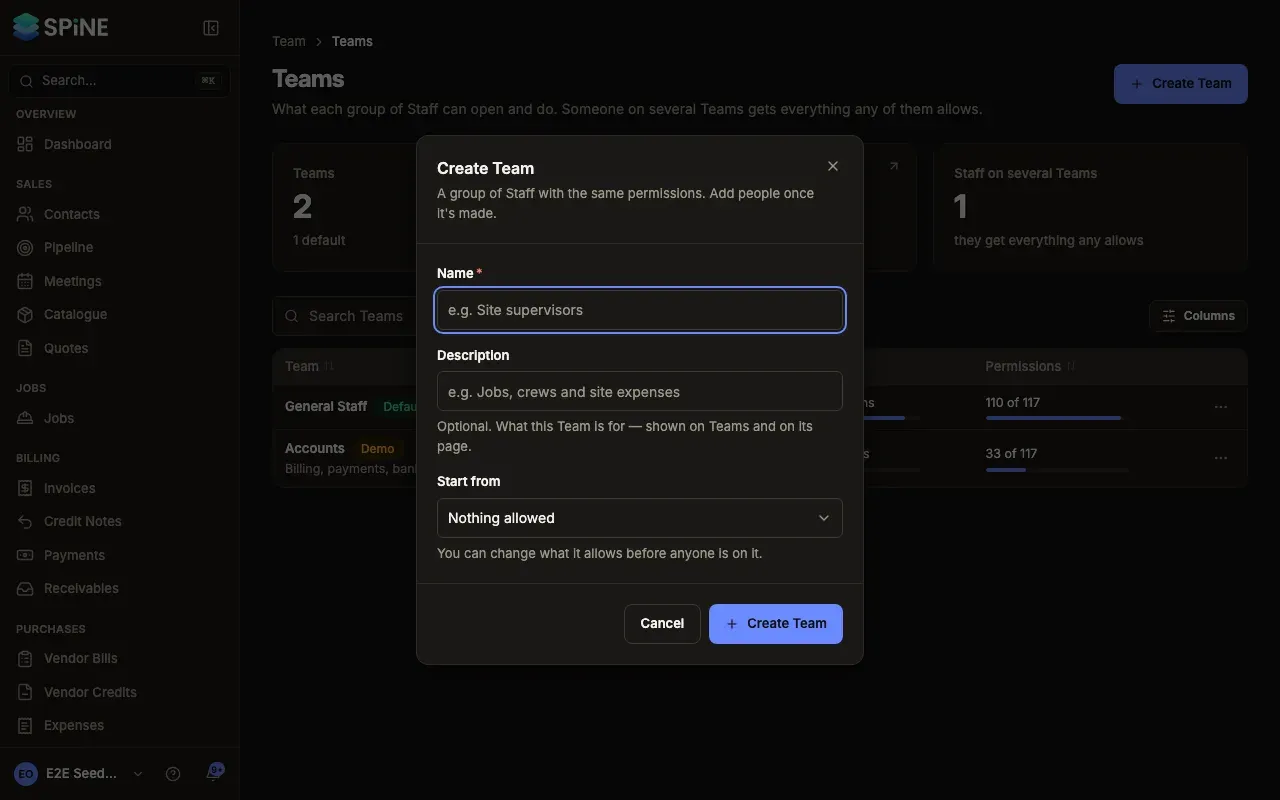
Name it — Enter a Name (for example “Site supervisors”) and, if you like, a Description of what the Team is for. It shows on Teams and on the Team’s page.
-
Choose where to start — Under Start from, pick Nothing allowed for an empty Team, or another Team to copy its permissions. Only permissions are copied, never members.
-
Create it — Press Create Team. Spine opens the new Team’s Permissions tab, and the toast says to check what it allows, then add people.
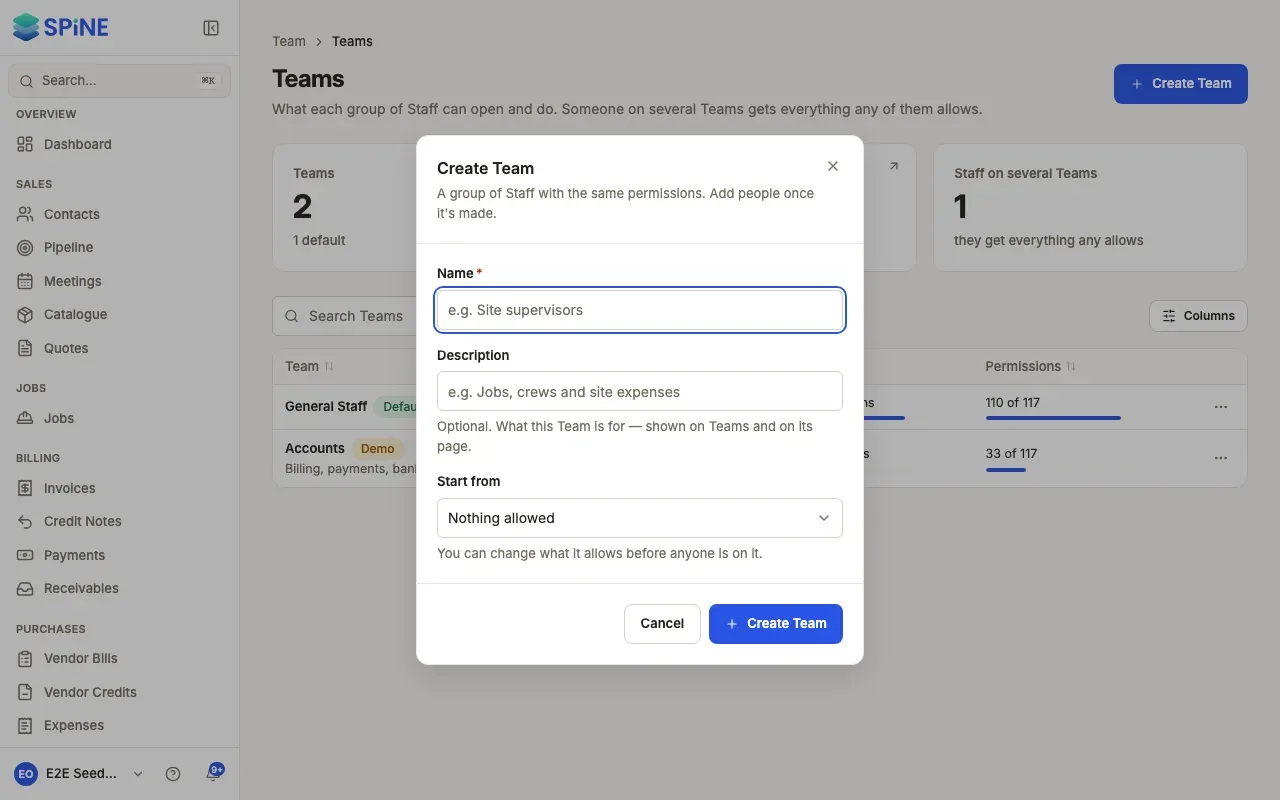
A Team made with Nothing allowed starts with every section closed. Its members can’t open anything until you turn permissions on. See Choose what a Team can do.
Duplicate a Team
Section titled “Duplicate a Team”On Team › Teams, open a Team’s row menu and choose Duplicate. The dialog opens with the name “Team (copy)” and that Team’s permissions to start from; its members aren’t copied. Change the name and press Create Team.
Rename a Team
Section titled “Rename a Team”Choose Rename from the Team’s row menu on Teams, or from the menu on the Team’s own page. Change the name or description and press Save. The Team’s members and permissions stay as they are.
Read the Teams list
Section titled “Read the Teams list”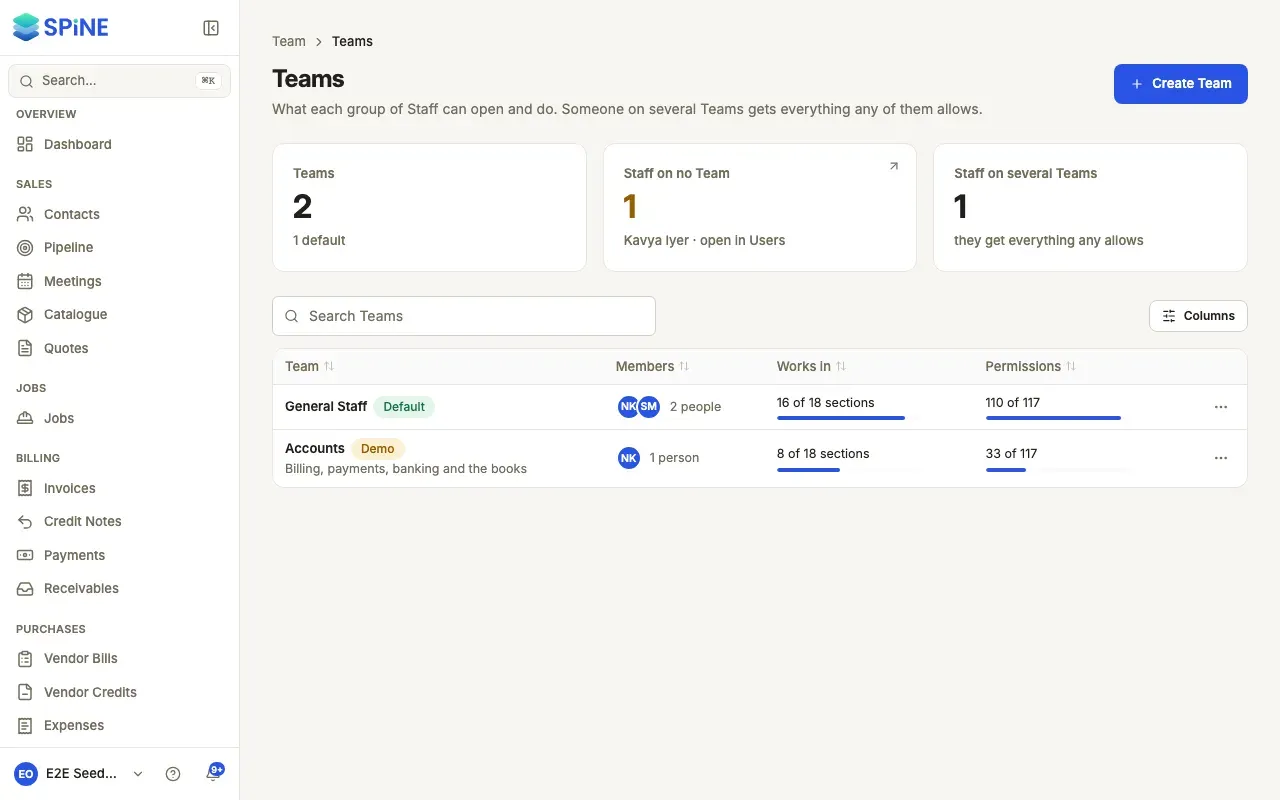
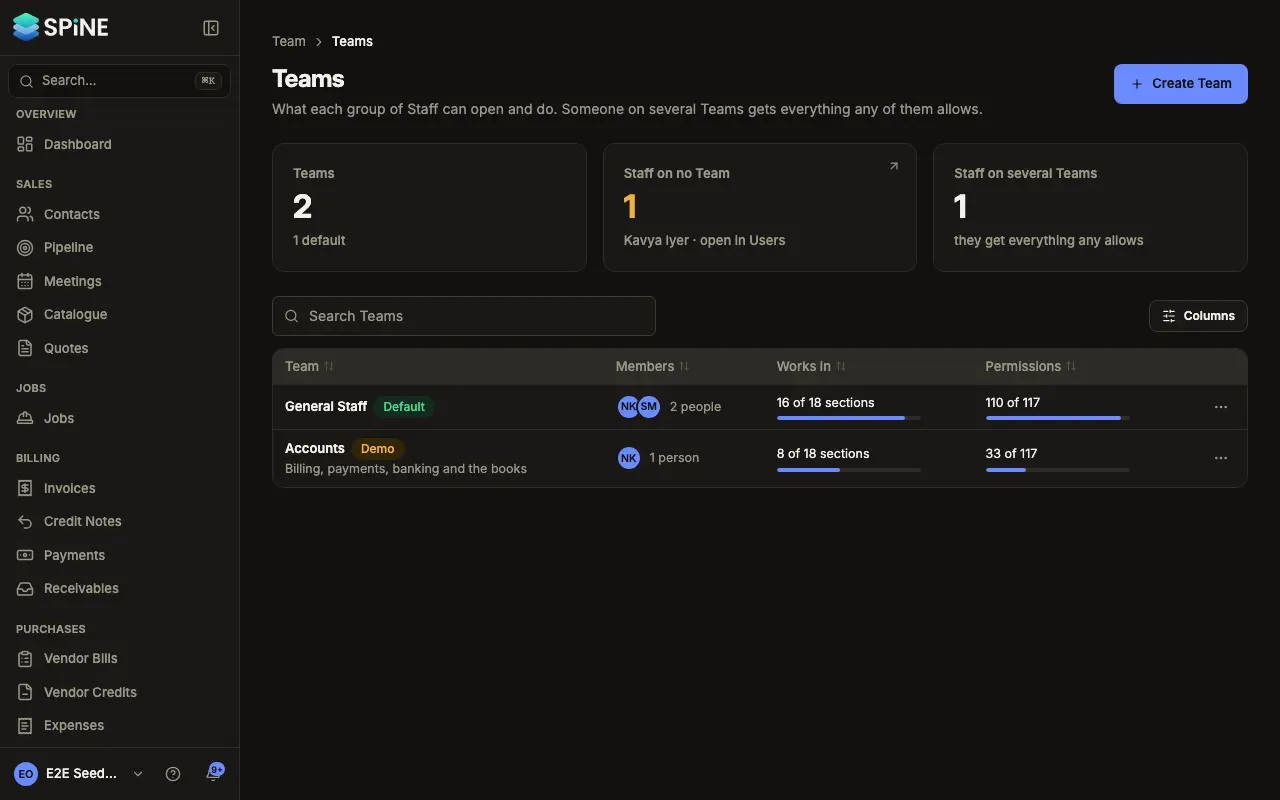
Each row shows the Team’s name with its Default or Demo badge, its members (“4 people” or “No one yet”), Works in — how many sections it can do something in, such as “7 of 18 sections” — and how many permissions it allows. The Staff on no Team card warns when someone can’t open anything; press it to see them on Users.
Last updated with Spine 1.0.0-beta.2